How to Create a Gimkit Game: Step by Step Guide
If you are trying to figure out how to create a Gimkit without feeling lost, you are in the right place. You want something simple, practical, and fast, not another tool that eats your planning time.
Here is the short version of how to create a Gimkit game. You create a free teacher account, build a Kit with questions, pick a game mode, share a join code with students, and then run it live or as homework. That is the whole loop. This guide slows that process down, adds real classroom tips, and saves you from guessing your way through the buttons.
You are also not the only teacher leaning on game-based tools. A national survey of K–8 classrooms found that more than half of teachers use digital games in class at least a few times a week, and many use them daily. You can see that pattern in the Joan Ganz Cooney Center’s report on digital games in the classroom. Another analysis of game-based learning shared by Prodigy reported that classes spent about 93 percent of their time on task with game-based learning, compared with 72 percent without it, which is a big gap in focus and attention. You can read those figures in Prodigy’s guide to game-based learning.
Let’s walk through this Gimkit tutorial for teachers step by step so you can see exactly how to create a Gimkit that fits your lessons.
Do Read: Classkick Login Guide
How to Create a Gimkit: What Gimkit Actually Is

Gimkit is an online quiz game platform built for classrooms. You create a question set, which the site calls a Kit. Students join your game on their own devices and earn in-game cash for correct answers.
With one Kit you can:
- Run a live game in class.
- Turn that same Kit into a self-paced homework assignment.
Most teachers use it for vocabulary practice, unit review, exit tickets, or a quick check before a test. Reviews of digital game-based learning link this style of activity with higher motivation and better engagement in many subjects.
In plain terms, a Kit feels like a classroom game show that quietly does your formative assessment in the background. Once you know how to create a Gimkit game, you get both the fun and the data in one move.
This article also doubles as a Gimkit host guide, so by the end you should feel ready to set up, host, and reuse games with real groups.
Step 1: Gimkit Tutorial for Teachers – Create Your Account and Learn the Dashboard
The first step in how to create a Gimkit is just getting into the platform.
You only need a few minutes for this part.
- Go to the Gimkit site and sign up as a teacher.
- Use your school email or a Google login so you keep access if you change devices.
When you land on the dashboard, you will see three big areas.
- My Kits – this holds all your question sets.
- Classes – this groups students if you want rosters.
- Assignments – this turns Kits into homework.
Spend a short time clicking each tab. You do not need to set everything up on day one. A simple first move works well: create a “Test Class” and a “Test Kit” so you can try things without any pressure while you learn how to create a Gimkit game in a safe space.
Surveys of teachers show steady growth in classroom game use. More than half of teachers in recent national samples report using digital games in lessons at least two days a week, and a noticeable share use them daily. So if the dashboard looks busy at first, remember many teachers learned it by creating one small Kit at a time.
Step 2: How to Create a Gimkit Game from Scratch
Now we get to the part you probably care most about. This is the core of how to create a Gimkit game from scratch.
Add Kit Details: Title, Language, Subject, and Cover
On the My Kits page, click the button to create a New Kit.
You will see a short setup screen:
- Title – keep it clear. Try “Unit 3 Cell Structure Review” or “Fractions Quiz Period 2”.
- Language – pick the language you teach in.
- Subject – choose from the list, such as Math, Biology, and English.
Gimkit then asks for a cover image. Students will not stare at this for long, yet it helps you spot the right Kit quickly when you have many of them.
If you teach several groups, naming matters more than you might expect. A simple pattern like “Grade – Unit – Topic – Purpose” keeps things tidy. For example, “7th – Unit 4 – Ratios – Pre quiz”. This small habit pays off once you know how to create a Gimkit for every unit and end up with a long list of Kits.
Do Check: RTI Scheduler
Add Questions: Multiple Choice, Media and More
Once the shell of the Kit exists, you start adding questions. This is where how to create a Gimkit game meets your real curriculum.
Most teachers begin with multiple choice. A smooth pattern looks like this:
- Write one clear question.
- Add two to four answer options.
- Mark one option as correct.
Keep each question about one idea. If you cram three ideas into one item, weaker students often shut down. Short, focused questions give you cleaner data in the reports.
You can also add images or audio:
- Pictures work well for science diagrams, maps, graphs, and vocabulary.
- Audio clips help a lot in language classes where listening practice matters.
Treat each question as a small check of understanding. You are not trying to stump students every time. You want to see who has the idea and who needs another pass.
Time Saving Options: Question Bank, Flashcards and CSV Import

Once you move past your first Kit, you will want faster ways to build content. Any Gimkit tutorial for teachers that pretends you have endless time is not honest.
Gimkit supports a few shortcuts.
Question bank
You can pull questions from older Kits into new ones. After a few months, you have a personal bank of items for each topic. That bank saves real time when you teach the same content again and already know how to create a Gimkit for that unit.
Flashcard import
If you already have flashcards on a site like Quizlet, you do not need to retype everything. Export your card set, copy the text, then paste it into the Gimkit import box. Gimkit turns those lines into questions and answers.
CSV import
If your team likes spreadsheets, you can build a whole Kit in a CSV file. You fill columns for question text, correct answer, and wrong answers, then upload the file. This works well when a department shares one big bank across classes and wants a shared way for how to create a Gimkit game that everyone can use.
A small tip here. Run a short test game by yourself before you show the Kit to students. You will catch typos and broken imports much faster that way.
Do Check: GoAnimator Alternatives for Students
Step 3: Game Modes in Your Gimkit Tutorial for Teachers
Game modes change how the session feels. You still use the same questions, but the rules of the “game show” change.
Gimkit offers:
- Classic money-earning modes.
- Fast pressure modes where cash drains over time.
- Social deduction modes with impostors and teams.
Here is a simple way to choose.
- You want a calm review with time to talk after. Pick a slower, student-paced mode.
- You want high energy at the end of a long day. Pick one of the more intense modes.
- You want strategy and decision-making. Use a mode where students pick upgrades or manage risk.
Many teachers mix modes across a unit. A calmer mode for the first contact with content. A more intense mode near the test to keep review lively. Once you know how to create a Gimkit, you can reuse the same Kit in two or three different modes.
A literature review in Computers and Education looked at dozens of studies on Kahoot and found that quiz style games tend to lift learning performance, improve classroom mood, and support positive attitudes. You can find that Kahoot review on ScienceDirect. Gimkit follows a similar quiz pattern, so you can expect similar help when you use it with clear goals.
This section sits at the center of your Gimkit tutorial for teachers, because game mode choice can make the same Kit feel calm, wild, or deeply strategic.
Step 4: Gimkit Host Guide for Live Games and Homework
Once your Kit and mode are set, you are ready to host your first game. This is where the Gimkit host guide part becomes real.
Running a Live Gimkit Session: Join Code, Teams, and Pacing
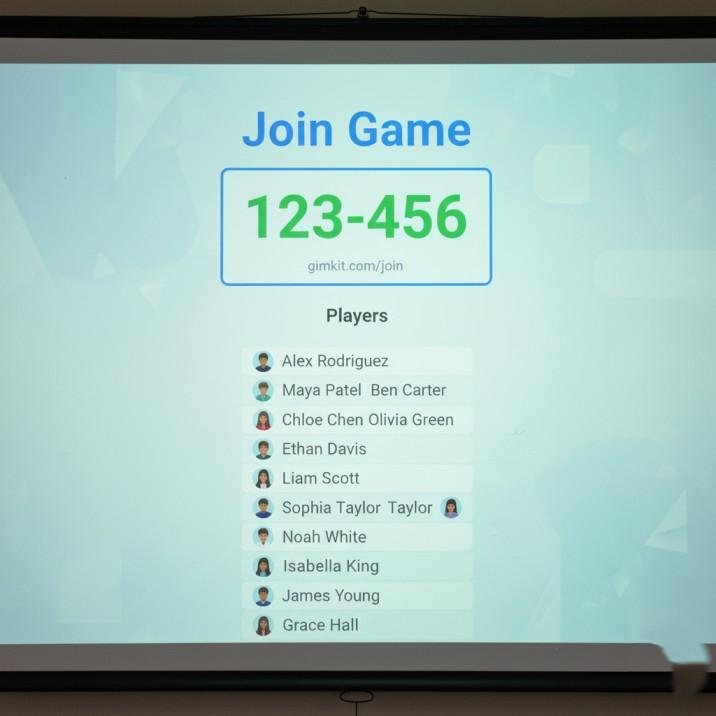
From the Kit page, choose to Play live. Then pick your game mode and adjust settings like time limit or target score.
Gimkit now shows a join screen with a game code.
Here is how those codes usually look.
| Item | Example value |
|---|---|
| Join URL | gimkit.com/join |
| Game code | 123-456 |
| Student name | First name only |
Students visit the join page on their device and enter the code and a name. They appear on your lobby screen as they connect.
Think of this section as the heart of your Gimkit host guide. Once you feel calm here, the rest of the tool feels lighter.
How students redeem your code and join the game
- Ask students to open a browser on any device.
- Tell them to type the join URL into the address bar.
- Show or read the game code at the front of the room.
- Students type the code and their name, then tap join.
- Wait until most names appear on your screen, then start the game.
You can run games with students playing alone or in teams.
- Use individual play when you want a clean read on each student.
- Use teams when you want more talk, peer teaching, and a louder room.
Watch pacing and noise. A quick “two minutes left” warning keeps students focused. A short debrief at the end turns the game into learning, not just a race for points.
Do Check: Blooket Pins
Using Gimkit as Homework or Self-Paced Practice
You do not always need live play. Sometimes you just want students to practice on their own time.
To set that up, turn a Kit into an Assignment. You pick:
- Start date and due date.
- Number of questions or target cash.
- Whether students can retry the assignment.
Homework works well for:
- Vocabulary review before a test.
- Short checks after a lesson.
- Catch up work for absent students.
When students finish, you can see who completed the assignment and how they did. Game-based learning stats show that classes often stay on task longer in these formats, which lines up with the Prodigy research mentioned earlier.
At this point, you not only know how to create a Gimkit game, but you also know how to run it live and as homework with the same Kit.
How to Use Gimkit in the Classroom Every Week
Now let’s talk about how to use Gimkit in the classroom in a way that fits your week, not just a perfect demo day.
Once you understand how to create a Gimkit, the real win is turning it into a weekly habit.
Language and vocabulary
You can build Kits for:
- New vocabulary in English or other languages.
- Synonyms, antonyms, and context clues.
- Listening questions with short audio clips.
Say you teach French. You can play a short phrase and ask students to pick the matching written phrase or translation. One quick Kit can cover a whole list of phrases.
Math
Math teachers often turn to Gimkit for:
- Basic fact practice.
- Algebra steps.
- Word problems with short answers in the options.
Picture a seventh-grade class. You build a Kit with fraction questions. One live game at the start of class shows which fraction types cause the most trouble. You adjust your plan for the next day around that. This is a very real way how to use Gimkit in the classroom can shape your teaching, not just entertain students.
Science
Science fits well with image questions and diagrams.
You might:
- Show a diagram of a cell and ask students to label parts.
- Show a graph and ask which statement matches the trend.
- Use photos of lab tools and ask about correct use.
Social studies and history
Here you can build Kits that focus on:
- People and dates.
- Cause and effect chains.
- Map-based questions with routes or regions.
Short Kits also work well as exit tickets. Five questions at the end of a lesson show who is ready to move on and who needs another look at the topic.
Studies in this area point to the same pattern. Teachers who use digital games often see higher engagement, better attitudes, and stronger learning outcomes than in lessons without games. So, weaving how to use Gimkit in the classroom into your weekly routine can support both attention and results.
Managing Kits, Folders, and Reports Like a Pro
Once you create more than a handful of Kits, you need a simple system to keep them tidy. This is the part most Gimkit tutorial for teachers guides skip, yet it matters a lot once you know how to create a Gimkit for every unit.
Folder ideas
You can group Kits by:
- Subject then unit.
- Grade then term.
- Class period.
Many teachers use a pattern like “Subject – Unit – Lesson type”. For example:
- Biology
- Unit 3 Cells
- U3 Cells Vocab
- U3 Cells Review Game
- U3 Cells Exit Ticket
Naming and cloning
Name Kits so you can see the purpose at a glance, such as:
- “U5 Algebra – Practice”
- “WW2 – Causes – Review”
When you teach the same content to several groups, clone a Kit and tweak the title. You might adjust a few questions for a higher or lower group. This makes how to create a Gimkit game for each class much faster, since you start from a working base.
Reading reports

After each game or assignment, check the report for:
- Questions that many students missed.
- Students who scored far below or above the class.
You can then:
- Plan a short re-teach on problem topics.
- Build groups for the next lesson.
- Adjust future homework targets.
This is the part where how to create a Gimkit and how to use Gimkit in the classroom. The game is fun, but the real value comes when you use the reports to plan your next step.
Free vs Paid Gimkit Plans: What Do You Really Need
Gimkit offers a free tier and paid plans. Exact limits can change, so always check the pricing page before you decide.
In general:
- The free plan gives you a set number of Kits and game modes.
- Paid plans add more modes, more storage, and extra options.
Many teachers start on the free plan and stay there for quite a while. Once you know how to create a Gimkit game that works for your class, you can decide later if more features are worth it.
A simple guide:
- If you run Gimkit once a week with a few Kits, the free plan should work.
- If you run it daily across many classes and share content with a department, a paid plan will feel more comfortable.
This move toward tools like Gimkit sits inside a wider shift in schooling. A market report from Grand View Research estimates that the global education technology market could reach about 348 billion dollars by 2030, driven by steady growth from 2026 onward. You can see those forecasts in their education technology market report. You do not need every new product. Picking one quiz game, learning how to create a Gimkit, and using it well can already give your students a clear lift.
FAQ: Common Questions About Creating a Gimkit
How do you create a Gimkit game from scratch?
You log in, click New Kit, and add a title, language, and subject. Then you add questions, pick a game mode, and press play. Finally, you share the join code with students. After two or three runs, this whole how to create a Gimkit game flow takes only a few minutes.
Is Gimkit free for teachers in 2026?
Gimkit still offers a free plan in 2026, with limits on features and the number of Kits you can keep. Paid plans unlock more modes, larger storage, and extra options. Many teachers start on free, learn how to create a Gimkit, then upgrade only if they use it heavily.
How do students join a Gimkit game?
Students open a browser, go to the join page, and type the game code and their name. They do not need their own accounts for live play in most setups. You control when the game starts, so wait until most names appear on your screen before you begin.
Can students create their own Gimkits?
Yes, students can create Kits when you allow it. Many teachers turn this into a project. Small groups build question sets for a topic, then the class plays each group’s game. This gives students a hands on way to learn how to create a Gimkit themselves.
How do you use Gimkit as homework instead of a live game?
From your Kit, choose to Assign instead of playing live. Set a due date, adjust settings like number of questions or target cash, then share the assignment with your class. Students play on their own time, and you check results in the reports section once the deadline passes. This is one of the easiest ways how to use Gimkit in the classroom outside live lessons.
Before You Close This Tab
By now you have seen how to create a Gimkit, host it, and fold it into real lessons. You can:
- Set up your account.
- Build a Kit from scratch.
- Pick game modes that match your class mood.
- Run a live session or homework task.
- Read the reports and adjust your teaching.
The next move is small and clear. Pick one lesson this week, create a Kit with 10 to 15 questions, and try a single game with one class. Watch how students react, look at the report, then tweak your next Kit based on what you see.
If this felt like a friendly Gimkit tutorial for teachers, keep it open while you build your first few games. Share your own twists with colleagues once you feel confident. When you know how to create a Gimkit game and how to use Gimkit in the classroom, review time stops feeling flat and starts feeling like something students actually look forward to.

Axee Davies is the founder of AxeeTech, publishing gaming guides, codes, and Windows how-tos since March 2013. A tech enthusiast for 13+ years — starting with smartphones and Android rooting — he now runs a site that puts out a new guide every day for Roblox players, traders, and Windows users. More about AxeeTech
More Guides You May Like
 What Is the Blue Dot Beside the Battery in Samsung Phones After the One UI 9 Update?
 ArtCraft Review: 12 Free Adobe & Microsoft Office Alternatives (Launcher + Download Guide)
 Star Citizen Retribution: What It Is and Can You Buy It
 Star Citizen Ranta Dung: Where to Find It and Price
 Star Citizen Wikelo Ships: How to Get War Special Rewards
 Star Citizen Sabre Firebird: Specs, Price and Where to Buy
 Star Citizen Executive Hangar Guide: Timer and Rewards
 Star Citizen Teach’s Ship Shop: Location and Teach’s Special