How to Fix Xplane Error 1114: A Pilot’s Guide to Getting Airborne
“Xplane Error 1114” Picture this: You’ve got your flight plan filed. You’ve got your coffee (or something stronger) on the desk. You click the icon to launch X-Plane, ready to grease a landing in a 737, and then—clunk.
A nasty little box pops up: “LoadLibrary failed with error 1114: A dynamic link library (DLL) initialization routine failed.”
It’s the digital equivalent of an engine failure before you even leave the gate. It feels technical, scary, and frankly, annoying. I’ve been there, staring at my monitor, wondering if I need to reinstall 500GB of scenery.
The good news? You almost certainly don’t.
Xplane error 1114 isn’t usually a broken game file; it’s actually your computer trying to be too helpful. It’s trying to save power by restricting how your graphics card talks to X-Plane’s plugins. We just need to tell Windows to stop being so stingy with the juice.
Here at Axeetech, we will let you know how we fix it and get you back in the cockpit.
Also Read: Throne and Liberty Account Authorization Error 1013
The “Why”: What is Happening with Xplane Error 1114?
In plain English? Your laptop or PC has two modes: “Marathon Runner” (Power Saving) and “Sprinter” (High Performance).
When X-Plane tries to load certain heavy plugins (like GroundTraffic or AutoGate), your computer looks at them and says, “Whoa, that looks like hard work. I’m going to block that to save battery.” The plugin fails to load, the DLL crashes, and you get Error 1114.
We need to force your computer to be a Sprinter.

Method 1: The “Switchable Graphics” Fix (Do This First)
This is the golden ticket for about 90% of pilots facing this error. We need to dive into the old-school Control Panel.
- Open the Control Panel. Hit your Windows key, type “Control Panel,” and open it.
- Go to Power Options. If you don’t see it, switch the “View by” in the top right to “Large icons.”
- Edit your Plan. Click Change plan settings next to your current power plan (usually “Balanced” or “High Performance”).
- Dig Deeper. Click Change advanced power settings. A tiny, intimidating window will pop up.
- Find the Hidden Setting. Scroll down until you see Switchable Dynamic Graphics. Click the little
+to expand it. - Global Settings. Expand “Global Settings.” You will see options for “On Battery” and “Plugged in.”
- Maximize It. Change both of these to Maximize Performance.
- Apply and OK.
Why this works: You just told Windows, “I don’t care about battery life; I care about framerates.” This gives your plugins the permission they need to initialize properly.
Method 2: The GPU “Force” Maneuver
If Windows Power settings didn’t clear the Xplane error 1114, your graphics card driver might still be trying to “optimize” (read: break) things. We need to tell your GPU who is boss.
For NVIDIA Users:
- Right-click your desktop and open the NVIDIA Control Panel.
- Go to Manage 3D Settings.
- Click the Program Settings tab.
- Find X-Plane in the dropdown list (or add
X-Plane.exeif it’s missing). - Look for “Power Management Mode” and set it to Prefer maximum performance.
- Crucial Step: If you see an option for “OpenGL rendering GPU,” explicitly select your NVIDIA card, not “Auto-select.”
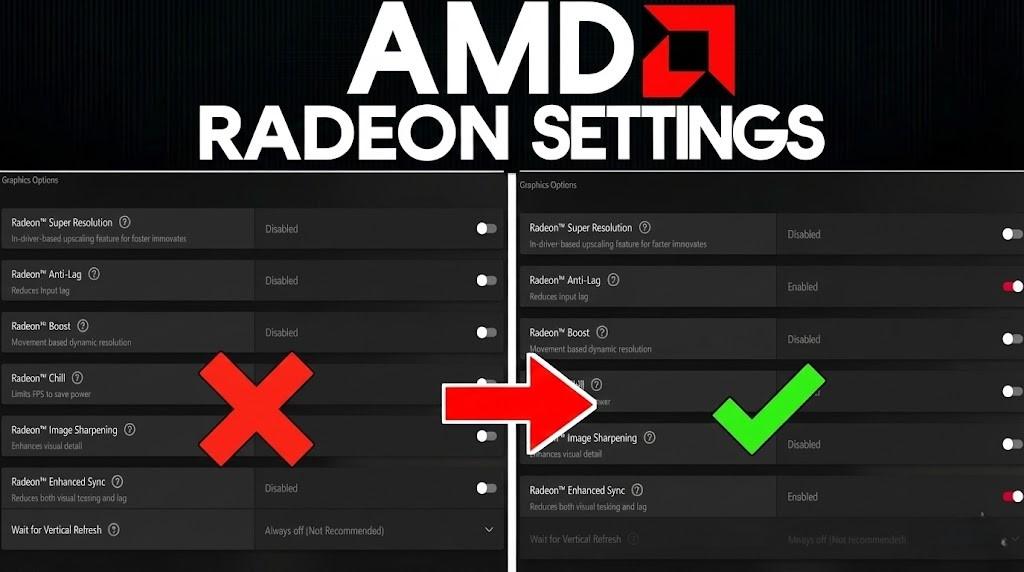
For AMD Users:
- Open your AMD Radeon Settings.
- Go to System > Switchable Graphics.
- Find X-Plane in the list.
- Change the setting from “Power Saving” or “Optimize” to High Performance.
Method 3: The Plugin “Spring Cleaning”
Sometimes, you might have too many plugins trying to do the same thing. A common culprit in the X-Plane community is the “GroundTraffic” plugin included in free sceneries. If you have 50 airports installed, and they all try to load their own version of this plugin simultaneously, Windows panics and throws Error 1114.
- The Test: Temporarily rename your
Resources/pluginsfolder toplugins_backup. Create a new, emptypluginsfolder. - The Check: Launch X-Plane.
If it loads perfectly, you know one of your addons is the troublemaker. You can move them back in groups of 5 until the error returns to catch the specific culprit.
FAQs: Xplane Error 1114
How to fix error 1114 in X-Plane?
To fix error 1114, change your Windows power plan settings to “High Performance.” Specifically, go to Control Panel > Power Options > Change plan settings > Change advanced power settings, find Switchable Dynamic Graphics, and set both “On Battery” and “Plugged In” to Maximize Performance.
What is loadlibrary failed with error 1114 a dynamic link?
This error message means a specific plugin or program (a DLL file) failed to open because your computer’s power settings blocked it from saving battery. The “dynamic link” part just refers to the specific file type (.dll) the system was trying to read.
How to fix dll not loading?
First, restart your computer to clear any temporary glitches. If that fails, verify your game files (via Steam or your specific launcher) or reinstall the specific software, as the DLL file itself might be corrupted or missing.
What is error code 1114?
Error code 1114 is often a typo for error 1114, which indicates a DLL initialization failure due to aggressive power-saving settings on your graphics card. If you see 11114 specifically in a different context (like a printer or specific bespoke software), it usually indicates a similar driver communication failure requiring a driver update or reinstall.
Final Thoughts
Flight simulation is a hobby of patience. We wait for clearances, we wait for downloads, and sometimes, we wait for bug fixes. But Xplane error 1114 is one delay you shouldn’t have to tolerate.
Hopefully, switching your power plan to “Maximize Performance” was the magic bullet you needed. Now that your DLLs are happy and your GPU is running full throttle, you are clear for takeoff. Blue skies!
Do read our other guides:
- How to Fix the pr_end_of_file_error
- How to Fix Skate Error Code 3967269002
- Skate Error Code 1478078408
- ESPN Error Code 43

Axee Davies is the founder of AxeeTech, publishing gaming guides, codes, and Windows how-tos since March 2013. A tech enthusiast for 13+ years — starting with smartphones and Android rooting — he now runs a site that puts out a new guide every day for Roblox players, traders, and Windows users. More about AxeeTech
More Guides You May Like
 What Is the Blue Dot Beside the Battery in Samsung Phones After the One UI 9 Update?
 ArtCraft Review: 12 Free Adobe & Microsoft Office Alternatives (Launcher + Download Guide)
 Star Citizen Retribution: What It Is and Can You Buy It
 Star Citizen Ranta Dung: Where to Find It and Price
 Star Citizen Wikelo Ships: How to Get War Special Rewards
 Star Citizen Sabre Firebird: Specs, Price and Where to Buy
 Star Citizen Executive Hangar Guide: Timer and Rewards
 Star Citizen Teach’s Ship Shop: Location and Teach’s Special