The Only Delta Executor Download Guide for PC & Mobile You Will Need (2026)
Are you looking for a Delta Executor Download Guide to run supportive Roblox game scripts? Then you are at the right place on Axeetech. You are tired of clicking through twenty fake download buttons, dodging sketchy pop-ups, and wondering if you are about to brick your device just to run a few scripts. We have all been there. It is the most frustrating part of the Roblox exploiting scene.
That is exactly why I am writing this. I wanted to cut through the noise and give you a genuine, human-verified walkthrough for the Delta Executor Download process in 2026. Whether you are on your phone or sitting at your desk, we are going to get this running together, step by step, without the headache.
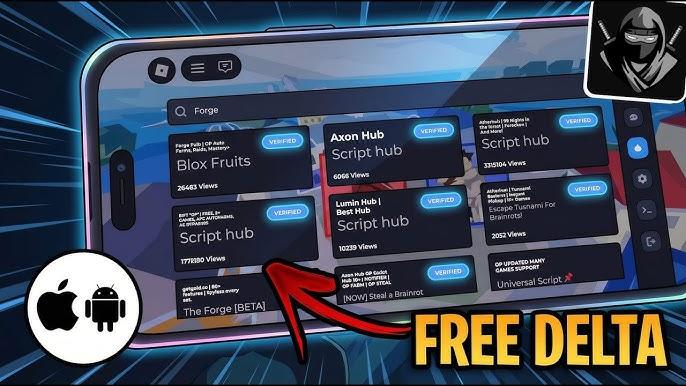
What Actually Is Delta Executor?
Before we jump into the files, let us get on the same page. If you are new to this, Delta Executor is essentially your bridge. It takes the scripts you want to use (the code that gives you super speed, auto-farming, or whatever fun stuff you are after) and translates them so the game understands them.
It is popular right now because it is lightweight. It does not drag your device down, and frankly, the interface is cleaner than most of the clunky alternatives out there.
Do Check: 11 Best Roblox Script Executors
Delta Executor Download for PC, Android: Which Version Do You Need?
Most people assume these are the same file, but they are not. The architecture for your phone is totally different from that of your computer.
- For Android Users: You will be dealing with an APK file. [Download Link for Delta Executor Apk]
- For PC Users: You have a couple of choices, but we will focus on the native Windows application because it is smoother.
Let us break this down by device.
Pro Tip: Get Delta Executor for iOS
Part 1: The Android Installation (Mobile)
This is where Delta really shines. It feels built for touchscreens. Here is how we get it on your phone without pulling your hair out.
1. The Prep Work Android creates a lot of safety walls. We need to lower a couple of them temporarily. Go to your Settings, find Security or Privacy, and look for “Install from Unknown Sources.” You need to turn that on. I know, it sounds scary, but since Delta is not in the Play Store, this is the only way to let it in.
2. Uninstall the Original Game. This is the part that always makes me nervous, but you have to do it. You need to uninstall the official Roblox app from your phone. Delta works by effectively replacing that app with its own modified version. If the original is still there, they will clash, and the installation will fail every time.
3. The Download Head to the official site and grab the Delta Executor Download for Android. It should be a single APK file.
- Mentor Note: If the download asks you to install a “download manager” or some random antivirus software first, you clicked a fake ad. Close it and try the other button. The file should just be the APK.
4. Install and Launch Tap the file you just downloaded. Your phone will ask if you are sure. You are. Once it installs, open it up. You will see the Roblox login screen. Log in exactly like normal. When you load into a game, you should see the Delta icon (usually a teardrop or triangle shape) floating on the screen.
Do Check: Synapse X Roblox Executor
Understanding Versions: Delta Executor v2.704 APK
You asked about v2.704. In the world of executors, version numbers move fast. By the time you read this, we might be on v2.709.
Do not hunt for old versions. If you search specifically for “Delta v2.704,” you are likely to land on sketchier archive sites. Always grab the latest build from the main source. Old versions (like 2.704) will not work because they will not match the current version of Roblox. If the versions do not match, the game will force you to update anyway.
Part 2: The PC Installation (Windows)
Running scripts on a PC feels incredible because you have the mouse and keyboard control. The Delta Executor PC, Android ecosystem has grown, and the PC client for 2026 is pretty stable.
1. Antivirus False Positives I need to be real with you here. Your antivirus is going to hate this file. It is going to flag it as a virus. This happens because of how executors work; they “inject” code into another running program (the game). To an antivirus, that looks exactly like malicious behavior. You will likely need to whitelist the Delta folder or temporarily disable your real-time protection. I know it feels wrong, but it is standard procedure for every executor, not just Delta.
2. Getting the Client Download the PC version. It usually comes as a .zip or .rar archive. Do not try to run it from inside the zip file. It never works properly.
- Right-click the folder.
- Select “Extract All.”
- Move the extracted folder to your Desktop so you do not lose it.
3. Execution: Launch the Delta application before you launch the game. Sometimes it works better if you launch the game first, then Delta, and hit “Attach.” It depends on the specific update version we are on this week. If one way does not work, try the other. When the injection works, a small terminal window might pop up for a split second, and the Delta menu will appear.
How to Download Delta Executor on PC Without an Emulator
This is the most common confusion I see. Most people think Delta is only for mobile, but there is a dedicated Delta Executor PC, an Android version for Windows.
The Native Windows Method:
- Disable Antivirus: I mentioned this before, but it is non-negotiable here. Windows Defender deletes the executable file the second it touches your hard drive.
- Download the .exe: Look for the “Windows Client” on the download page, not the APK.
- Bootstrap It: When you run the installer, it might open a “Bootstrapper” first. This is a small program that downloads the latest script files and updates Delta before launching the main menu.
- No Emulator Needed: This runs directly on your desktop. It is faster than an emulator, but it is also more prone to crashing when Roblox updates its anti-cheat (Hyperion).
Mentor Note: If the native PC version is crashing a lot (which happens often after Wednesday updates), your backup plan is to install an Android emulator like MuMu Player or BlueStacks and run the mobile version of Delta on your PC. It is clunkier, but it is bulletproof.
Delta Executor: How to Use (The Basics)
If you have installed it but are staring at the menu, wondering what to do, here is the quick start:
- Get the Key: When you first open the Delta menu in-game, it will ask for a key. Click “Get Key.” It will copy a link to your clipboard.
- Pass the Checkpoint: Paste that link in your browser. Complete the steps (usually waiting 10 seconds or viewing an ad).
- Enter the Key: Once you have the key, go back to the game. It usually detects it automatically.
- Injecting:
- Mobile: It happens automatically when you join a game.
- PC: You must click the syringe icon (Inject) after the game loads.
- Executing: Paste your script into the big text box and click the “Play” button (Execute).
Your Next Step: Before you try downloading complex scripts, just get the Delta menu to appear in a standard game like “Natural Disaster Survival.” If you can see the menu there, you are ready to move on to the complex stuff like Ink Game. Go install it now and let me know if you hit that “App Not Installed” error again.
Why Can’t I Install Delta Executor? (Troubleshooting)
You clicked install, the bar went to 99%, and then it said “App Not Installed.” It is infuriating. Here is usually why that happens:
1. The “Original App” Conflict: This is the number one cause. You still have the official Roblox app from the Play Store installed. Your phone sees two apps trying to be “Roblox” with different signatures and blocks the new one. You must uninstall the regular Roblox app before installing Delta.
2. Storage Space It sounds silly, but check your storage. Delta unpacks a lot of files during installation. If you are redlining on storage, the install will fail silently.
3. Corrupted APK If your internet cut out for a second during the download, the file might be half finished. Delete it and download it again.
The “Key System” Reality Check
We need to talk about the elephant in the room. You are probably going to hit a “Key System” checkpoint. I hate these as much as you do. You download the tool, you are ready to play, and suddenly, you are forced to click through link advertisements to get a password. Here is the truth: developers need to pay for servers. The key system is how they keep the tool free for us. It is annoying, but it is the trade-off.
- Pro Tip: When you are going through the link checkpoints, do not download anything extra. If a page says “Download this extension to continue,” you can usually just wait 10 seconds and the “Continue” button will unlock automatically. Patience is your best friend here.
Troubleshooting: When Things Go Wrong
It is not always smooth sailing. Here are the issues I run into most often and how I fix them.
“The App Just Crashes Instantly.” This usually means the version of Delta you have is outdated. Roblox updates every Wednesday, and that breaks executors. If it is a Wednesday or Thursday, you probably just need to wait a few hours for the Delta team to release a patch. Delete the old APK and download the new one.
“I Can’t Find the Attach Button” On PC, if the “Attach” button is greyed out or does nothing, try running Delta as Administrator. Right-click the icon and select “Run as Administrator.” It gives the program the muscle it needs to push through your system’s defenses.
“My Scripts Aren’t Working.” Not every script works with every executor. If Delta loads but your super-jump script does nothing, the script itself might be patched or broken. Try a simple “Print Hello” script first to test if Delta is working. If that works, the problem is your script, not the executor.
Check Delta Discord for more help.
Try these game scripts on your newly installed Delta Executor: The Forge, 99 Nights in the Forest, You vs Homer Scripts, and Grow A Garden Scripts.
Final Thoughts
Getting Delta Executor PC, Android set up the first time can feel like a tech support nightmare, but once you get that first script running, it opens up a whole new way to play. You are not just playing the game anymore; you are tinkering with it.
Just remember to play smart. Don’t use your main account with thousands of dollars of items on it. Create an alternate account for scripting. It keeps your main progress safe just in case.
You have got this. If you get stuck, take a breath, read the error message, and try the steps again. See you in the game.

Is a freelance tech writer based in the East Continent, is quite fascinated by modern-day gadgets, smartphones, and all the hype and buzz about modern technology on the Internet. Besides this a part-time photographer and love to travel and explore. Follow me on. Twitter, Facebook Or Simply Contact Here. Or Email: info@axeetech.com