a network error has occurred palworld: How to Fix the Palworld Network Error
If you see a network error has occurred palworld on startup or when loading a world, you are dealing with a multiplayer login failure, not a broken save on its own. The first paragraph rule is simple: do not start by reinstalling everything. Work through the fixes below in order, because the most common cause is a server-side or Epic Online Services (EOS) login problem that no local reinstall can force past.
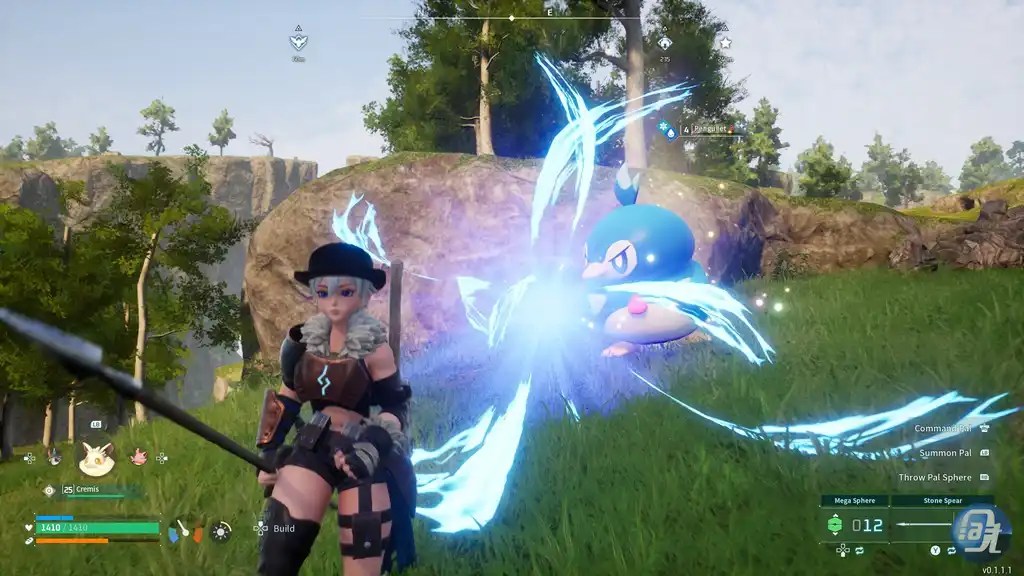
What the Palworld Network Error Is
The full message reported by players reads:
A network error has occurred. Multiplayer functionality is currently unavailable. ConnectLoginNoEAS(0) / ConnectLoginNoEOS(0) failed with EOS result code (EOS_Connect_ExternalTokenValidationFailed)
In plain terms, Palworld could not validate its online login through Epic Online Services, so multiplayer is disabled. Players report it appearing at game startup, when loading a co-op world, and when trying to join public servers. Some players also report joining a friend’s server by code, playing for a while, then being disconnected and unable to reconnect.
Palworld’s error is an Epic Online Services login failure, in the same services family as error code IS-EO-FAILED_OP_START, so the same Epic account and login checks often help.
https://axeetech.com/how-to-fix-error-code-is-eo-failed_op_start/
Why the Palworld Network Error Happens
Based on the sources below, the verified and reported causes are:
- Server downtime or overload. EOS login errors are most commonly tied to Palworld’s servers being down, under maintenance, or overloaded. Pocketpair has previously said server instability during high player counts caused login problems.
- A failed EOS token validation. The error code itself, EOS_Connect_ExternalTokenValidationFailed, points to the game’s online login token not being validated, rather than to a single-player world file.
- Local network instability. An unstable connection, router problem, or DNS problem can break the login handshake.
- Firewall or antivirus blocking the game. Security software can block Palworld, Steam, or Epic Online Services from reaching the servers.
- Corrupt or missing game files. Patches and updates can corrupt files, and at least one player found a missing steam_appid.txt file after a hotfix patch and crash.
- An outdated launcher or game. An outdated Steam client or an un-updated game can break online play.
- An unlinked or stale platform/Epic account link. Steam players have reported that linking the Epic Games account to Steam, and running the Epic launcher/Epic Online Services correctly, matters for EOS login.
- Mod conflicts (reported, not proven for every case). One player with mods reported that removing certain mod folders plus validating files coincided with the error clearing, but they could not isolate which step fixed it.
Palworld Network Error Fixes, Simplest First
Try one fix at a time and relaunch the game after each step, so you know which one worked.
1. Check the server status and wait
This is the first step because, when the servers are down or overloaded, waiting is the only fix. Check Pocketpair’s official announcements and the Palworld server status page, and check whether other players are reporting the same outage. If the servers are down, stop here and try again later. Several Steam threads from December 2025 describe this exact message during a backend outage, with players advised simply to wait until it passed.
2. Restart the game, Steam, and your PC or console
Fully close Palworld, fully close Steam, then relaunch both. If that does not work, restart your computer or console. GameSkinny and Appuals both list a full restart of the game and system as a basic EOS troubleshooting step, and one Steam player reported the error appearing once, then clearing after a game restart, before later becoming persistent.
3. Restart your router and check your connection
Turn your router off, wait a few minutes, then turn it back on and wait until the connection is stable before launching Palworld. Run an internet speed test to confirm your connection is actually stable, rather than assuming it is. This step is listed by GameSkinny, Beecom, Sparked Host, and Dot Esports for EOS and connection errors.
4. Switch from Wi-Fi to a wired connection, or try another network
If you play on Wi-Fi, switch to a wired LAN connection, or vice versa. Appuals also reports trying a different network, such as a phone hotspot, as a way to test whether your internet provider or home network is blocking Palworld’s access to the servers’ anti-cheat components. If the game works on another network, the problem is with your main network, not the game install.
5. Run Steam and Palworld as an administrator
Right-click Steam and choose Run as administrator, then launch Palworld. Appuals notes that administrator privileges can be needed for the game to communicate with Epic Online Services’ anti-cheat system.
The most-repeated community version of this fix is more specific:
- Go to your Palworld install folder, usually under steamapps/common/Palworld.
- Run Palworld-Win64-Shipping as an administrator.
- Try to join a random lobby. Players report this fails with a null error.
- Then launch the regular Palworld executable as an administrator and try again.
This sequence is reported across multiple Steam threads, with several players saying it worked for them and at least one saying it did not. It is a community-reported workaround, not an official Pocketpair fix, so treat it as worth trying, not guaranteed.
6. Allow Palworld through your firewall and antivirus
Add Palworld, Steam, and Epic Online Services to your firewall’s allowed apps, for both private and public networks where applicable. Sparked Host advises whitelisting Palworld and Steam rather than leaving security software disabled. One Steam player also reported launching the game with antivirus disabled helped them; if you test this, re-enable your antivirus immediately afterward and use whitelisting as the permanent step instead of leaving protection off.
7. Verify the integrity of your game files
On Steam:
- Open your Steam library and right-click Palworld.
- Select Properties, then Installed Files.
- Click Verify integrity of game files and wait for it to finish. Steam will download and replace any missing or corrupt files.
On the Xbox app, go to Palworld, select Manage, then the Files tab, and use Check for Updates followed by Verify and Repair. This step is recommended by GameSkinny, Beecom, Dot Esports, Appuals, and Sparked Host.
8. Update the game and Steam, and re-log into your accounts
Make sure Palworld is fully updated, then fully close and restart Steam so it picks up any Steam client update. On Xbox/Game Pass, sign out of your Xbox account, power-cycle the console, and sign back in. Appuals also lists re-logging into the current profile, or trying another game profile, as a fix for profile-related EOS errors.
9. Change your DNS servers
If the servers are up and your connection is otherwise fine, try an alternative DNS address. Beecom gives the Windows 11 route: open Network and Internet settings, select Ethernet or Wi-Fi, edit the DNS server assignment, switch it to Manual, turn on IPv4/IPv6, and enter a preferred DNS such as 1.1.1.1 or 8.8.8.8. Dot Esports likewise lists changing DNS servers as a troubleshooting step for EOS login errors.
10. Link your Epic Games account to Steam and repair the Epic launcher
Palworld uses Epic Online Services for multiplayer login even on Steam. Steam players report this sequence:
- Install or reinstall the Epic Games Launcher and make sure Epic Online Services is up to date.
- In the Epic launcher, link your Epic Games account to your Steam account under Account, then Apps and Accounts.
- Do a full reboot and run Steam and the game as administrator.
- Verify your Palworld files in Steam.
GameSkinny separately reports a Discord user’s fix of uninstalling and reinstalling the Epic Games Launcher entirely. Appuals gives the same reinstall route for the Epic launcher, with a restart before reinstalling it with administrator rights.
11. Check for a missing steam_appid.txt file (Steam, advanced)
One Steam player reported fixing this exact error after a hotfix patch and crash by finding that steam_appid.txt was missing, creating it in steamapps/common/Palworld/Pal/Binaries/Win64, and putting Palworld’s app ID, 1623730, in the file, then reopening the game from Steam. Another player replied that the same missing-file situation had happened to them. This is a single-player report, not an official fix, so only try it if you are comfortable editing files in the install folder, and back up anything you change.
12. Remove conflicting mod files (only if you use mods, advanced)
One modded player reported that, after validating files, deleting folders under Pal/Content/Paks and deleting the UE4SSExperimentalPW folder under Mods/ManagedMods (ManagedMods specifically, not NativeMods), plus restarting Steam, coincided with the error clearing. That player explicitly said they tried several things one at a time and could not say which step worked. Do not delete files blindly: only try this if you have mods installed, delete only mod folders you recognize, and validate your files afterward.
13. Reinstall Palworld and the launcher, then contact support
As a last resort, uninstall Palworld through Steam, restart your computer, remove the leftover Palworld folder if one remains, then reinstall and run Palworld.exe as an administrator before launching from Steam. If nothing works, report the issue through Pocketpair’s Report Bugs and Issues form, found in the game’s main menu under Options, and include the full error text, the EOS result code, your platform, and whether the error appears at startup or only when joining multiplayer. GameSkinny, Beecom, and Appuals all list contacting Pocketpair support as the final step.
What Does Not Fix the Palworld Network Error
- Reinstalling alone will not help if the servers are down or EOS is having an outage. Check status first.
- A fix that worked for one player, such as the admin-executable sequence or the steam_appid.txt recreation, is not guaranteed for every player. Several players in the same threads report that the admin workaround did not resolve it for them.
- Playing single-player is a workaround for waiting out a multiplayer outage, not a fix for the multiplayer login itself.
Real error screenshots found
No verified screenshot of this exact error dialog could be found. The Steam discussion threads that quote the exact message — “A network error has occurred. Multiplayer functionality is currently unavailable.” with the EOS_Connect_ExternalTokenValidationFailed code — were read in full, but the images attached to those pages are user avatars, emoticons, and profile items, not screenshots of the error dialog. Reputable guides that were read show screenshots of the related but different “Failed to EOS Login” error, not this exact “network error has occurred” dialog. Those related screenshots have therefore NOT been listed here as screenshots of this error, and no image has been downloaded, generated, or edited for this guide.
FAQs: a network error has occurred palworld
What does a network error has occurred palworld mean?
It means Palworld failed its Epic Online Services login, so multiplayer functionality is currently unavailable. The full message usually includes the code EOS_Connect_ExternalTokenValidationFailed. It is a multiplayer login failure, not proof that your single-player save is corrupt.
Is the Palworld Network Error a server problem or my problem?
It can be either. Server downtime and overload are the most commonly cited causes, and several threads describe the exact message during a backend outage. If the servers are up, the likely local causes are your connection, firewall or antivirus, corrupt game files, an outdated launcher, or an unlinked Epic account.
Why does a network error has occurred palworld appear at startup?
Because Palworld attempts its EOS login when the game starts. If that login token validation fails, the error appears before you ever reach a world, and it can also reappear when you try to load a multiplayer world.
Does running Palworld as an administrator fix the Palworld Network Error?
For some players, yes. The most-reported workaround is running Palworld-Win64-Shipping as an administrator, attempting a lobby join, then launching the regular Palworld executable as an administrator. Other players in the same threads report it did not work for them, so it is worth trying but not guaranteed.
What is EOS_Connect_ExternalTokenValidationFailed in the Palworld Network Error?
It is the EOS result code shown with the error, indicating that the external login token validation failed when Palworld tried to connect through Epic Online Services. It is the detail to include when reporting the error to Pocketpair support.
Can I still play Palworld single-player while the Palworld Network Error persists?
The error disables multiplayer functionality, so single-player play is the practical workaround while waiting out a server-side outage. If the error also blocks loading your world entirely, work through the local fixes above, starting with file verification and the administrator workaround.
When should I contact Pocketpair support about a network error has occurred palworld?
After you have checked the server status, restarted the game, Steam, and router, verified your game files, allowed the game through your firewall, and tried the Epic account link and launcher repair. Include the full error text, the EOS code, your platform, and when the error appears.
UNVERIFIED items (not presented as confirmed fixes)
- Forcing a Steam API backend by removing the -EpicApp=PalServer startup argument. This was suggested in a Steam thread for dedicated servers, not verified as a client-side fix for this exact error. Do not treat it as a confirmed fix.
- A general maintenance routine (GPU driver update, Windows Update, Defender scan, DISM / SFC commands, firewall reset). Posted in a Steam thread without confirmation that it resolved this exact error. Not presented as a verified fix for it.
- The claim that Epic deliberately throttles indie games using EOS. This is a forum opinion, not a verified cause, and is not used as a cause in this guide.
- Using a VPN to fix this exact error. Sources conflict on VPNs for EOS errors generally, and none tie a VPN to resolving this exact “network error has occurred” dialog. Not presented as a confirmed fix for it.
- Clearing the Steam download cache. Reported for a different Palworld multiplayer message, not verified for this exact error, so it is not listed as a fix above.

Axee Davies is the founder of AxeeTech, publishing gaming guides, codes, and Windows how-tos since March 2013. A tech enthusiast for 13+ years — starting with smartphones and Android rooting — he now runs a site that puts out a new guide every day for Roblox players, traders, and Windows users. More about AxeeTech
More Games You May Like
 How to Fix samsung notes pc error sa_1036 on Windows
 Tricky Doors Walkthrough: How Every Level Works (Plus Level 1 Magic World Solved)
 Tarkov Headset Tier List: Best In-Game Headsets Ranked
 ESD-USB: How to Create a Bootable USB from a Windows ESD File
 How to Use a Windows Spotlight Background Without the “Learn About This Picture” Icon
 Fix “Bootrec Fixboot Access Denied” on Windows 10 and 11
 adjudicator status ack’d by adjudicator
 How to Send blank whatsapp status symbol