Best Game Settings: Free Generators for FPS, Sensitivity and Graphics (2026)
The best game settings are the ones that match your hardware, not a list copied from someone else’s PC. This page collects every Axeetech settings guide in one place. Each one opens with a free generator: you pick your graphics card, controller or mouse, and it returns the exact values to enter, with a full explanation underneath.


Choose your game above, or use the table below to see what each guide covers and the one change that makes the most difference in that game.

Best Game Settings by Game
| Game | Guide | What the tool gives you | Biggest single change |
|---|---|---|---|
| Rocket League | Best Rocket League Settings | Camera, controller deadzone, bindings, video and network values | Camera: FOV 110 and Camera Shake off |
| Path of Exile 2 | Best Path of Exile 2 Settings | Renderer, lighting, upscaling and frame cap by GPU and CPU | Lighting set to Shadows only |
| Rust | Best Rust Settings | Graphics, mesh quality, image effects and console commands | gc.buffer and Mesh Quality |
| Escape from Tarkov | Best Tarkov Settings | Graphics, PostFX visibility and game options by RAM and GPU | 32 GB of RAM and Object LOD |
| Rainbow Six Siege X | Best R6 Settings | Sensitivity in cm per 360, FOV, aspect ratio and graphics | A sensitivity of 25 to 40 cm per 360 |
| Any PC game | Best Anti Aliasing Setting | Picks DLAA, TAA, FXAA, SMAA, MSAA or FSR Native AA by graphics card and resolution | DLAA or Quality upscaling in place of TAA |
| Any PC game | DLSS vs FSR Frame Generation | Says whether to turn frame generation on, with the input delay it adds | A base of 60 FPS before turning it on |
| Modern Warfare 4 | MW4 Settings Generator | GPU preset and packet burst fix | Texture settings matched to VRAM |
| Modern Warfare 4 | MW4 Sensitivity Converter | Converts sensitivity from other shooters | Keeping the same cm per 360 |
| Gears of War: E-Day | Gears of War: E-Day PC Settings Optimizer | PC settings for 8 GB graphics cards | Texture quality within 8 GB of VRAM |
| GTA 6 | GTA 6 TV Settings Generator | Console video output and TV settings for 30 FPS | 120 Hz output and Game Mode |
| Eden emulator | Eden Emulator Settings Finder | GPU driver and settings by Android chip | The right Turnip driver |
| Eden emulator | Best Eden NX2 Settings and Turnip Drivers | Settings and drivers for Android | Driver choice by chipset |
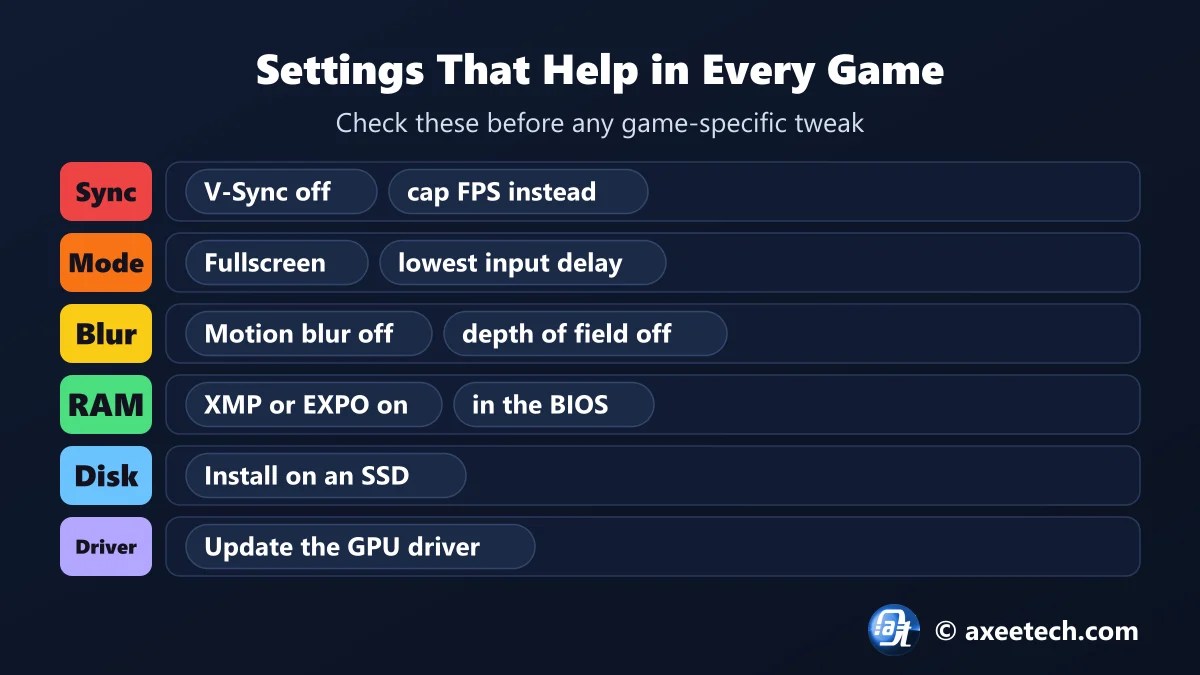
Game Settings That Help in Every Game
Before any game-specific tweak, six changes improve almost every game. They cost nothing and take five minutes.
- Turn V-Sync off. It holds frames back to match the screen and adds input delay. Use a frame cap instead.
- Play in fullscreen. Exclusive fullscreen has the lowest input delay on most systems.
- Turn off motion blur and depth of field. Both blur the thing you are trying to see.
- Enable XMP or EXPO in the BIOS. Without it your memory runs below its rated speed, which costs frames in CPU-heavy games.
- Install games on an SSD. It removes most stutter caused by loading assets mid-game.
- Update the graphics driver after a big game patch, then restart the PC.
How to Tell If Your CPU or GPU Is the Limit
Most settings advice fails because it lowers the wrong thing. A two-minute check tells you which part is holding your frame rate back.
- Open Task Manager with Ctrl + Shift + Esc and select the Performance tab.
- Play the busiest part of the game for a few minutes.
- Alt-Tab back and read the GPU graph for that period.
- GPU usage at 95 percent or more: the graphics card is the limit. Lower resolution, upscaler quality and shadows.
- GPU usage well under 90 percent: the processor is the limit. Lower draw distance, object detail and crowd or effect counts.
Which Settings Matter Most in Each Type of Game
| Type of game | What decides fights | Settings to prioritise |
|---|---|---|
| Tactical and extraction shooters | Seeing the enemy first | Sensitivity, field of view, shadows that still show players, sharpness |
| Survival games | A steady frame rate on full servers | Memory settings, draw distance, object and mesh detail |
| Action RPGs | Frame rate in dense fights | Lighting, number of light sources, upscaling |
| Car and sports games | Camera and input consistency | Camera values, deadzone, bindings, high frame rate |
| Console games at 30 FPS | Smooth frame pacing | TV game mode, 120 Hz output, HDR calibration |
Frequently Asked Questions
What are the best game settings for FPS?
Turn V-Sync off, play in fullscreen, switch off motion blur and depth of field, lower shadows, and cap the frame rate just above your monitor refresh rate. After that, the settings that matter are different in every game, which is what the guides on this page cover.
Do the same settings work in every game?
Only the general ones. Each engine loads the processor and graphics card differently, so the setting that gives the biggest gain changes from game to game.
Should I copy a pro player’s settings?
Copy the range, not the exact numbers. Professional settings fit their hardware and habits. The guides here give the range most competitive players use and help you pick a value inside it.
Does lowering graphics always raise FPS?
No. If the processor is the limit, lowering resolution and textures changes nothing. Check GPU usage first: under about 90 percent in a busy scene means the CPU is the bottleneck.
Are these settings tools free?
Yes. Every tool runs in your browser and needs no sign-up.
Looking for something else? See all free gaming and tech calculators.
