SD Card Says “You Need to Format the Disk”: How to Fix It Without Losing Photos
You plug an SD card into your Windows PC, expecting to copy off a day’s shoot, and Windows says: “You need to format the disk in drive E: before you can use it.” The photos you took last weekend are on that card, and the one button Windows offers will erase it.
Don’t click Format. That prompt doesn’t mean your photos are gone. It means Windows can’t read the card’s file system, the index that tells it where files are stored. The photos themselves are frequently still on the card, and formatting is the step most likely to turn a recoverable problem into a permanent one.
This guide covers why the prompt appears, how to check the card safely, and how to try to recover your files first. No method can promise to get everything back. Recovery depends on how the card was damaged and what has happened to it since.
Why does an SD card say it needs to be formatted?
Windows shows this message when it can’t recognize the file system on a drive. In Disk Management, such a drive usually appears with a file system of “RAW,” which isn’t a real file system. It’s a label meaning Windows found nothing it understands, whether because the structures are damaged, missing, or from a format Windows doesn’t support.
Several things can cause that:
- Interrupted writes. Removing the card while the camera is saving, a battery dying mid-shot, or pulling the card from the reader without ejecting can leave the file system half-written.
- Corrupted file-system structures. Even a successful transfer can leave damage behind if something goes wrong at the wrong moment.
- An unsupported file system. A card formatted by a device or operating system Windows doesn’t read can trigger the same prompt, though that’s less common with cameras.
- A failing card or reader. Worn flash memory, bad sectors, or a flaky reader can all produce read errors that look like a format problem.
- A bad connection. Sometimes the card is fine and the port, adapter, or cable isn’t.
You can’t tell from the prompt alone which of these applies. The steps below help you narrow it down without writing anything to the card.
What to do immediately
- Click Cancel on the format prompt.
- Stop using the card. Don’t shoot more photos with it, and don’t copy files onto it. New writes can overwrite the data you’re trying to save.
- Don’t run any “fix it” tool yet. That includes CHKDSK and anything that offers to repair the disk. More on why below.
- Eject the card properly from Windows (the Safely Remove option) before pulling it out.
- Keep somewhere ready to save recovered files, such as a folder on your computer’s internal drive with plenty of free space.
How to fix an SD card that asks to be formatted
Go in this order, from safest to riskiest.
Try another port, reader, or computer
Before blaming the card, rule out the hardware around it. Try a different USB port, preferably one on the back of a desktop rather than a hub. Try a different card reader, or the card slot built into your laptop. If you can, try another computer. A cheap or worn reader can cause exactly this error, and swapping it costs nothing and risks nothing. If the card opens normally on another setup, copy everything off immediately and treat the original setup as the culprit.
Check Disk Management
Right-click the Start button and open Disk Management. Find your card in the lower pane (match it by size) and look at what’s shown.
- The disk appears with a file system listed as RAW: Windows detects the card but can’t read its file system. Recovery is often possible, though never guaranteed.
- The disk appears as “Unallocated” or with no drive letter: the partition information may be missing or damaged.
- The disk doesn’t appear at all, or shows as 0 bytes: Windows isn’t communicating with the card. Try other readers first. If nothing sees it, the card may have failed physically, which is a case for professional recovery.
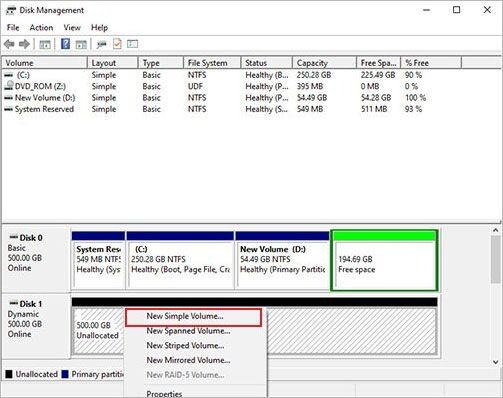
Disk Management is read-only as long as you don’t right-click and choose Format, New Simple Volume, or Delete. Just look.
What RAW actually means
RAW doesn’t mean the data has been wiped. It means Windows can’t interpret how the drive is organized. Think of a library whose catalog has been lost: the books are still on the shelves, but nobody can look anything up. A recovery tool essentially walks the shelves and identifies books by their covers instead of the catalog.
That’s also why a RAW card isn’t always recoverable. If the card has failed physically, or the data has been overwritten, there’s nothing left to find.
File-system repair tools, and when not to use them
The built-in tool is CHKDSK. Microsoft’s documentation says that without the /f parameter, it only reports problems. With /f, it fixes logical errors on the disk, and /r adds a search for physical errors and an attempt to recover readable data from bad sectors.

That’s the catch. /f and /r rewrite file-system structures. On a healthy card with a small error, that’s useful. On a card you’re trying to recover photos from, it changes the very structures a recovery tool may want to read. Microsoft’s docs also note that if you answer N when CHKDSK offers to save lost allocation units, Windows fixes the disk but doesn’t keep their contents. Whether a repair will help or hurt in your case depends on the damage, and I can’t tell that from here.
My advice: if the photos matter, recover first, repair second. If they don’t matter, CHKDSK is a reasonable thing to try. Note that CHKDSK often can’t operate on a drive Windows labels RAW at all, since there’s no recognizable file system to check.
When formatting is appropriate
Format when you’ve either recovered what you need, confirmed you’re willing to lose what’s on the card, or have copies elsewhere. After formatting, Windows will ask you to pick a file system. Cards of 32 GB or less normally use FAT32, and larger SDXC cards normally use exFAT, per the SD Association’s conventions. For camera use, formatting the card in the camera afterward is generally the safest way to get a layout your camera expects.
If the card throws the same error again soon after a clean format, stop trusting it and replace it.
How to recover photos and videos before formatting
If the card won’t open normally, recovery software is your next step. These tools read the card at a low level and search for the signatures of known file types, like the start of a JPEG or an MP4, instead of relying on the broken index.
Stellar Photo Recovery is one option here. It’s a Windows and Mac photo recovery software that Stellar describes as recovering photos, videos, and audio files from damaged, corrupt, or inaccessible memory cards, including SD cards. The general workflow looks the same for most tools of this type:
- Connect the card to your computer with a reader.
- Choose the file type you wish to recover.

- Select the card in the software and run a scan. A quick scan is faster. A deep scan takes longer but reads more of the card.

- Preview the files the software finds, if it offers previews.

- Save recovered files to your computer’s internal drive, never back to the card you’re scanning.
Results vary. Some files may come back whole, some partly damaged, and some without their original filenames or folders. Large video files that were stored in fragments are generally harder to rebuild than single photos. Before paying for any recovery tool, check whether it offers a free scan or preview so you can see what it finds first.
Can you recover files after formatting an SD card?
Sometimes, but the odds depend on what kind of format it was and what happened afterward.
A quick format typically clears the file system’s records while leaving much of the underlying data in place, so recovery software can sometimes still find files. A full format on modern versions of Windows is more thorough and makes recovery far less likely. Either way, any new photos you’ve shot on the card since will have overwritten some of the old data, and you can’t recover what’s been overwritten.
If you’ve already formatted the card by accident, stop using it right away and scan it with recovery software before taking anything else. You may recover less than you hoped, and that’s worth expecting going in.
How to prevent the format error from happening again
- Eject the card from Windows before removing it, and turn the camera off before taking the card out.
- Don’t shoot on a nearly empty battery.
- Format the card in the camera you’ll use it in, not in a computer or a different device.
- Copy photos off after each shoot, and keep a second copy. A card is a temporary container, not a backup.
- Buy cards from reputable sellers, and retire any card that has thrown repeated errors.
- Use a decent reader and avoid forcing cards into adapters.

Axee Davies is the founder of AxeeTech, publishing gaming guides, codes, and Windows how-tos since March 2013. A tech enthusiast for 13+ years — starting with smartphones and Android rooting — he now runs a site that puts out a new guide every day for Roblox players, traders, and Windows users. More about AxeeTech
More How to You May Like
 How to Check Mobile App Compatibility Before Trying Fixes
 India’s 7 Best No Deposit Signup Bonus Offers for 2026
 Top 3 Free online MBOX to PST Converters
 Windows Resource Protection Could Not Start the Repair Service
 Night Light Not Working in Windows 11: 7 Easy Fixes
 Windows 11 Update Stuck at 46%: 7 Proven Fixes
 Start Menu Not Working in Windows 11: 7 Fixes That Work
 Repair Windows 10 From USB: 7 Step-by-Step Fixes
