The Complete Guide To Excel Shortcut Cheat Codes
Ever felt like you’re grinding through a spreadsheet, clicking through menus, and hunting for options? What if you could skip all that and input a few “cheat codes” to instantly perform actions, just like in a game? That’s exactly what Excel Shortcut Cheat Codes. In this guide, I’ll break down the ultimate “cheat codes” for Microsoft Excel-the key combinations that let you navigate, format, and analyze data at pro-gamer speed.
Think of these shortcuts as your unlockable power-ups. They can reduce your spreadsheet work time by up to 60% and help you achieve productivity levels that feel like a genuine advantage. Whether you’re a data analyst in a boss fight with quarterly reports or a student trying to level up your project, mastering these codes is the ultimate meta.
Why Bother with Excel Cheat Codes?
In any game, knowing the secret codes gives you an edge. Excel is no different. Using shortcuts is the difference between playing on easy mode and hard mode. They keep you in the flow state, letting you execute commands without breaking your focus to reach for the mouse. Consequently, your workflow becomes seamless and far more efficient. Users consistently report 40% faster spreadsheet navigation after just one week of dedicated practice.
The benefits are clear. You will save hours each week, minimize errors from manual clicking, and ultimately present yourself as a spreadsheet expert. In light of this, let’s move on to the main event: the cheat sheet itself.
The Ultimate Excel Cheat Code Table
Here is your curated list of essential “cheat codes,” categorized for easy reference. These are the combos you need to memorize to dominate your spreadsheet gameplay.
| Category | Cheat Code (Windows) | Cheat Code (Mac) | Effect (What it Does) |
|---|---|---|---|
| File & Basic Ops | Ctrl + N | ⌘ + N | Opens a new workbook. |
Ctrl + S | ⌘ + S | Instantly saves your progress. | |
Ctrl + Z / Ctrl + Y | ⌘ + Z / ⌘ + Y | Undo or redo your last move. | |
| Navigation | Ctrl + Arrow Key | ⌘ + Arrow Key | Teleports the cursor to the edge of the data region. |
Ctrl + Home | Fn + Ctrl + Left | Warps to cell A1. | |
Ctrl + PgUp / PgDn | ⌘ + PgUp / PgDn | Switches between worksheet tabs. | |
| Selection | Ctrl + A | ⌘ + A | Selects all data on the sheet. |
Ctrl + Spacebar | ⌘ + Spacebar | Selects the entire column. | |
Shift + Spacebar | Shift + Spacebar | Selects the entire row. | |
| Editing & Formatting | F2 | Ctrl + U | Edits the active cell. |
Ctrl + B / I / U | ⌘ + B / I / U | Applies Bold, Italic, or Underline. | |
Ctrl + 1 | ⌘ + 1 | Opens the Format Cells dialog. | |
| Data & Formulas | Alt + = | ⌘ + Shift + T | Instantly sums a selected range (AutoSum). |
F4 | ⌘ + T | Toggles absolute/relative references in a formula. | |
Ctrl + Shift + L | ⌘ + Shift + F | Toggles filters on/off for your data. | |
| Advanced Power Moves | Alt + F1 | ⌘ + F1 | Creates a chart from selected data. |
Alt + N, V | Alt + N, V | Inserts a PivotTable. | |
Alt + F11 | Option + F11 | Opens the Visual Basic Editor for scripting. |
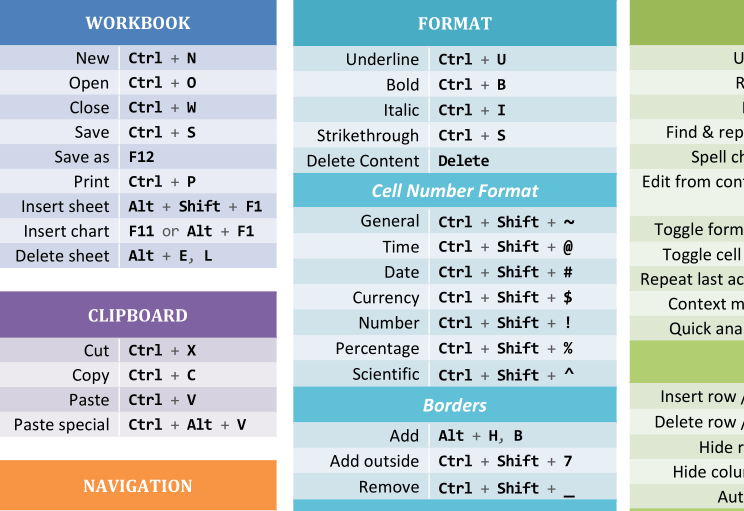
How to Redeem Your Cheat Codes in Excel
Unlike game cheats, these codes are built-in and ready to use. Here is your step-by-step guide to activating them.
- Boot Up the Game (Open Excel): Launch Microsoft Excel and open any workbook to serve as your practice arena.
- Start with the Basics: Choose 2-3 simple codes from the table above,
Ctrl + Sto save orCtrl + Zto undo. Use them intentionally for every relevant task today. - Keep Your Hands on the Keyboard: Force yourself to avoid the mouse for common actions. This is the fastest way to build muscle memory.
- Practice in a Safe Zone: Open a blank sheet and experiment. Try navigating with
Ctrl + Arrow Keys, selecting columns withCtrl + Spacebar, and summing data withAlt + =. - Level Up Your Customization: For truly advanced play, you can record macros or edit the Visual Basic Editor (
Alt + F11) to create your own, custom cheat codes for repetitive tasks. - Use a Physical Cheat Sheet: Print the table above or get a shortcut mousepad. Having a visual reference nearby dramatically accelerates your learning curve.
Pro Gamer Tips and Common Pitfalls
Remember, even pros make mistakes. A common error is trying to memorize every code at once. You will burn out. Instead, focus on the shortcuts for tasks you do daily. Another pitfall is not realizing that some codes, like F2 those for editing, change behavior if your Fn lock is on. Always ensure your keyboard is in the correct mode.
Furthermore, understand the context. The F4 key repeats your last action generally, but toggles cell references when you’re editing a formula. Paying attention to this context is key to using these powers effectively.
FAQ: Your Excel Cheat Codes Questions Answered
Are these cheat codes the same on Mac and Windows?
Most core shortcuts have a Mac equivalent, but the modifier key is often different. On a Mac, the Command key (⌘) typically replaces the Windows Ctrl key for basic operations like copy (⌘ + C) and paste (⌘ + V). Always check a Mac-specific guide for the full mapping.
Can I create my own custom Excel shortcut?
Yes, you can. While you cannot reassign every built-in shortcut, you can create custom keyboard shortcuts for macros. Record a macro from the “View” tab, and during the setup, you can assign it to a Ctrl + Shift key combination of your choice.
What is the single most useful Excel shortcut to learn first?
For pure speed, mastering Ctrl + Arrow Keys the ability to navigate and Ctrl + Shift + Arrow Keys to select large data ranges is a game-changer. It eliminates endless scrolling and is fundamental to efficient data manipulation.
Do I need to remember all the function keys (F1-F12) shortcuts?
Not all at once. Prioritize F2 to edit a cell, F4 to toggle references/repeat actions, and F9 to calculate formulas. These three will give you the most immediate boost in your daily workflow.
Where can I find the official list of all Excel shortcuts?
Microsoft provides the definitive list. You can access it within Excel by pressing F1 F1 and searching for “keyboard shortcuts,” or download their official PDF cheat sheet from the Microsoft website.
Get More Game Codes:
Related: Need a free spreadsheet app that opens .xlsx files? ArtCraft’s GridCraft is an open-source Excel-style alternative worth testing, though it is still in development.

Axee Davies is the founder of AxeeTech, publishing gaming guides, codes, and Windows how-tos since March 2013. A tech enthusiast for 13+ years — starting with smartphones and Android rooting — he now runs a site that puts out a new guide every day for Roblox players, traders, and Windows users. More about AxeeTech
More Codes You May Like
 Blood Strike Codes (October 2026): Working Redeem Codes & How to Use Them
 Pokemon UNITE Codes (October 2026): Working Gift Codes & How to Redeem
 Watcher of Realms Codes (October 2026): How to Redeem & Where to Find Them
 Brawlhalla Codes (October 2026): Skins, Titles & How to Redeem
 Lords Mobile Codes (October 2026): Working Redeem Codes & How to Use Them
 BreakDoor Codes (October 2026)- All working Codes
 Berry Avenue Codes: Get Free Bangs, Cute Face, Denim Shorts, And More
 Four Elements Trainer Cheats 2026: Sets Free Your money, Respect Level, And More