How to Recover Deleted WhatsApp Messages on iPhone
Important WhatsApp messages can disappear from your iPhone after accidental deletion, a failed update, or backup problems. Although losing chats feels permanent, recovery is still possible in many situations.
In fact, the recovery results depend on how the chats were deleted and whether they were added to the iCloud backup. This guide explains the basics of WhatsApp deletion and shows how Dr.Fone iPhone data recovery software can be helpful.

Part 1. How iPhone Stores and Backs Up WhatsApp Data
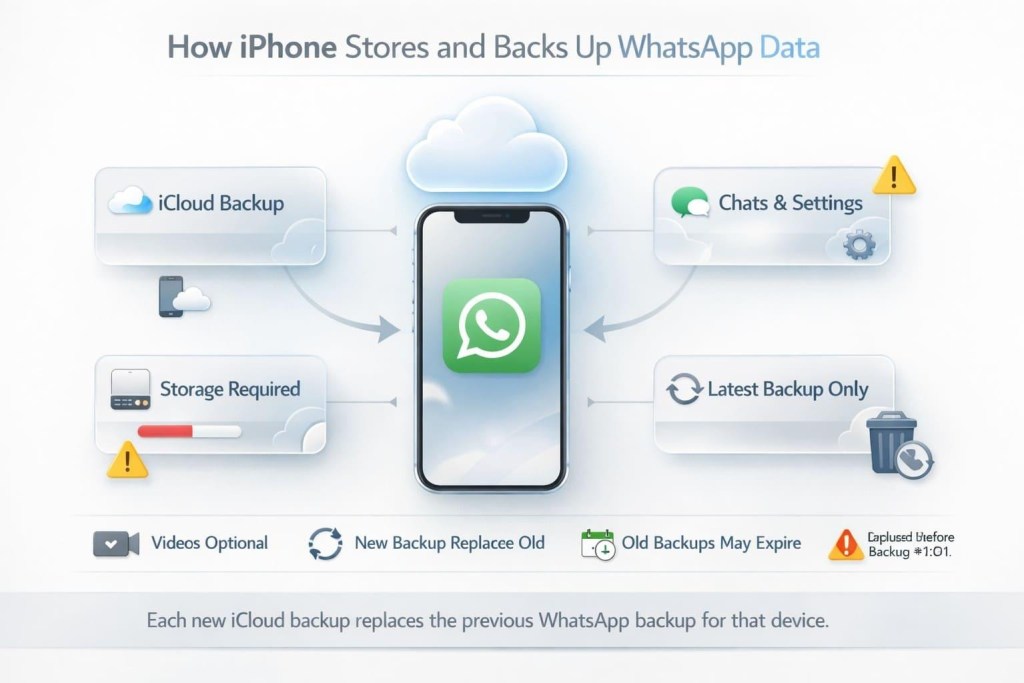
WhatsApp says your iPhone data is preserved once the app is linked directly to your iCloud account. This includes chats and media selected for backup, depending on your WhatsApp backup settings. Your iPhone and iCloud need enough free storage to complete the backup; some data will not be saved if the storage is low.
Additionally, iCloud keeps only one backup per number; each new backup replaces the previous one. Most importantly, you cannot recover the messages if the backup was made after deletion or if it gets overwritten.
Part 2. Is WhatsApp Message Recovery Realistic on iPhone?
If you still wonder how to recover deleted WhatsApp messages on an iPhone, here is what you need to know. Recovery is possible in most cases, but Apple’s security system limits your recovery options. Deleted messages may become inaccessible immediately, but recovery depends on available backups or recoverable data that has not yet been overwritten.
Unlike Android users, iPhone users cannot access WhatsApp’s storage files due to Apple’s security restrictions. So, if you have an iCloud backup created before the message deletion, you can reinstall the app to restore it. If there is no backup, the only option is to use recovery software to scan the iPhone’s internal storage or an iCloud/iTunes backup.
Also Read: Encrypted Messaging apps replacing traditional support chat
Part 3. Weighing Your Options: iCloud vs. Professional Recovery
Between the iCloud, iTunes, and iPhone data recovery software, if you want to know what option to choose, review the mentioned table:
| Method | Requires Prior Backup? | What It Recovers | Speed | Trade Off |
| iCloud Backup Restore | Yes, a backup created before deletion is required. | The entire WhatsApp chat history from the iCloud backup. | Slow, requires reinstalling WhatsApp and restoring the backup. | Replaces current WhatsApp data with the older backup version. |
| iTunes/Finder Backup Restore | Yes, a backup created before deletion is required. | Full iPhone backup, including WhatsApp data if backed up. | Slow, requires restoring the entire backup through a computer. | Restores the whole backup instead of selected chats and may overwrite current data. |
| Dr.Fone – iPhone WhatsApp Recovery | Depends on the recovery mode. It can recover from iPhone, iCloud, or iTunes backups. | Lets you preview and selectively recover WhatsApp chats, attachments, and supported media. | Fast, with guided scanning and preview before recovery. | Selective recovery helps avoid restoring the entire device, but results depend on available recoverable data or backups. |
Of all the options, Dr.Fone – Data Recovery (iOS) also does not require a prior backup on the iPhone. Instead, it depends on whether the data is still in the storage of the local device before it’s overwritten, as claimed by Dr.Fone.
Part 4. Restoring Chats with Dr.Fone – iPhone WhatsApp Recovery
To know how to recover deleted WhatsApp messages on an iPhone, iCloud, iTunes, or local backups, use Dr.Fone – Data recovery (iOS). It uses a free read-only scan and offers a complete preview, which makes Dr.Fone cost-effective. In addition to WhatsApp, you can also use this tool to retrieve 35+ data types in real-time.

Furthermore, it can reconstruct View Once media files, an exceptional feature of Dr.Fone that other recovery tools lack. Users can also recover data and attachments from Viber, WhatsApp, LINE, Kik, and WhatsApp Business with the selective restoration option. Most of all, it can easily extract WhatsApp data from damaged, unresponsive, or water-damaged devices.
Key Features
- Non-Destructive Recovery: The scan prevents existing iOS data from being overwritten, and the secure connection ensures no failures during recovery.
- Local Processing: All data recovery is done locally, and no data is shared across third-party servers; data integrity is maintained.
- Broad Compatibility: Dr.Fone is compatible with iPhone, iPad, and iPod touch running iOS 5.0 through iOS/iPadOS 27.
- Flexible Restore Options: Unlike other recovery tools, you can choose to save the recovered WhatsApp messages and other data to your phone or PC.
Guide to Use Dr.Fone to Recover WhatsApp Messages from iPhone
Follow the detailed steps below to test how Dr.Fone recovers WhatsApp messages from an iPhone in a real-world scenario:
Step 1. Choose to Recover WhatsApp Data
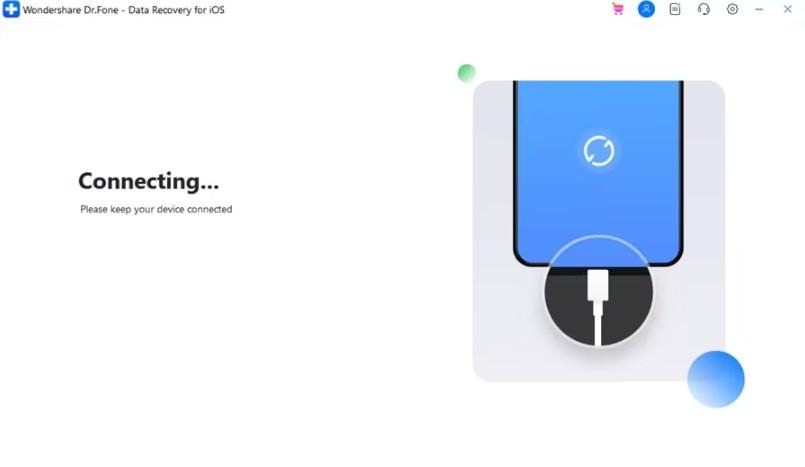
On the Data Recovery tool for iOS, choose the “Recover Data from iOS Device” feature and connect the iPhone when prompted.
Step 2. Pick the WhatsApp App to Scan
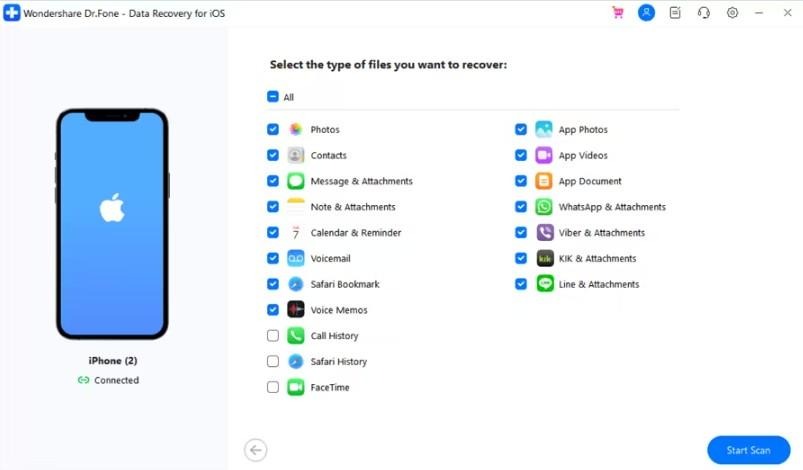
From the data types, select “WhatsApp & Attachments” and tap on “Start Scan” to let the tool access the phone’s storage.
Step 3. Decide to Restore to Device or Computer
Filter the WhatsApp messages from the “Show All” menu and preview them for free. After the details are verified, choose from the “Restore to Device” or “Restore to Computer” options and export.

Part 5. Conversations Recovered — Building Better Backup Habits
So far, you know how to recover deleted WhatsApp messages on an iPhone and how Dr.Fone – Data recovery (iOS) is the best option. To keep all the recovered chats safe in the future, follow the mentioned experts’ tips now:
| Tips | Why It Helps | How to Do It |
| Enable Automatic WhatsApp Backups | Keeps a recent copy of your chats available in iCloud. | Open WhatsApp > Settings > Chats > Chat Backup > Auto Backup, then choose a backup frequency. |
| Back Up WhatsApp Before Updates | Protects recent messages if an app or iOS update causes problems. | Open WhatsApp > Settings > Chats > Chat Backup > Back Up Now. |
| Check the Backup Date Before Restoring | Prevents you from restoring an outdated backup that does not include newer chats. | Open WhatsApp > Settings > Chats > Chat Backup and review the latest backup date. |
| Export Important Chats | Creates a separate readable copy of important conversations for reference. | Open the chat, tap the contact or group name, select Export Chat, and choose whether to include media. |
| Use a Recovery Tool When Needed | Helps find recoverable WhatsApp messages when a usable backup is unavailable. | Use Dr.Fone – Data Recovery (iOS) to scan the iPhone or available backups for recoverable data. |
Also Read: WhatsApp Guest Chats Feature
Conclusion
When you lose important WhatsApp threads, they can be recovered if you know the right recovery option. Though Apple’s iCloud or iTunes backup offers a security net, they are still an all-or-nothing approach. Therefore, it is recommended to use Dr.Fone iPhone data recovery software to recover WhatsApp or WhatsApp Business messages with or without backups.

Axee Davies is the founder of AxeeTech, publishing gaming guides, codes, and Windows how-tos since March 2013. A tech enthusiast for 13+ years — starting with smartphones and Android rooting — he now runs a site that puts out a new guide every day for Roblox players, traders, and Windows users. More about AxeeTech