JoinPD.com: How to Join a Pear Deck Session With a Code (2026 Guide)
To join a Pear Deck lesson, go to joinpd.com, type the join code your teacher shows on the board, and press Enter. That’s the whole process. You don’t need a Pear Deck account, and nothing has to be installed. This guide walks through it with screenshots. It also covers what to do when the code won’t work, and how teachers sign in to Pear Deck without a password using Google or Microsoft.
Quick facts
- Join address: joinpd.com, which now forwards to app.peardeck.com/join
- Join code: letters only, not case-sensitive. Pear Deck’s current docs say 6 letters; older sessions used 5
- Code lifetime: one week. The teacher’s Join Link never expires
- Account needed? Not for students, unless the teacher requires school sign-in
- Works on: any modern browser, including Chromebooks, Windows, Mac, iPad and phones
What Is JoinPD.com?
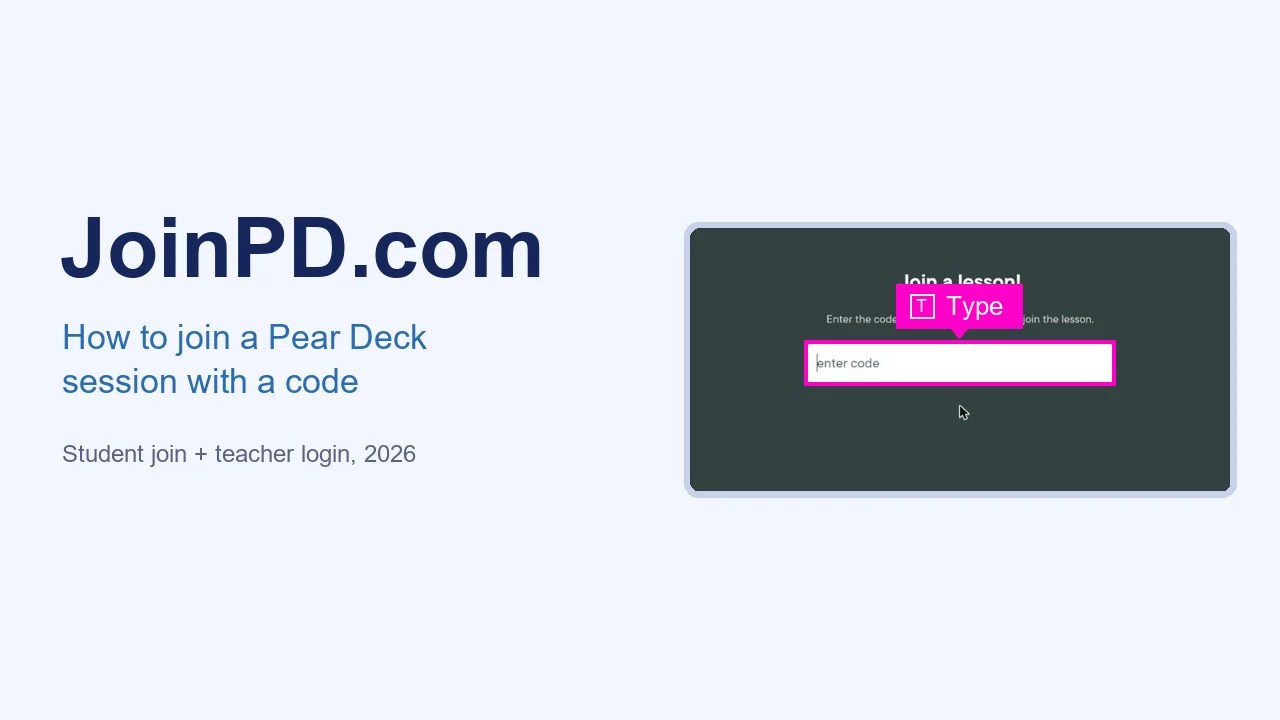
JoinPD.com is the short web address students use to enter a live Pear Deck session. “PD” just stands for Pear Deck. When you open joinpd.com today, your browser is sent straight to Pear Deck’s own page at app.peardeck.com/join, which shows a single box labelled “enter code”. Both addresses go to the same place, so use whichever one is easier to remember.
Pear Deck itself is a classroom tool, now part of Pear Deck Learning (owned by GoGuardian). It’s an add-on for Google Slides and PowerPoint Online. It turns a normal slideshow into an interactive lesson: while the teacher presents, every student answers questions on their own screen. The questions can be multiple choice, short text, numbers, drawings, or “draggable” dots and pins. The teacher can show the answers on the projector anonymously, so the whole class sees how everyone is thinking without anyone being singled out.
Before You Start
- The join code from your teacher. It’s shown at the top of the projected slide, or posted in Google Classroom.
- A web browser such as Chrome, Edge, Safari or Firefox on a Chromebook, laptop, tablet or phone.
- Your school Google or Microsoft 365 account, only if your teacher has turned on named (email) sign-in.
How to Join a Pear Deck Session as a Student (3 Steps)
Quick overview:
- Go to joinpd.com
- Type the join code and press Enter
- Sign in if asked, then follow along
Step 1: Go to joinpd.com and type the join code
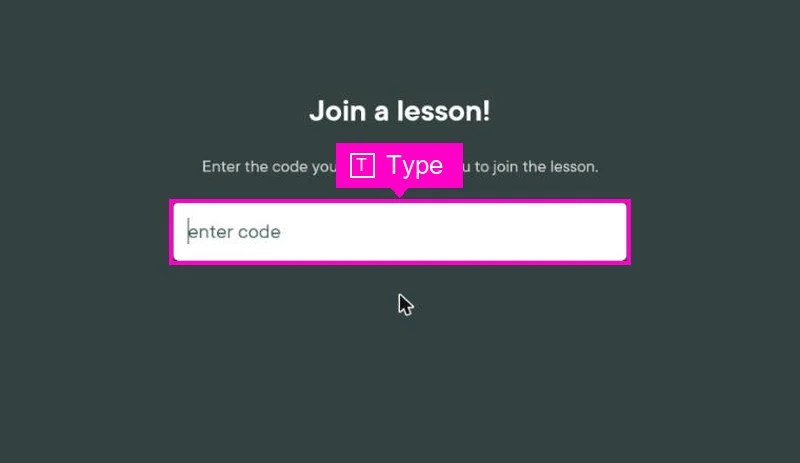
Type joinpd.com into your browser’s address bar. Type the address itself rather than searching for it, because search results for “join pd” are full of look-alike sites. You’ll land on the green Join a lesson! page. Click the enter code box and type the code exactly as your teacher shows it. Capital letters don’t matter: “QWERTY” and “qwerty” are the same code.
Step 2: Press Enter
Press Enter on your keyboard, or tap Go on a phone. If the code is right and the session is still open, Pear Deck loads the lesson. If the page simply clears the box and nothing happens, the code is wrong or has expired. Jump to the troubleshooting section below.
Step 3: Sign in if asked, then answer on your screen
Your next screen depends on how your teacher set up the lesson:
- Named join: you’ll see buttons for Google and Microsoft. Pick the one your school uses and choose your school account, not a personal Gmail. Your name will appear next to your answers on the teacher’s dashboard.
- Anonymous join: you go straight in and get a random animal avatar and nickname. The teacher sees your answers but not your name.
From here, the slides on your screen follow the teacher. When a question slide comes up, type, choose, draw or drag your answer and press Submit. Answers save automatically, so if your Chromebook dies, rejoin with the same code and your work is still there.
Joining With a Link Instead of a Code
Teachers can also share a Join Link in Google Classroom, by email, in a Teams or Canvas post, or as a QR code. Clicking it skips the code box entirely. There’s one difference that matters:
| Join Code | Join Link | |
|---|---|---|
| How you use it | Type it at joinpd.com | Click it |
| How long it works | One week after the session starts | Permanently |
| Best for | Live lessons on a projector | Homework, absent students, student-paced lessons |
So if you missed class and the code from last Monday no longer works, ask your teacher for the link.
Teacher-Paced vs Student-Paced Lessons
Once you’re in, a Pear Deck lesson runs in one of two modes. In a teacher-paced lesson, your screen moves only when the teacher changes slides, and the teacher can lock screens so answers can’t be changed. In Student-Paced Mode, you click through the slides yourself and answer at your own speed. Screens can’t be locked in this mode, which is why teachers often use it for homework.
After class, teachers on Pear Deck Premium can send Takeaways. That’s a Google Doc sent to you with every slide, your answers, and any feedback the teacher left, which is handy for revision.
JoinPD Not Working? Fixes That Actually Work
The code is rejected or the box just clears
- Check each letter. On a projector, I and l, O and Q, and rn and m are easy to confuse. Codes are letters only, with no numbers or spaces.
- The session may have ended. Codes expire one week after the teacher starts the session. Ask for the Join Link instead.
- The teacher may have restarted the lesson. Each new session creates a new code, so make sure you’re using today’s code and not one from an older Google Classroom post.
It keeps asking you to sign in, or says you don’t have access
- Your teacher requires named join. Sign in with your school Google or Microsoft 365 account.
- If you were already signed in to a personal Gmail, click your profile picture in Chrome, sign out of that account, and rejoin. Pear Deck remembers the last account used on the device.
- “Not allowed” or “domain” messages mean your school only lets school-issued accounts in. A personal account will never work. Ask your teacher or IT team.
The page won’t load or stays blank
- Refresh the page, then try an incognito or private window. A private window rules out a bad extension or old cookies.
- Clear cookies for peardeck.com and try again.
- Try another browser. Chrome and Edge work best on school devices.
- If other websites also fail, the problem is your connection. Our WiFi connected but no internet guide covers the usual fixes.
Your screen is frozen in the middle of the lesson
Check for a lock icon first. Your teacher has probably locked screens to talk to the class, and they’ll unlock them shortly. If there’s no lock and the slide hasn’t moved for a while, refresh. Your earlier answers are already saved.
The Google Classroom link opens the wrong lesson
An old assignment link points to an old session. Ask your teacher to post the current code as a Classroom announcement, or type today’s code at joinpd.com yourself.
Common JoinPD Misspellings
A lot of searches for Pear Deck come from typos: join pd, joinpd.ocm, join pd.com, joinpd.join, join pe.com, join pb.com and joinps. None of these are official. The only addresses you need are joinpd.com and app.peardeck.com/join. Bookmark one of them on your Chromebook so you never have to search for it again.
For Teachers: How to Sign In to Pear Deck Without a Password
Pear Deck doesn’t use its own passwords. Teachers sign in with the Google or Microsoft 365 account they already use for school, and Pear Deck saves lesson files to that account’s Google Drive or OneDrive. Students never need this. The steps below are for teachers creating their account or logging in for the first time.
Step 1: Open Pear Deck and click Teacher Login
Go to peardeck.com and click Teacher Login in the top-right corner. Avoid Sign Up for Free if you already have an account; Login works for both new and existing teachers.

Step 2: Choose Log in with Google or Log in with Microsoft
Pick the account type your school uses. Choose Google if your lessons live in Google Slides, or Microsoft if you teach from PowerPoint Online. Notice the Trying to join a presentation? link underneath: that’s where students who land here by mistake should click, and it takes them to the join page.

Step 3: Select your school account
Google shows the accounts signed in on this browser. Click your school account, or use Use another account to add it. Using a personal account here is the most common reason teachers later can’t find their decks.

Step 4: Allow the Google Drive permissions
Pear Deck asks to connect to your Google Drive and to see, edit, create and delete only the specific Drive files you use with the app. It can’t browse the rest of your Drive. Click Allow. If you click Cancel, Pear Deck can’t save your lessons and the login stops here.

Step 5: You’re on your Pear Deck home page
New accounts answer a couple of setup questions first: your role, then your postal code and school. Non-US teachers can type the school name and any five numbers. Choosing “student” as your role simply redirects you to joinpd.com. Then you land on the Pear Deck home page, where you can:
- Create a Pear Deck Lesson from Google Slides.
- Browse ready-made lessons in the Content Orchard.
- Run a one-slide Quick Prompt with no prep.
- Play Flashcard Factory, a team vocabulary game.

New teachers also get a 30-day Premium trial automatically, with no card required, so nothing is charged when it ends.
For Teachers: How to Get a Join Code for Your Class
- Open your deck in Google Slides and go to Extensions → Pear Deck for Google Slides Add-on. In PowerPoint Online, use the Pear Deck add-in.
- Click Start Lesson (or Present with Pear Deck) and choose instructor-paced or student-paced.
- The Projector View opens with the join code across the top. Read it out or leave it on screen.
- For Google Classroom or remote students, copy the Join Link from the session menu and post it. Remember the link never expires but the code does.
- Watch answers arrive in the Teacher Dashboard, where you can see who has joined, give feedback and lock screens.
Tip: to stop “Sneaky Panda” style nicknames, turn on student logins in your Pear Deck account settings so every answer is tied to a school account.
Is Pear Deck Free?
| Plan | Price | What you get |
|---|---|---|
| Free (basic) | $0 | Interactive question slides, anonymous student answers, live lessons with join codes |
| Individual Premium | About $149.99 a year (listed on Capterra) | Teacher Dashboard, student-paced mode, Takeaways, drawing and draggable questions, audio on slides |
| School / District | Custom quote | Premium for every teacher, plus LMS integrations such as Canvas and Schoology |
For students, Pear Deck is always free. You never pay to join a lesson. Prices change, so check peardeck.com/pricing for current numbers.
Pear Deck vs Pear Assessment vs Pear Practice
Pear Deck Learning now sells several “Pear” tools, and their join pages get mixed up all the time:
- Pear Deck is the interactive slide lessons covered in this guide. You join at joinpd.com.
- Pear Assessment (formerly Edulastic) is for quizzes and tests. It uses its own class codes, not joinpd.com codes.
- Pear Practice covers skills practice and review activities, which are assigned separately.
- Pear Deck Tutor is live, one-on-one online tutoring that some districts provide.
If a code from your teacher doesn’t work at joinpd.com, check whether it’s actually a Pear Assessment or Pear Practice code.
JoinPD FAQ
How do students join a Pear Deck?
Go to joinpd.com, type the join code from the teacher’s screen, and press Enter. Sign in with a school account only if you’re asked to. Students can also click a Join Link shared by the teacher.
Where can I find the Pear Deck join code for this session?
It’s displayed at the top of the teacher’s Projector View when the lesson starts. Teachers can also copy it, or the Join Link, from the session menu and post it in Google Classroom.
How do you find the join code on Google Classroom?
Look in the Stream for an announcement or assignment from your teacher with a Pear Deck link or code. If you can only find an old one, ask your teacher to post today’s code, because older links may point to a finished session.
How many letters is a Pear Deck join code?
Pear Deck’s current documentation says six letters. Some older help pages still mention five. Either way, type exactly what your teacher shows. Codes never contain numbers.
Do I need a Pear Deck account to join?
No. Students don’t need a Pear Deck account. You’ll only be asked to sign in with your school Google or Microsoft 365 account if the teacher requires named join.
Can I use Pear Deck for free?
Yes. There’s a free plan for teachers, and joining a lesson is always free for students. Premium features such as the Teacher Dashboard and Takeaways need a paid plan.
Why is my Pear Deck not working?
Usually the code has expired (codes last one week), you’re signed in to the wrong Google account, or your school blocks personal accounts. Rejoin with today’s code or the Join Link, switch to your school account, and try an incognito window if the page won’t load.
Is Pear Deck down right now?
Outages are rare. If joinpd.com won’t load but other sites do, test it on a second device. If neither works, wait a few minutes and ask your teacher, who can check Pear Deck’s status with support.
Is joinpd.com safe?
Yes. joinpd.com is Pear Deck’s official address and forwards to app.peardeck.com/join. Be wary of misspelled domains and search ads that copy the name.
Can I join Pear Deck on my phone?
Yes. Open joinpd.com in your phone’s browser and enter the code. There’s no app to download.
More School Login Guides
- Blooket join: how to join a game at play.blooket.com
- How to access Alief Hub
- Core 5 Lexia login guide
- Conroe ISD SSO login with ClassLink LaunchPad
- Mastery Connect codes explained

Axee Davies is the founder of AxeeTech, publishing gaming guides, codes, and Windows how-tos since March 2013. A tech enthusiast for 13+ years — starting with smartphones and Android rooting — he now runs a site that puts out a new guide every day for Roblox players, traders, and Windows users. More about AxeeTech
More Guides You May Like
 What Is VSync in Overwatch 2? (And Should You Turn It On?)
 Find Deleted Tweets: 6 Methods That Actually Work
 Spinosaurus Grow a Garden: Value, Ability, Rarity and How to Get It
 If You Accidentally Like and Unlike on Instagram, Does the Person Know?
 Office Safe Code Blue Prince: The Combination Is 0303
 Mass Effect 3 Release Date: March 6, 2012, and How to Play It in 2026
 Marvel Digital: 7 Easy Ways to Read & Watch (2026)
 Cracked Mac Screen: 9 Easy Fixes & Repair Costs (2026)