Blooket Join: How to Join a Game at play.blooket.com (2026 Guide)
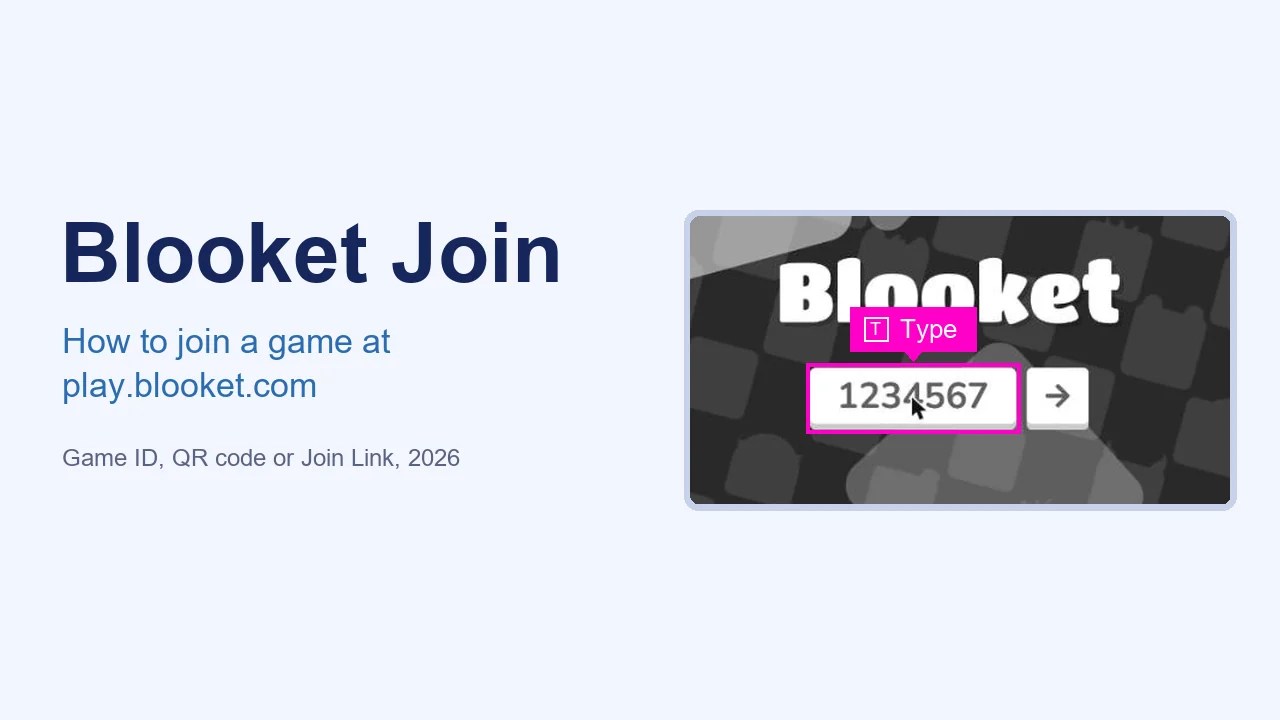
To join a Blooket game, go to play.blooket.com, type the 7-digit Game ID from your teacher’s screen, and click the arrow. You can also scan the host’s QR code or click a Join Link. You don’t need an account to play, and nothing needs to be downloaded. This guide shows each step with real screenshots. It also covers what to do when Blooket says “Invalid game ID”, and how to log in first so you keep your tokens and Blooks.
Quick facts
- Join page: play.blooket.com, or the Join a game button on blooket.com
- Game ID: 7 digits, numbers only, shown on the host’s screen
- Other ways in: scan the QR code, or click a Join Link
- Account needed? No. Logging in only adds tokens, XP and your own Blooks
- Game size: up to 60 players, or 300 if the host has Blooket Plus (Racing and team modes stay at 60)
What Is Blooket?
Blooket (pronounced “blue-kit”) is a free quiz-game platform used in classrooms. A teacher or host picks a question set and a game mode, and players answer questions on their own devices to win the game. Each question you get right earns gold, builds towers, catches fish or serves café customers, depending on the mode. Your character is called a Blook, and the game runs in any web browser. It works on Chromebooks, laptops, iPads and phones.
That’s why “Blooket join” is such a common search: every live game starts with dozens of students trying to get into the same lobby at once.
Before You Start
- The Game ID, which the host shows on the projector when they start a game.
- A web browser on a Chromebook, computer, tablet or phone.
- A Blooket account is optional. You only need one if you want to keep tokens, XP and unlocked Blooks.
How to Join a Blooket Game (4 Steps)
Quick overview:
- Open blooket.com and click Join a game, or go straight to play.blooket.com
- Type the 7-digit Game ID
- Click the arrow
- Pick a nickname and a Blook, then wait in the lobby
Step 1: Go to blooket.com and click Join a game
Open blooket.com and click Join a game in the top-right corner. If you’d rather skip the homepage, type play.blooket.com into the address bar. It opens the same join screen. Avoid searching “blooket join” and clicking the first result, because the results are full of look-alike sites.

Step 2: Type the Game ID
The purple Join a Game page shows a single Game ID box under the Blooket logo. Click it and type the number from your host’s screen. It’s 7 digits, with no letters or spaces.

Step 3: Click the arrow
Click the → button next to the box, or press Enter. If the game is open, you move to the nickname screen. If a red bar appears at the bottom, see Invalid game ID below.

Step 4: Pick a nickname and a Blook, then wait
Type the nickname that will show on the host’s screen. Use your real first name and last initial so your teacher knows who you are. If the host turned on Use Random Names, Blooket gives you a random name instead and you can skip this. Next, choose a Blook (your avatar) while you wait in the lobby. The game starts when the host clicks Start.
Three Ways to Join a Blooket Game
| Method | How | Best for |
|---|---|---|
| Game ID | Type the 7 digits at play.blooket.com | In-class games on a projector |
| QR code | Point your phone or tablet camera at the code on the host’s screen and tap the link | Phones and iPads, so no typing is needed |
| Join Link | Click the link the host shared in Google Classroom, Teams or chat | Remote classes and late arrivals |
All three land you on the same nickname screen. The QR code and link both remove the risk of a typo, which is the number one reason students can’t get in.
Should You Log In Before Joining?
You don’t have to. Blooket’s own help center says student accounts aren’t required to join games. Logging in does change a few things, though:
- You earn tokens and XP at the end of the game. Guests earn nothing.
- You can play as the Blooks you’ve unlocked instead of the default set.
- Your stats are saved to your profile.
If you want those, log in before you enter the Game ID. Click Log In at the top of the join page and sign in with your username, email or Google account.

Can’t Join a Blooket Game? Fixes for Every Error
“Invalid game ID”
This red bar means Blooket can’t find an open game with that number.

- Check the digits. A swapped pair, like 4532 instead of 4523, is the usual culprit. Ask the host to read the number out loud.
- The host may not have started yet, or may have already ended the game. Game IDs stop working when the host closes the game.
- It’s an old ID. Every new game gets a new ID, so yesterday’s number won’t work today.
The game has started and you can’t get in
Hosts can switch off Allow Late Joining. It’s on by default, but when it’s off, the lobby closes once the game starts. Ask the host to let you in for the next round.
The game is full
Free hosts can have up to 60 players and Blooket Plus hosts up to 300. Racing and team modes stay at 60 even on Plus. If your class is bigger than that, the host needs to split the class into two games.
Your nickname is rejected
Blooket filters inappropriate and duplicate names. Use your first name and last initial, or ask the host to turn on random names.
The page won’t load at school
- Some school filters block Blooket outside class time, or block the live connection the game needs. Ask your teacher. Proxy and “unblocked” sites usually break the game anyway.
- Refresh, or try an incognito window to rule out a bad extension.
- If no websites work, it’s your connection. Our WiFi connected but no internet guide walks through the fixes.
Stuck in the lobby
That’s normal: the game starts only when the host clicks Start. If everyone else is playing and you’re still waiting, refresh and rejoin with the same Game ID.
Live Games vs Homework vs Solo
| Type | How you join | When it ends |
|---|---|---|
| Live game | Game ID, QR code or Join Link from the host | When the host ends it |
| Homework (assignment) | Link or ID from your teacher. Play any time | On the due date the teacher sets |
| Solo | Pick a set yourself while logged in, with no Game ID needed | Whenever you stop |
Teachers can assign Blooket homework in modes such as Tower Defense and Café, so students can play the same set at home before the due date.
Popular Blooket Game Modes You Might Join
- Gold Quest: answer questions to open chests of gold, and steal gold from other players.
- Tower Defense: answer questions to build towers against waves of Evil Blooks. It can be played live, solo or as homework.
- Cyber Hack: mine crypto credits and hack other players to take theirs.
- Fishing Frenzy: answer fast to reel in bigger fish.
- Café: serve customers and answer questions to restock food.
- Classic: a straightforward quiz race to the right answer.
Whatever the mode, you join the same way. The mode only changes what happens after the host clicks Start.
Beware of “Free Blooket Codes” and Hacks
Sites promising “active Blooket join codes today”, free tokens or auto-answer scripts are risky. Live Game IDs only exist while a real host has a game open, so a public list of codes is either out of date or bait for ads and malware. Getting caught using cheat scripts can also get your account banned. The only code you need is the one your teacher shows.
For Teachers: How Students Join Your Game
- Pick a question set and a game mode, then click Host.
- Choose your settings, such as Use Random Names and Allow Late Joining, and click Host Now.
- The lobby shows the Game ID, a QR code and a copyable Join Link. Put it on the projector.
- Watch names appear as students join, then click Start.
Our full guide to hosting a Blooket game covers every setting.
Is Blooket Free?
Yes. Blooket says all of its essential features are free. Students never pay to join a game. Teachers can make unlimited question sets and host games for up to 60 players on the free plan. Blooket Plus is optional: it raises the limit to 300 players and adds extra features for hosts.
Blooket Join FAQ
How do I join any Blooket game?
Go to play.blooket.com, enter the 7-digit Game ID from the host’s screen, and click the arrow. You can also scan the host’s QR code or click their Join Link.
Why can’t I join a Blooket game?
Usually the Game ID was typed wrong, the host hasn’t started or has already ended the game, late joining is turned off, or the game is full. Check the number with the host first. Your school’s network filter can also block Blooket.
How do I join a game with a code?
Type the code into the Game ID box at play.blooket.com and press Enter. On blooket.com, click Join a game first to reach the same box.
How many digits is a Blooket code?
Seven, according to Blooket’s help center. It’s numbers only. Older articles that say 6 digits are out of date.
Do I need a Blooket account to join?
No. Anyone with the Game ID can join as a guest. Log in before joining only if you want to earn tokens and use your own Blooks.
Can I join a Blooket game late?
Yes, if the host left Allow Late Joining switched on, which is the default. If they turned it off, you can’t enter after the game starts.
How many players can join one Blooket game?
Up to 60 on a free host account and up to 300 with Blooket Plus. Racing and team modes are limited to 60.
Is Blooket banned?
No. Blooket is a normal educational site used in thousands of schools. Some school networks block it outside lesson time, and individual accounts can be banned for cheating, but the site itself isn’t banned.
Why isn’t Blooket an app?
Blooket runs entirely in the web browser, so it works the same on Chromebooks, iPads, phones and PCs with nothing to install. Be careful with app-store apps that use the Blooket name, because they aren’t official.
How do I get more Blooket tokens?
Log in before you join, then play live games, homework and solo games. Tokens are added to your account at the end of each game. Avoid “free tokens” sites and hacks, which can get your account banned.
More Blooket Guides
- How to host a Blooket game
- How to play Blooket with students
- How to assign Blooket homework
- How to make a Blooket quiz set
- How to edit a Blooket question set
More School Login Guides

Axee Davies is the founder of AxeeTech, publishing gaming guides, codes, and Windows how-tos since March 2013. A tech enthusiast for 13+ years — starting with smartphones and Android rooting — he now runs a site that puts out a new guide every day for Roblox players, traders, and Windows users. More about AxeeTech
More Guides You May Like
 Blooket Quiz Set: How to Make One (Complete 10-Step Guide)
 Blooket Question Set: How to Edit a Question (6 Easy Steps)
 Blooket Set Description: How to Edit It (6 Easy Steps)
 Blooket Homework: How to Assign It (Complete 9-Step Guide)
 Blooket Play: How to Run a Game With Your Class (10 Steps)
 Blooket Host: How to Host a Game in 7 Steps (Complete Guide)
 Blooket Create: How to Create a Set (Step-by-Step Guide)
 Blooket Teacher Account Switch: How to Do It (Complete 3-Step Guide)