K 12 Assessment Platform And Data Solution To Track Student Mastery
A K 12 assessment platform helps you create standards aligned assessments, collect results, and turn them into clear insight. When it is set up well, you can see exactly what each student knows and where they need help, without drowning in spreadsheets or juggling multiple online assessment tools for K 12 teachers.
This guide gives you direct, practical steps to set up your K 12 assessment platform, align to standards, track mastery, use Test IDs, and solve common issues.
What Is A K 12 Assessment Platform
A K 12 assessment platform is a web based system that lets schools design, deliver, and analyze assessments in one place. It replaces scattered tools, paper tests, and manual grade books with a single workflow.
Typical parts of a K 12 assessment and data solution:
- Assessment builder – Create formative, summative, and benchmark assessments.
- Item bank – Use pre built, standards aligned questions.
- Delivery engine – Push tests to student devices or print bubble sheets.
- Data dashboards – View class, school, and district results.
- Integrations – Sync with SIS and LMS to share rosters and grades.
Research on formative assessment shows that well designed checks for understanding can drive large achievement gains, as summarized in an OECD review of formative assessment.
Why Standards Aligned Assessments Matter
If assessments do not match your standards, your data will not guide instruction.
A standards aligned K 12 assessment platform links every question to a skill or standard, such as state standards, district benchmarks, or course outcomes. This makes tracking student mastery of state standards possible at class, school, and district levels.
Inside your K 12 assessment management system, rely on three main assessment types:
- Formative assessments – Quick checks during lessons.
- Summative assessments – End of unit or term judgments.
- Benchmark/interim assessments – Predict end of year performance.
Classroom studies show that using formative assessment to adjust teaching, especially with specific, timely feedback, improves learning. You can find practical classroom examples in Edutopia’s formative assessment guides.
How To Set Up Your K-12 Assessment And Data Solution
Use this sequence when you roll out or reconfigure your K-12 assessment platform or K-12 assessment management system.
1. Define goals and roles
- Decide your primary goal: mastery tracking, test prep, progress monitoring, or program evaluation.
- Assign owners: a system admin, school leads, and teacher champions who model usage.
2. Connect SIS and LMS
- Sync rosters from your SIS so student and class data are always current.
- Turn on LMS integration (for example, Canvas) so teachers can create and launch assessments without extra logins or double entry.
3. Configure standards and item banks
- Import state standards and local course standards into the platform.
- Enable only those item banks that match your curriculum and hide the rest.
- Create naming conventions so assessments and standards are easy to find.
4. Create a core set of assessments
- Build or select common formative assessments for key units in tested subjects.
- Schedule three to four benchmark assessments per grade or subject across the year.
- Agree on when each assessment is given and how results will be reviewed inside your K 12 assessment and data solution.
5. Set up dashboards and reports
- Decide which dashboards principals, coaches, and teachers should see by default.
- Create saved reports for standards mastery, subgroups, and term to term growth.
- Train staff on a simple “open → filter → interpret → plan” routine for each report.
Many teachers say they have data but do not know how to interpret it. A RAND research brief on data systems highlights how clear tools and basic training are essential if you want the platform to change classroom practice.
How To Track Student Mastery Of State Standards
Once your K 12 assessment platform is running, focus on how you read and act on the data for tracking student mastery of state standards.
1. Map assessments to standards
- Check that every item is tagged to the correct standard.
- Remove or retag items that no longer match current units or expectations.
2. Use proficiency levels, not just raw scores
- Set cut scores for below, approaching, meeting, and exceeding.
- Train teachers to look at mastery by standard, not only at total percentages.
3. Scan dashboards for patterns
- Start at the class level: which standards show the lowest mastery?
- Drill down to student level to see who needs reteaching and who is ready for enrichment.
- Use filters for subgroups to spot gaps by grade, school, or demographic group.
4. Plan targeted interventions
- Form small groups based on common gaps in specific standards.
- Reteach one or two standards at a time using focused tasks.
- Reassess with a short formative assessment tied to the same standards.
5. Monitor progress over time
- Compare benchmark results across terms to see growth.
- Track how many standards move from “red” to “green” for each class and school.
- Share simple visuals in data meetings so teams can see change at a glance.
Evidence summaries from organizations like the Institute of Education Sciences show that formative assessment used this way helps teachers adjust instruction midstream and improve outcomes in a relatively short period.
Using Test IDs And Assignments In A Mastery Style Platform
Many mastery based K 12 assessment platforms use a Test ID to link students to a specific assessment instance. This keeps delivery simple and secure, while giving online assessment tools for K 12 teachers a clear, repeatable workflow.
Teacher workflow
- Open the assessment in the platform.
- Choose Assign or Deliver and select classes or individual students.
- Review settings for timing, accommodations, and retakes.
- Generate the Test ID for that assignment.
- Share the Test ID on the board, in the LMS, or on printed slips.
Student workflow
- Go to the student assessment page or click the LMS assignment link.
- Enter the Test ID and their student number if required.
- Confirm they see the correct test and class.
- Complete and submit the assessment.
Have teachers run one low stakes practice test with a Test ID early in the year. This removes confusion before high stakes or benchmark tests.
Example: Getting A Test ID From A Tracker In MasteryConnect
If your K 12 assessment platform is MasteryConnect, you can use this specific click path to pull the Test ID directly from a tracker:
- Navigate to your MasteryConnect account:
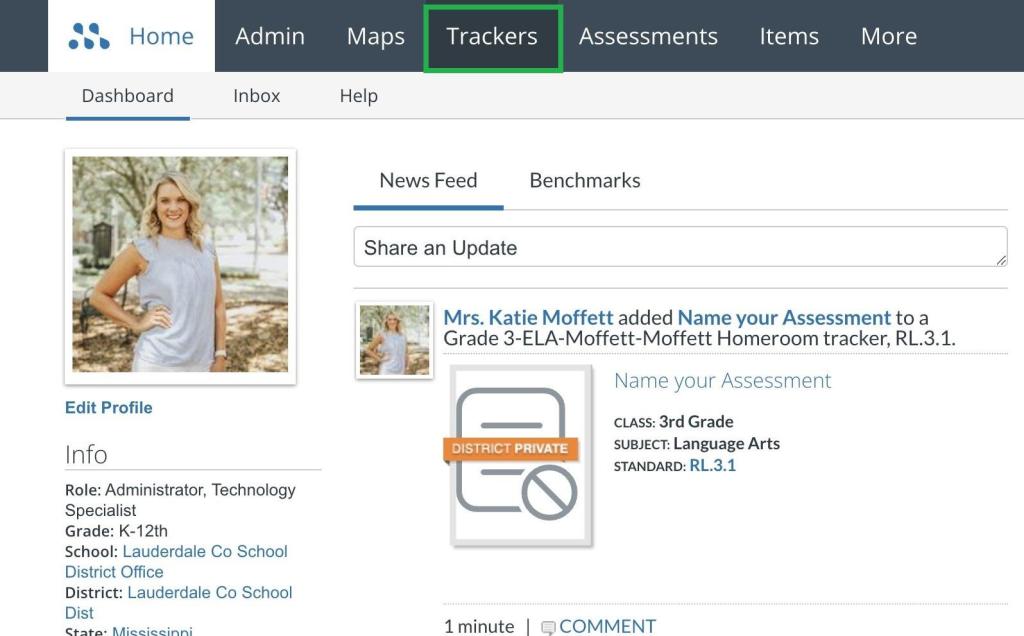
- Click “Trackers”:
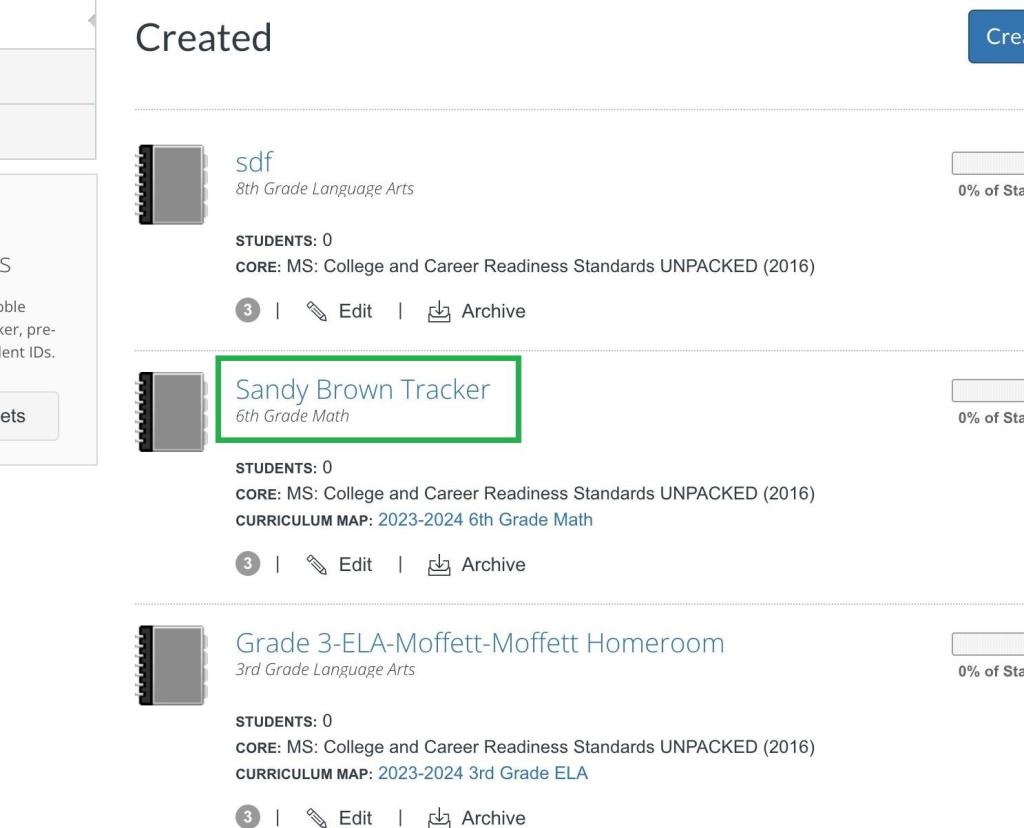
- Click the tracker that contains the assessment:
- Click the standard being assessed:
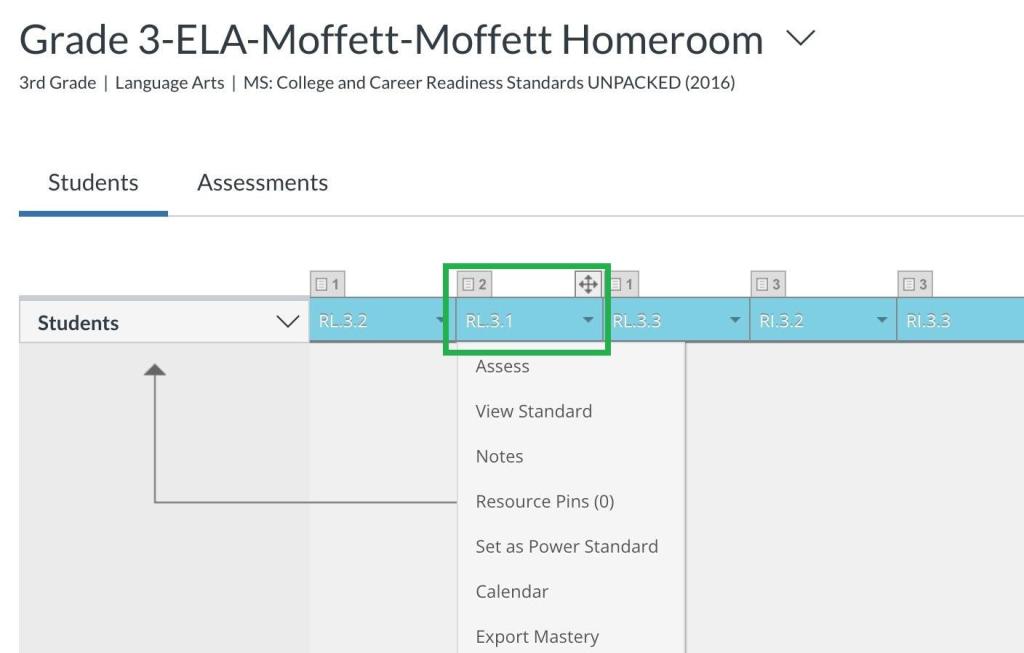
- For single standard assessments:
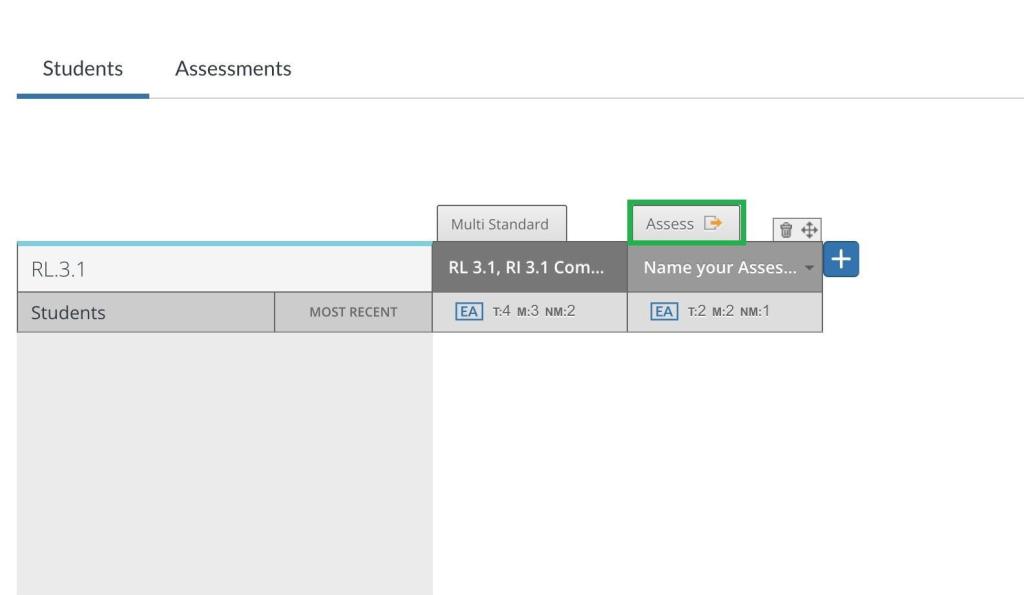
- For multi standard assessments:
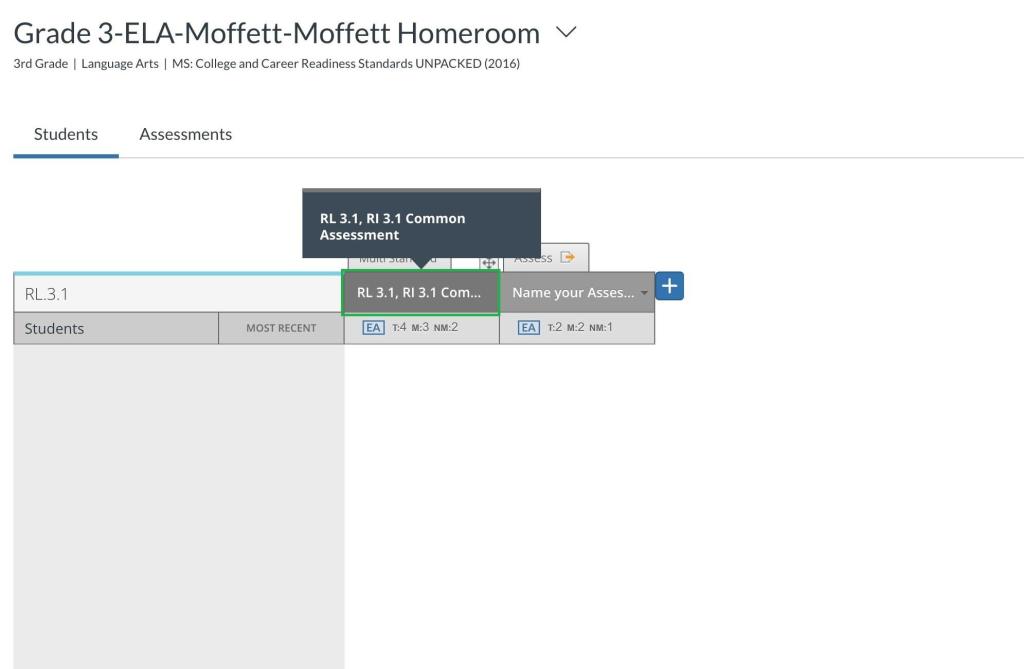
- Click any Assess button:
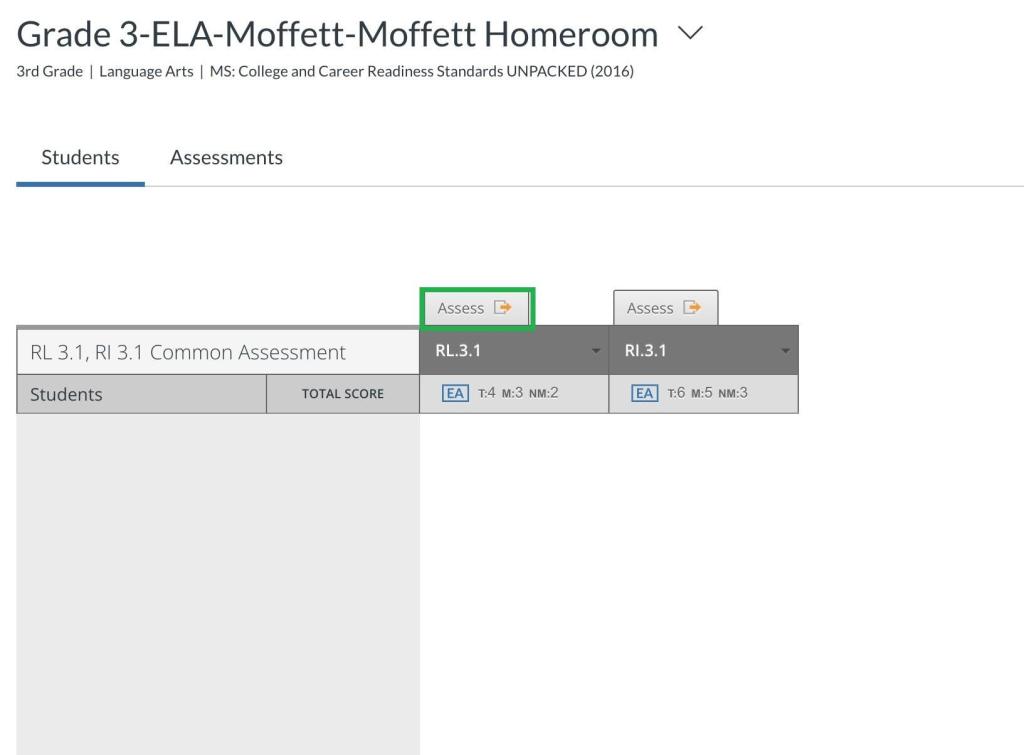
- Click the Test ID icon:
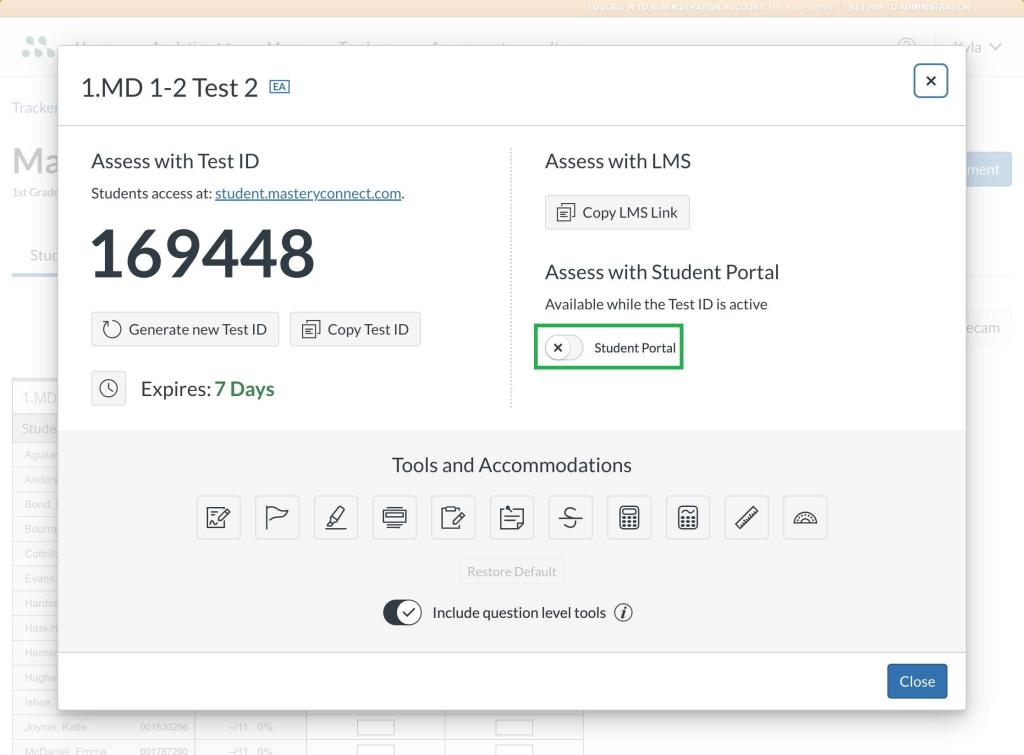
- Click Close:
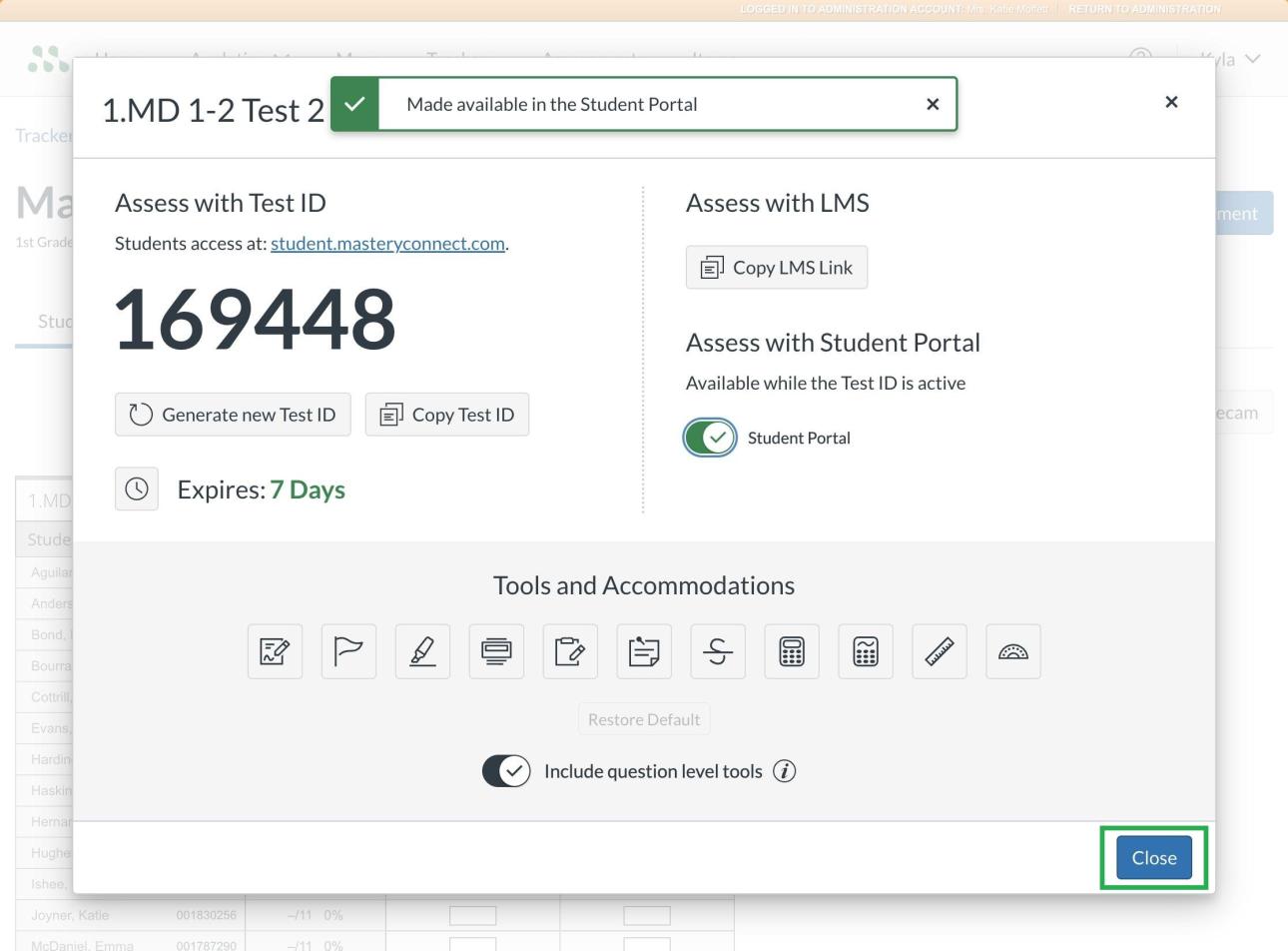
Print or share these steps as a one page guide so teachers can keep it beside their laptop during the first few test sessions.
Integrating With Canvas And SIS
Your K 12 assessment management system should sit inside your existing stack, not beside it.
To integrate with Canvas and your SIS:
- Confirm your license includes LMS and SIS integration.
- Install the app or external tool inside Canvas at the admin level.
- Enable single sign on so staff and students use one set of credentials.
- Map Canvas courses to the correct classes and terms from your SIS.
- Create and deliver a sample assignment, then confirm grades flow back into both the LMS and SIS.
Once this workflow is in place, teachers create an assessment once, assign it to multiple sections, and have grades appear automatically in their gradebooks.
Troubleshooting Common Issues
Use this quick checklist when something goes wrong in your K 12 assessment and data solution.
Students cannot join with a Test ID
- Check that the assessment is active, not expired or unpublished.
- Confirm students use the correct URL and enter the full code.
Rosters look wrong
- Resync from the SIS and confirm term dates and sections.
- Check if teachers manually edited rosters locally and created conflicts.
Data dashboards look empty
- Confirm that assessments are linked to standards, not just created as generic tests.
- Verify filters: correct date range, school, subject, and grade level.
Grades do not appear in Canvas
- Confirm grade passback is enabled for that assignment.
- Check that the teacher published the assignment and ran the sync.
Document recurring fixes in a short internal help page so staff can solve common problems without waiting for support tickets.
Do Check: Conroe ISD SSO Login | Classkick Login Guide |
Quick Best Practice Checklist
Use this list to keep daily practice with your K 12 assessment platform simple and effective:
- Keep assessments short and focused on a few key standards.
- Use at least one quick formative check most days in core subjects.
- Schedule data meetings right after benchmark windows.
- Show students their own mastery reports and set simple goals.
- Review and clean item banks each year to remove weak or outdated items.
With clear standards, well-designed assessments, and consistent use of your online assessment tools for K 12 teachers, you turn test data into concrete instructional decisions instead of extra work.

Axee Davies is the founder of AxeeTech, publishing gaming guides, codes, and Windows how-tos since March 2013. A tech enthusiast for 13+ years — starting with smartphones and Android rooting — he now runs a site that puts out a new guide every day for Roblox players, traders, and Windows users. More about AxeeTech
More Guides You May Like
 BIOS ID Check Error: What It Means and How to Fix It Safely
 OnePlus 15 China vs Global: PLK110 vs CPH2747, Differences & Which to Buy
 Is It Safe to Buy a Chinese ROM Phone? Risks, Warranty & Checklist (2026)
 How to Install Google Services on Chinese ROM Phone (Play Store Step by Step)
 Vivo X300 Pro China vs Global: Battery, eSIM & Import Differences
 OnePlus 15R vs Ace 6T: China vs Global Differences (Battery, Charging, Software)
 POCO F7 Ultra vs Redmi K80 Pro: Global vs China Differences & Model Numbers
 Do Chinese ROM Phones Support eSIM? China vs Global Phone-by-Phone