Paramount Error Code 105: Complete Fix Guide for LG, Samsung, Hisense & TCL TVs
Seeing Paramount error code 105 on your TV screen is frustrating. This error stops you from streaming your favorite shows and movies. It appears on LG, Samsung, Hisense, and TCL televisions. The issue is usually related to DNS or network settings.
This guide explains what error 105 means and why it happens. You will find step-by-step fixes for your specific TV brand. The solutions range from simple power cycles to advanced DNS configuration. Follow the instructions carefully and you will resolve the error quickly.
Also on Axeetech: TouchEn nxKey Error
What Is Paramount Error Code 105?
Nothing is more frustrating than settling in to watch your favorite show. You grab your snacks and get comfortable. Then a cryptic error code appears on your screen.

Paramount error code 105 is a network-related issue. It occurs when the DNS server is blocking access to Paramount Plus servers. The app tries to connect but fails.
Root Cause: DNS authentication failure. Your TV cannot translate the Paramount Plus web address into an IP address. This prevents the app from loading content.
Common Symptoms:
- The app fails to load completely
- Streaming stops abruptly during playback
- A “Network Authentication Failed” message appears
- The app opens but content won’t play
- Error 105 appears during login or when trying to play content
Who Gets This Error:
- LG TV users running webOS
- Samsung TV users running Tizen
- Hisense TV users running VIDAA or Android TV
- TCL TV users running Roku OS or Android TV
Quick Fixes (Try These First)
Before diving into brand-specific solutions, try these quick fixes. Most users resolve error 105 with one of these methods.
Fix 1: Restart the Paramount Plus App
Force close the Paramount Plus app. Reopen the app and test if the error persists.
Fix 2: Restart Your Smart TV
Power cycling your TV clears temporary glitches. Unplug the TV from the wall outlet. Wait for 60 seconds. Plug it back in and turn it on. Press the power button on the TV for 30 seconds before plugging it back in to drain residual power.
Fix 3: Restart Your Router and Modem

Network issues often cause error 105. Unplug your router from power. Unplug your modem from power. Wait for 30 seconds. Plug the router back first. Wait for all lights to stabilize. Plug the modem back. Wait for a full connection before testing.
Fix 4: Check Your Internet Connection
Run a speed test on another device in your home. Paramount Plus requires at least 4 Mbps for HD streaming. For 4K content, you need 25 Mbps or higher. Switch from Wi-Fi to Ethernet if possible. A wired connection is more stable.
Also on Axeetech: Paramount Plus Error Code 3005
How to Fix Paramount Error 105 on LG TV
LG TV Compatibility
Paramount Plus requires LG webOS 4.0 or later. This means LG TVs from 2018 and newer models. Older LG TVs may not support the app. Check your webOS version by going to Settings > General > About This TV.

Method 1: Power Cycle LG TV
Unplug your LG TV from the power outlet. Wait for 60 seconds. Press and hold the power button on the TV itself for 30 seconds. Plug the TV back in. Turn it on and test the app.
Method 2: Update LG TV Firmware
Outdated firmware can cause compatibility issues. Go to Settings > All Settings > General. Select About This TV. Click Check for updates. Install any available updates. Restart your TV after the update completes.
Method 3: Clear App Cache (webOS)
LG webOS does not have a direct cache clearing option. Instead, remove and reinstall the app. Open the Home Dashboard. Find the Paramount Plus app. Press and hold the select button. Select Delete or Remove. Reinstall the app from the LG Content Store.
Method 4: Reinstall Paramount Plus App
Open the LG Content Store. Search for Paramount Plus. Select Install. Wait for the installation to complete. Launch the app. Sign in with your credentials. Test if error 105 is resolved.
Method 5: Check DNS Settings (Advanced)
DNS issues are the primary cause of error 105. Go to Settings > Network. Select your Wi-Fi Connection. Choose Advanced settings. Find DNS settings. Change from Auto to Manual. Enter 8.8.8.8 as the primary DNS. Enter 8.8.4.4 as the secondary DNS. Save your settings and restart the TV.

How to Fix Paramount Error 105 on Samsung TV
Samsung TV Compatibility
Paramount Plus works on Samsung TVs running Tizen OS. This includes models from 2017 and newer. The Smart Hub must be functioning properly. If Smart Hub is corrupted, error 105 may appear.
Method 1: Soft Reset Samsung TV
Unplug your Samsung TV from the wall outlet. Wait about 60 seconds. Press the power button on the TV for 30 seconds. This drains residual power. Plug the TV back in. Turn it on and check if the error is gone.
Method 2: Update Samsung TV Firmware
Go to Settings > Support. Select Software Update. Click Update Now. Your TV will check for available updates. Install any updates found. Wait for the installation to complete. Restart your TV.

Method 3: Clear App Cache
Press the Home button on your remote. Select APPS. Find the Settings icon (cog symbol). Find Paramount Plus in the list. Select Clear cache. This removes temporary files that may be corrupted. Test the app again.
Method 4: Smart Hub Reset (Critical Fix)
This is the most effective fix for Samsung TV error 105. Go to Settings > Support. Select Self Diagnosis. Choose Reset Smart Hub. Enter the PIN when prompted. The default PIN is 0000. Your TV will restart. You will need to re-setup Smart Hub. Reinstall the Paramount Plus app. Sign in and test.

Method 5: DNS Configuration
Go to Settings > Network. Select Network Status. Choose IP Settings. Find DNS Setting. Change to Enter Manually. Enter 8.8.8.8 as the DNS server. Save your settings. Restart your TV and test.
How to Fix Paramount Error 105 on Hisense TV
Hisense TV Compatibility
Hisense TVs come in two varieties. Android TV models require Android OS 7.0 or later. VIDAA models have their own app store. Check your TV model and OS version before troubleshooting.
Method 1: Restart Hisense TV
Turn off your Hisense TV completely. Unplug it from the power outlet. Wait about 60 seconds. Plug it back in and turn it on. Test the Paramount Plus app.
Method 2: Update Paramount Plus App
Open the Hisense App Store. For VIDAA models, open the VIDAA App Store. Search for Paramount Plus. Look for an Update button. If available, install the update. Restart your TV after the update.
Method 3: Clear App Cache (Android TV)
Press the Home button on your remote. Go to Settings > Apps. Find Paramount Plus in the app list. Select Clear Cache. This removes temporary data. Test the app again.

Method 4: Clear App Data (Android TV)
Go to Settings > Apps. Find Paramount Plus. Select Clear Data. This removes all app data including login information. Reopen the app and sign in again. This resolves many persistent errors.
Method 5: Reinstall Paramount Plus App
Uninstall the Paramount Plus app from your Hisense TV. Restart your TV. Go to the app store. Reinstall the app. Launch the app and sign in. Test if error 105 is resolved.
How to Fix Paramount Error 105 on TCL TV
TCL TV Compatibility
TCL TVs run on two operating systems. Roku TV models use Roku OS. Other models use Android TV OS. Identify your TCL TV type before following the steps.
Step-by-Step Fixes (Roku TV)
Method 1: Restart TCL Roku TV
Go to Settings > System. Select Power. Choose System restart. Click Restart Now. Your TCL Roku TV will restart. Test the Paramount Plus channel after restart.
Method 2: Remove and Reinstall Channel
Highlight the Paramount Plus channel on your home screen. Press the Star button on your remote. Select Remove channel. Confirm the removal. Restart your Roku device. Go to the Roku Channel Store. Re-add the Paramount Plus channel. Sign in and test.
Method 3: Network Connection Reset
Go to Settings > System. Select Advanced system settings. Choose Network connection reset. Select Reset connection. Your network settings will be cleared. Reconnect to your Wi-Fi network. Test the app again.
Step-by-Step Fixes (Android TV)
Go to Settings > Apps. Find Paramount Plus. Select Clear cache. Then select Clear data. Restart your TCL TV. Reopen the app and sign in.

Advanced Troubleshooting for Paramount Error 105
DNS Configuration (All TV Brands)
DNS is the most common cause of error 105. Changing your DNS settings often resolves the issue immediately.

What is DNS?
DNS stands for Domain Name System. It translates website names into IP addresses. When DNS fails, your TV cannot find Paramount Plus servers.
How to Change DNS on Any Smart TV:
- Go to Network Settings on your TV
- Select your Wi-Fi network
- Choose Advanced or IP Settings
- Change DNS from Auto to Manual
- Enter Primary DNS: 8.8.8.8
- Enter Secondary DNS: 8.8.4.4
- Save your settings
- Restart your TV
Alternative DNS Options:
- Cloudflare: 1.1.1.1 and 1.0.0.1
- OpenDNS: 208.67.222.222 and 208.67.220.220
Router Settings Check
Your router may be blocking Paramount Plus. Disable any VPN on your router. VPNs often cause streaming errors. Check for parental controls blocking streaming services. Ensure UPnP is enabled on your router. This allows devices to communicate properly. Check for MAC address filtering. If enabled, add your TV’s MAC address to the allowed list.
Firmware Updates
Check your TV manufacturer’s website for the latest firmware. Some TVs can update via USB if network update fails. Outdated firmware causes compatibility issues with streaming apps. Always keep your TV firmware current.
Factory Reset (Last Resort)
Factory reset returns your TV to original settings. It removes all apps and data. Use this only when all other fixes fail. Go to Settings > General > Reset. Follow the on-screen instructions. Set up your TV again. Reinstall Paramount Plus and test.
Preventing Paramount Error 105 in the Future
Regular Maintenance
Update your TV firmware once a month. Check for Paramount Plus app updates regularly. Restart your router weekly to clear network cache. Clear app cache monthly to prevent data corruption.
Network Best Practices
Use an Ethernet connection when possible. Ethernet is more stable than Wi-Fi. Position your router near your TV for stronger signal. Avoid network congestion during streaming hours. Use 5GHz Wi-Fi for better performance than 2.4GHz.
Account Management
Keep your Paramount Plus subscription active. Remove unused devices from your account regularly. Use correct login credentials. Expired subscriptions can sometimes trigger error codes.
Paramount Error 105 vs Other Error Codes
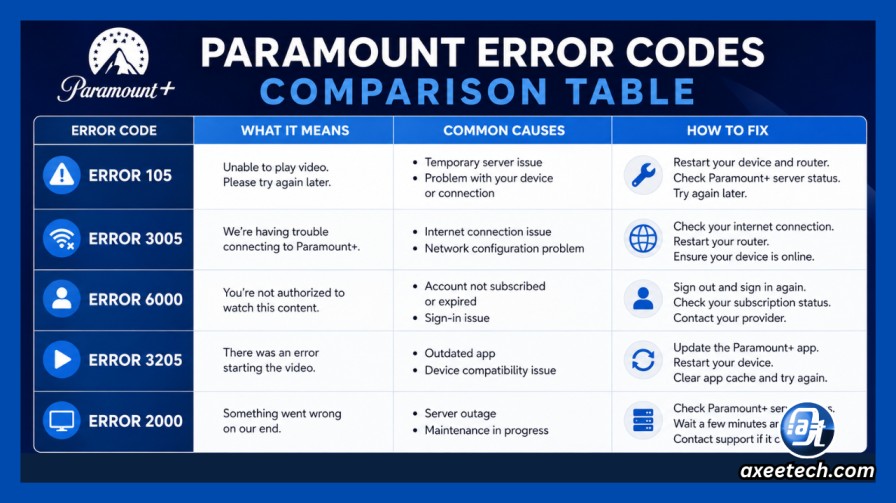
| Error Code | Meaning | Fix |
|---|---|---|
| 102 | DNS blocking access | Change DNS to 8.8.8.8 |
| 105 | DNS authentication failure | Change DNS settings |
| 107 | Network authentication error | Reset Smart Hub, re-enter Wi-Fi password |
| 301 | Smart Hub connection error | Restart router 5 minutes |
| 3200 | Playback error on smart TVs | Hard restart device 30 seconds |
| 4201/1200 | Ad-blocker interference | Disable ad blockers |
Frequently Asked Questions
What does error code 105 mean on Paramount Plus?
Error 105 means DNS authentication failure. Your TV cannot connect to Paramount Plus servers due to DNS issues.
Why does Paramount Plus keep showing error 105?
This usually happens due to DNS configuration problems, network connectivity issues, or outdated TV firmware.
How do I fix Paramount error 105 on my Samsung TV?
Try Smart Hub reset, DNS change to 8.8.8.8, or power cycle your TV. The Smart Hub reset is the most effective fix.
Is Paramount error 105 a server issue?
No, error 105 is typically a user-end issue. It is related to DNS or network configuration on your side.
Will resetting my Smart Hub delete my apps?
Resetting Smart Hub removes Smart Hub settings. It does not delete all installed apps. You may need to re-setup some services after the reset.
What is the default PIN for Samsung Smart Hub reset?
The default PIN for Samsung Smart Hub reset is 0000.
Does Paramount Plus work on all LG TVs?
Paramount Plus works on LG TVs with webOS 4.0 or later. This means 2018 models and newer.
How do I check my LG TV webOS version?
Go to Settings > General > About This TV. Your webOS version will be displayed there.

Axee Davies is the founder of AxeeTech, publishing gaming guides, codes, and Windows how-tos since March 2013. A tech enthusiast for 13+ years — starting with smartphones and Android rooting — he now runs a site that puts out a new guide every day for Roblox players, traders, and Windows users. More about AxeeTech
More Guides You May Like
 What Is the Blue Dot Beside the Battery in Samsung Phones After the One UI 9 Update?
 ArtCraft Review: 12 Free Adobe & Microsoft Office Alternatives (Launcher + Download Guide)
 Star Citizen Retribution: What It Is and Can You Buy It
 Star Citizen Ranta Dung: Where to Find It and Price
 Star Citizen Wikelo Ships: How to Get War Special Rewards
 Star Citizen Sabre Firebird: Specs, Price and Where to Buy
 Star Citizen Executive Hangar Guide: Timer and Rewards
 Star Citizen Teach’s Ship Shop: Location and Teach’s Special