What Is the Blue Dot Beside the Battery in Samsung Phones After the One UI 9 Update?
If you updated your Samsung Galaxy phone to One UI 9 and now see a small blue dot beside the battery icon at the top of the screen, you are looking at Samsung’s brand-new location privacy indicator.
It is not a glitch, and it does not mean your phone is hacked. Here is what the blue dot beside the battery means on Samsung phones after the One UI 9 update, which Galaxy phones show it, and how to control it.
What the Blue Dot Beside the Battery Means
The blue dot is a dedicated location-access indicator that Samsung introduced in One UI 9 (Android 17). Whenever any app accesses your phone’s location, the small blue icon appears in the status bar, right beside the battery indicator, as shown in the screenshot below.

Samsung does not leave you guessing which app triggered it. Swipe down to open the Quick Panel and tap the blue indicator, and your phone names the exact app, for example “Being used by Maps.”
Which Samsung Phones Show the Blue Dot
You will only see the blue dot if your Galaxy phone is running One UI 9 (Android 17). As of October 2026, Samsung has rolled out the stable update to these phones in at least some regions:
- Galaxy S series: Galaxy S26, S26+, S26 Ultra, S25, S25+, S25 Ultra, S25 Edge, S25 FE, S24, S24+, S24 Ultra
- Galaxy Z series: Galaxy Z Fold 8, Fold 8 Ultra, Z Flip 8, Z TriFold, Z Fold 7, Z Flip 7, Z Flip 7 FE, Z Fold 6, Z Flip 6
- Galaxy A series: Galaxy A57
The rollout is phased by country and carrier, so if your phone is on the list but the update has not arrived yet, check Settings, then Software update, then Download and install. If your Galaxy is still on One UI 8 or older, you will not see the blue dot at all.
Should You Worry About the Blue Dot?
Usually not. The blue dot simply means an app asked for your location. A maps app needs it for directions, a weather app uses it for your local forecast, and your camera may tag photos with where they were taken. The dot can appear even when you have not opened a maps app yourself, because apps with “Allow all the time” permission can check your location in the background.
It becomes worth a closer look when the app named in the Quick Panel is one you do not recognize, or one that has no good reason to know where you are, like a flashlight or calculator app. In that case, take away its location access using the steps below.
How to Control Which Apps Use Your Location
To review or change an app’s location access, open Settings, then Location, then App permissions, and select the app. You can choose Allow all the time, Allow only while using the app, Ask every time, or Don’t allow. If an app has no good reason to know your location, pick Don’t allow. For apps you trust but want to keep on a shorter leash, “Allow only while using the app” is the sweet spot.
Other Colored Dots on Samsung Phones
The blue dot is not the only indicator you might see. Here is what the other colors mean on your Galaxy:
The Green Dot: Camera or Microphone in Use
The green dot has been on Samsung phones since Android 12. It means an app is currently using your camera or microphone. It first appears as a small chip showing a camera or microphone icon, then shrinks into the tiny green dot in the status bar for as long as the sensor stays in use.

Like the blue dot, you can tap it: open the notification panel and tap the green dot to see which app is responsible. It is normal during video calls, voice notes, and camera use. It is a red flag only when it appears while nothing you are doing should need the camera or mic. Android also keeps a Privacy Dashboard under Settings that logs the last seven days of camera, microphone, and location access.
The Yellow (Orange) Dot: Not a Samsung Thing
There is no yellow privacy dot on Samsung phones or any Android phone. If you saw a yellow or orange dot in a screenshot, it was an iPhone. On iPhones running iOS 14 and later, an orange dot, which many people describe as yellow, means an app is using the microphone. It sits near the Dynamic Island or notch, as shown below.
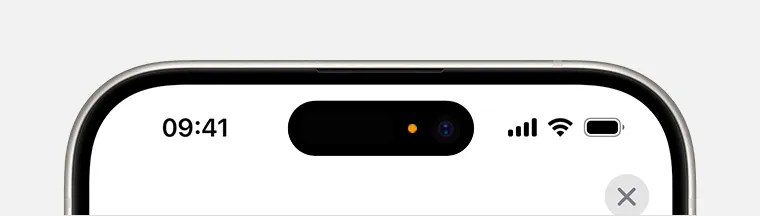
On your Galaxy, camera and microphone access share the single green dot, so the two platforms look different. If a friend with an iPhone asks about the orange dot, now you know what to tell them.
Frequently Asked Questions
Can I turn off the blue dot beside the battery? No. Like the green dot, it is a built-in privacy feature in One UI 9 and cannot be disabled through normal settings.
Why does the blue dot appear when I am not using maps? Any app holding “Allow all the time” location permission can ping your location in the background. Check Settings, then Location, then App permissions to see which apps hold that permission and downgrade the ones that do not need it.
My Galaxy phone does not show the blue dot. Why? Your phone is probably still on One UI 8 or older. The blue dot only exists in One UI 9 (Android 17). Check Settings, then Software update, to see if the update is available for your model and region.
Does the blue dot drain my battery? The dot itself uses no extra power. If you notice battery drain, it is the app using your location in the background, not the indicator. Restricting that app’s location permission fixes both.
Not sure what another symbol means? Use our Samsung status bar icons guide and tap any icon to see its name, meaning and how to hide it.
Samsung’s next software version is already in internal testing — here is how to get One UI 9.5 the moment its beta opens.

Axee Davies is the founder of AxeeTech, publishing gaming guides, codes, and Windows how-tos since March 2013. A tech enthusiast for 13+ years — starting with smartphones and Android rooting — he now runs a site that puts out a new guide every day for Roblox players, traders, and Windows users. More about AxeeTech
More Guides You May Like
 Eden NX2 Stuck on Launching? Fixes That Actually Help (and the Fake APKs to Avoid)
 minecraft boat error: Why Boats Vanish, Break, or Get Stuck and How to Fix Them
 error: unable to access jarfile minecraft_server.26.2.jar
 Connectivity hssgamepad: How to Fix Gamepad Pairing, Drops, and Lag
 mo2 ssl error: How to Fix the Mod Organizer 2 Nexus SSL Error
 diablo 4 error code 300024: How to Fix the Reliquary Claim Error
 How to Fix the vanguard 216 error (VAN 216)
 pokemon tcg live error 10011: How to Fix PTCGL Error 10011