Fix Your iPhone’s PDP Authentication Error 2026: A Step-by-Step Guide for iOS
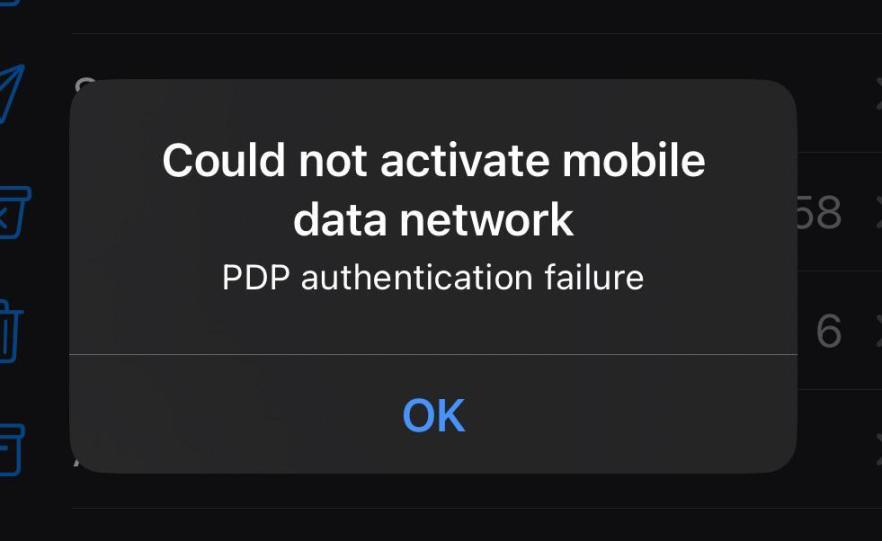
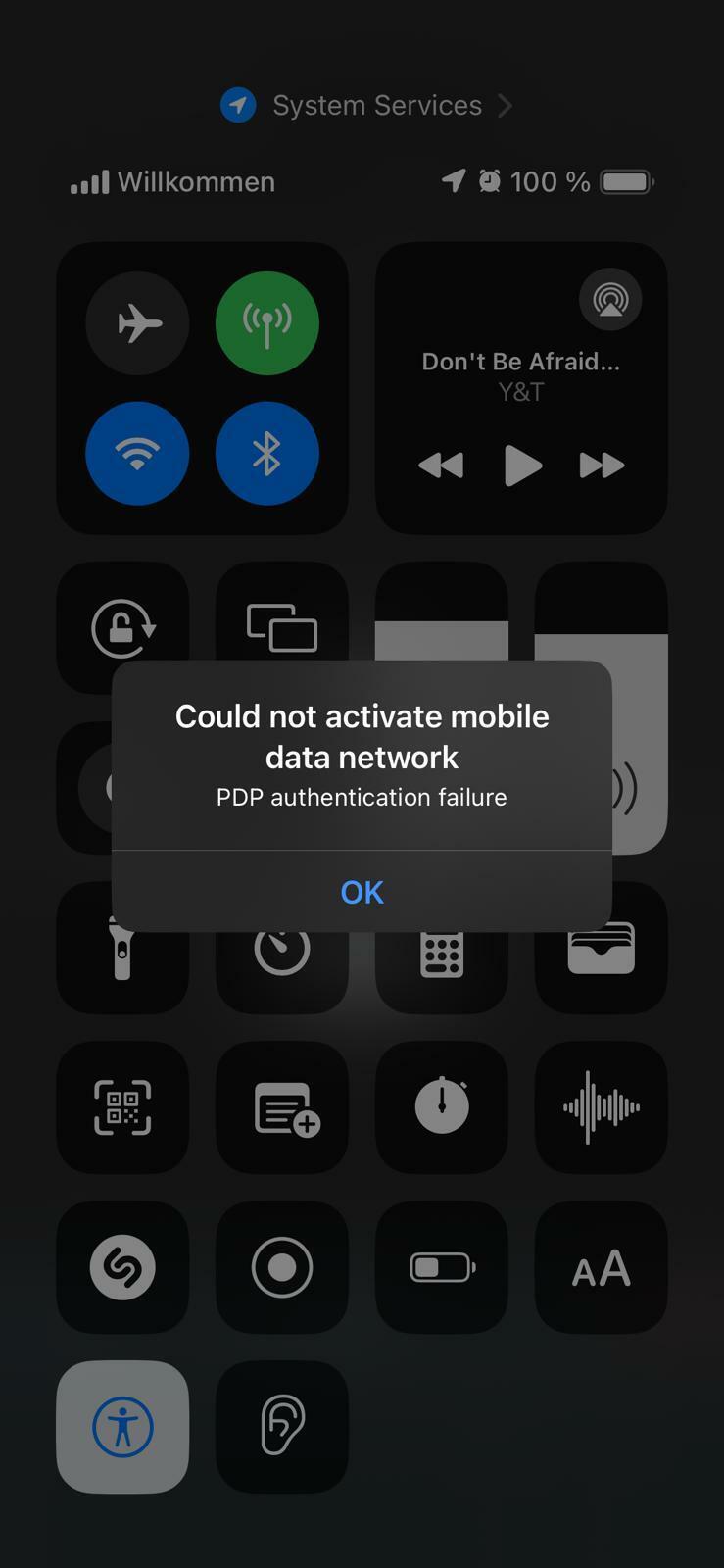
Ever been staring at your iPhone, eager to browse, stream, or connect, only to be hit with that frustrating “Could not activate cellular data network” or “PDP Authentication Failure” message? It’s a real head-scratcher. If you’re an iPhone or iPad user experiencing this, you’re not alone. This guide is your straightforward answer to what is PDP Authentication Error is on your iOS device and, more importantly, how to get your mobile data back up and running.
At its simplest, a PDP Authentication Failure Error on your iPhone means your device couldn’t successfully establish a connection with your mobile carrier’s data network. Think of it like trying to get a secret handshake right to enter an exclusive club; if the handshake (the authentication) fails, you’re not getting in (to the internet). This crucial step, called establishing a Packet Data Protocol (PDP) context, is absolutely vital for your iPhone to access 2G, 3G, 4G/LTE, and even 5G mobile internet services. When it fails, your device just can’t send or receive data over cellular.
What’s Going On: The Nitty-Gritty of PDP Authentication in 2026
Before we dive into the fixes, let’s briefly understand what PDP is and why it’s so important for your iPhone’s cellular data.
What is Packet Data Protocol (PDP)?
Packet Data Protocol (PDP) is essentially the rulebook that allows your iPhone (or any mobile device) to send and receive data in small chunks, or “packets,” over cellular networks like GPRS, 3G (UMTS), and 4G (LTE). When your device tries to get online using cellular data, it asks the network to set up a “PDP context.”
This “PDP context” is like a temporary, dedicated pathway for your data. It holds all the vital information for your internet session, including:
- PDP Type: This specifies the type of internet connection, typically IPv4 or IPv6.
- PDP Address: This is the temporary IP address your iPhone gets for that data session.
- Access Point Name (APN): This is super important! The APN acts as a gateway, telling your phone how to connect to the right part of your carrier’s network to reach the internet. It’s unique to each carrier and sometimes even to specific data plans.
- Quality of Service (QoS) Parameters: These define things like how fast your data should flow and how reliable the connection needs to be.
- Security Parameters: Information related to ensuring your connection is secure and authenticated.
So, the PDP context is the bedrock for everything from checking emails to streaming videos on your cellular network. In the newer 5G networks, this concept evolves into a PDU (Packet Data Unit) Session, serving a similar purpose.
The PDP Authentication Failure Process Explained
When your iPhone tries to get online via cellular, it goes through a quick authentication dance with your carrier’s network:
- Request Sent: Your iPhone sends an “Activate PDP Context Request” to the network, including your desired APN.
- APN Resolution: The network identifies the correct gateway based on the APN you provided.
- Authentication & Authorization: This is where the magic (or the malfunction) happens! The network verifies your iPhone’s identity (using your SIM card or eSIM credentials) and checks if your subscription allows access to the requested services. If your account is in good standing and everything matches up, you’re usually good to go.
- IP Address Allocation: If successful, your iPhone gets an IP address from the network.
- Connection Accepted: The network sends a confirmation back to your iPhone, letting it know the data session is active.
A hiccup at any point in this chain, especially during the authentication and authorization step (number 3!), will result in that dreaded PDP Authentication Error.
Why Your iPhone Says “PDP Authentication Failure”: Common Causes
A PDP Authentication Error on an iPhone can be a real head-scratcher because it can come from various sources. It’s not always your phone’s fault! Let’s break down the common culprits.
Device-Side Gremlins: When Your iPhone is the Culprit
Often, the problem starts right in your hand.
- Incorrect APN Settings:
This is, hands down, the most frequent reason for a PDP Authentication Error. Your APN settings are like the coordinates for your phone to find its way to the internet. If the APN name, username, password (if needed), or even the APN protocol (IPv4/IPv6) are wrong, your phone won’t be able to authenticate. This is super common after a software update, switching SIM cards, or when using an MVNO (Mobile Virtual Network Operator) like a budget carrier, as they often have very specific APN requirements. - SIM Card or eSIM Issues:
- Physical SIM: A SIM card that’s damaged, dirty, or not seated correctly can prevent your network from recognizing your device. It’s the key to your cellular identity, after all!
- eSIM: Problems with eSIM activation, a corrupted eSIM profile, or even an incomplete download of your eSIM’s data can cause this error. Think of it as a digital SIM that got scrambled.
- Software Glitches or Outdated Software:
- Software Bugs: Sometimes, a temporary bug in iOS itself can interfere with the network connection process.
- Outdated Software/Firmware: An old iOS version, outdated carrier settings, or even outdated modem firmware can lead to compatibility issues with your network, causing authentication to fail.
- VPN/MDM Profiles: If you use a VPN or your iPhone is managed by your company’s Mobile Device Management (MDM) software, incorrect or conflicting settings in these profiles can sometimes block cellular data authentication.
- Roaming Settings (Travel Woes): For globetrotters, incorrect data roaming settings are a classic. Your iPhone might be set not to use data while roaming, or your carrier plan might not support international data in your current location.
Network-Side Niggles: When Your Carrier is to Blame
Sometimes, the issue isn’t on your end at all.
- Temporary Network Outages or Congestion: Just like roads, mobile networks can get congested during peak times or suffer outages due to maintenance or technical issues. A weak cellular signal also falls into this category – your phone just can’t get a strong enough connection to authenticate properly.
- Account or Subscription Problems:
- Expired Data Plan/Insufficient Balance: If your data plan has run out, your data allowance is exhausted, or you haven’t paid your bill, your carrier will simply refuse to authenticate your data connection.
- Account Barring: Your carrier might have intentionally restricted your account due to overdue payments or policy violations.
- Network Misconfigurations: Errors within your carrier’s own network equipment (like their gateways or authentication servers) can prevent successful PDP context activation. These are rare but can happen.
- Regional or Tariff Restrictions: Some eSIM profiles or specific plans might only allow data usage in certain regions, or might not include mobile data at all. Trying to use data outside a permitted area or on a voice-only plan will definitely cause a failure.
- Device Compatibility (from the Network’s Side): In some less common scenarios, your device might not be fully compatible with certain network technologies, especially if you’re roaming or using a very old phone on a very new network infrastructure.
Understanding these varied reasons is half the battle. Now, let’s get to the good stuff: fixing it!
Troubleshooting Your PDP Authentication Error on iPhone/iOS
Don’t panic! Most PDP authentication error issues on iPhones can be solved with a few systematic steps. We’ll start simple and move to more advanced options. This guide works with all iPhones including iPhone 16, iPhone 15, iPhone 14, iPhone 13, iPhone 12, iPhone 11, iPhone XS, including all the standard, Pro and Pro Max variants of the phones.
Basic Device-Level Troubleshooting: Start Here!
These quick fixes often resolve common, temporary glitches.
- Restart Your iPhone: The oldest trick in the book, but often the most effective. A simple reboot can clear up minor software bugs and refresh your network connection. Power off your iPhone completely, wait about 30 seconds, and then turn it back on.
- Toggle Airplane Mode: This forces your iPhone to disconnect and reconnect to the cellular network, which can resolve temporary communication issues. Go to Control Center or Settings, turn on Airplane Mode for 10-15 seconds, then turn it off.
- Check Network Signal Strength: A weak signal can prevent authentication. Glance at the signal bars at the top of your screen. If they’re low, try moving to an area with better reception, like near a window or outdoors. Sometimes, simply moving a few feet can make a difference!
- Verify SIM Card / eSIM Status:
- Physical SIM: Power off your iPhone. Carefully remove your SIM card. Check it for any visible damage or dirt. Reinsert it firmly and correctly. If you have another compatible iPhone, try inserting your SIM into it to see if the issue persists – this helps determine if the SIM card itself is faulty.
- eSIM: Go to
Settings > Cellular. Make sure your eSIM profile is correctly installed and activated. You can try toggling the eSIM line off and on here, or even reinstalling the eSIM profile if you know how (be cautious, as this requires getting a new QR code from your carrier).
- Check Data Plan and Account Status: This is a crucial step! Log into your carrier’s app or website (or call them) to verify that your mobile data plan is active, you have enough data allowance, and your account is in good standing (no overdue bills!). For eSIMs from third-party providers, double-check your data balance through their app or website.
- Update Device Software and Carrier Settings:
- iOS Updates: Always keep your iPhone’s operating system up to date. Go to
Settings > General > Software Update. Apple often includes bug fixes for network connectivity in new iOS versions. - Carrier Settings Updates: Your carrier frequently pushes small updates to optimize your iPhone’s performance on their network. You’ll usually get a pop-up. To manually check, go to
Settings > General > About. If an update is available, you’ll be prompted to install it.
- iOS Updates: Always keep your iPhone’s operating system up to date. Go to
- Enable Data Roaming (If You’re Traveling): If you’re outside your home network area, ensure data roaming is enabled. Go to
Settings > Cellular > Cellular Data Options > Data Roaming. Also, confirm with your carrier that your specific plan supports international roaming in your current location.
APN Configuration: Your Gateway to the Internet
Correct APN settings are paramount for successful PDP authentication on your iPhone. Even a tiny typo can break the connection.
- Verifying and Correcting APN Settings:
- Locating APN Settings (iOS): Go to
Settings > Cellular (or Mobile Data) > Cellular Data Options > Cellular Data Network. - Important Note for iOS: Some carriers might restrict you from manually editing APN settings. If the options are grayed out, you’ll need to contact your carrier directly.
- Obtaining Correct Settings: This is the most crucial part. You MUST get the exact APN settings from your official carrier’s website or by contacting their customer support. These details can include the APN name, username, password, MMSC, MMS Proxy, etc. Even a single incorrect character can cause issues. For eSIMs, these details are often provided during the setup process or within the eSIM provider’s app.
- Editing/Adding APN: If you can edit them, carefully input the correct information. Double-check for typos, capitalization, and extra spaces. After saving, select the new APN profile and restart your iPhone.
- Locating APN Settings (iOS): Go to
- Resetting APN Settings to Default: This is a powerful step if you suspect messed-up APN configurations.
- iOS: Go to
Settings > Cellular > Cellular Data Network > Reset Settings. Alternatively, a more general reset isSettings > General > Transfer or Reset iPhone > Reset > Reset Network Settings. This will reset all network configurations, including Wi-Fi passwords and cellular settings. - This action restores your APN settings to what your carrier officially provides, which can often fix issues caused by accidental manual changes.
- iOS: Go to
- Impact of iOS Updates: Be aware that sometimes, after a major iOS update, customized APN settings might be reverted to default values. If you experience PDP issues immediately after an update, re-verify your APN settings.
- Carrier Restrictions on APN Editing: If your APN settings are grayed out on your iPhone, or the option to edit is missing, your carrier has locked them down. In this scenario, you must contact your carrier. They might push the correct configuration to your device remotely or provide alternative solutions.
Advanced Diagnostic Steps: When Simpler Fixes Don’t Work
If you’ve tried everything above and your PDP Authentication Error persists, it’s time for some deeper digging.
- Manually Select Network Operator: Instead of letting your iPhone automatically pick a network, try selecting your carrier’s network manually. This can sometimes force a more stable connection, especially if you’re roaming or in an area with multiple network options. On iPhone, go to
Settings > Cellular > Network Selectionand toggle off “Automatic,” then choose your carrier from the list. - Understanding Network Rejection (3GPP Cause Codes): While you won’t directly see these on your iPhone’s screen, when your network rejects a data connection, it sends back a specific 3GPP (3rd Generation Partnership Project) cause code. These codes tell network engineers the exact reason for the failure. Knowing about them helps you understand what your carrier might be looking for when you call them. For example:
#8 (Operator Determined Barring): Your carrier has barred the service (e.g., unpaid bills).#26 (Insufficient Resources): The network is congested or lacking capacity.#27 (Missing or Unknown APN): The APN you provided is unrecognized. [Check out: APN Settings Category]#29 (User Authentication or Authorization Failed): Your credentials or subscription aren’t allowing access.#33 (Requested Service Option Not Subscribed): Your plan doesn’t include that service. If you’re persistent with your carrier, they might be able to tell you if they see one of these codes on their end.
- Using Device Logs for Diagnosis (More Technical): For the truly tech-savvy or if you’re working with advanced support, device logs can be a goldmine.
- iOS Sysdiagnose/Console Logs: You can generate a comprehensive diagnostic archive (sysdiagnose) on your iPhone by pressing specific key combinations (e.g., Volume Up + Volume Down + Power button simultaneously). Analyzing these requires expertise, but you can search for keywords like “PDP,” “APN,” “CellularData,” or the specific error messages you see.
- Field Test Mode (iPhone): Dial
*3001#12345#*and press call. This opens a hidden Field Test Mode. While it won’t show PDP error codes directly, it gives you detailed signal information (like RSRP, RSRQ, SINR). Consistently poor signal metrics can indicate why authentication might fail. Some screens might even show current PDP Context Info, helping you verify your iPhone’s perceived connection state.
- Modem Firmware: Your iPhone’s cellular modem has its own software, called modem firmware. Go to
Settings > General > About > Modem Firmwareto see its version. iOS updates often include modem firmware updates. If a PDP authentication error started right after an update, it’s possible a buggy firmware version was introduced. Conversely, an outdated modem firmware might lack compatibility with newer network features.
Specific Scenarios and Solutions
The troubleshooting path for a PDP Authentication Error on iPhone can differ slightly based on how you use your device.
MVNO Users (Mobile Virtual Network Operators)
If you’re on a carrier like Mint Mobile, Google Fi, or other MVNOs, pay extra attention to your APN settings. MVNOs lease network infrastructure from major carriers (like T-Mobile or Verizon) but often have their own distinct APN settings. You must use the APN settings provided by your MVNO, not the host network’s standard APN. Even tiny differences in the APN type or authentication can cause authentication failures.
Enterprise MDM Environments
If your iPhone is a work phone managed by your company’s Mobile Device Management (MDM) solution (like Microsoft Intune or VMware Workspace ONE), your cellular settings might be controlled remotely.
- Configuration Profiles: MDM solutions deploy “cellular configuration profiles” that dictate your APN settings and other network parameters. If there’s an error in these profiles, it will cause PDP Authentication Errors across all managed devices. In this case, you’ll need to contact your company’s IT department.
- VPN and Network Policy Conflicts: MDM-deployed VPN profiles, especially “always-on” VPNs, can sometimes conflict with cellular data activation if not configured perfectly.
- Certificate Issues: If your APN authentication relies on certificates (common in secure enterprise setups), missing, expired, or invalid certificates pushed by MDM will definitely cause authentication failures. Again, IT support is key here.
When All Else Fails: Contact Your Service Provider
If you’ve tried every step above and your PDP Authentication Error is still popping up, it’s time to call in the cavalry – your mobile service provider. They have the ultimate visibility into your account and their network.
When you call, be ready to provide:
- The exact error message (e.g., “PDP Authentication Failure”).
- Your iPhone’s model and current iOS version.
- Your precise physical location (especially if the issue is location-dependent).
- A clear summary of all the troubleshooting steps you’ve already performed.
- Your SIM card number (ICCID) or eSIM details.
Your service provider can:
- Check for any localized or widespread network outages in your area.
- Verify your account status, data plan, and any service restrictions.
- Confirm if your SIM/eSIM is correctly provisioned on their network.
- Analyze network-side logs, which might reveal those specific 3GPP cause codes or other internal network errors not visible to you.
- Remotely reset or re-provision your network settings on their end.
- Escalate the issue to their network engineers if it’s a more complex, underlying problem.
In some rare cases, issues like a SIM card expiring due to prolonged inactivity (even if it looks active on your account) can only be identified and resolved by the carrier.
Preventing Future PDP Authentication Errors
A little proactive effort goes a long way in keeping that pesky PDP Authentication Error at bay.
Best Practices for APN and Cellular Settings
- Always Use Official Carrier APN Settings: Get them directly from your carrier’s official website or customer support. Avoid unofficial sources, as they can be outdated or incorrect.
- Verify When Changing SIMs or Traveling: Every time you swap SIM cards, get a new eSIM, or travel internationally with a local SIM, meticulously double-check and update your APN settings according to the new carrier or roaming conditions.
- Avoid Unnecessary Manual Changes: Unless specifically instructed by your carrier, or if you’re troubleshooting a known issue, resist the urge to randomly tweak your network settings. You might inadvertently introduce new problems.
- Backup Network Settings: While iPhones don’t have a direct “backup network settings” button, resetting network settings to default is your best “backup” if you mess something up.
Keep Your Software and Carrier Settings Updated
- Operating System Updates (iOS): Regularly update your iPhone’s operating system. These updates frequently contain fixes for known bugs (including connectivity issues), crucial security patches, and modem firmware improvements that boost compatibility with evolving network standards.
- Carrier Settings Updates: Always accept these when prompted by your iPhone. They are specifically tailored by your carrier to optimize your device’s performance on their network and resolve APN or authentication-related parameters.
Regularly Check Data Plan and SIM/eSIM Status
- Monitor Data Usage: Keep an eye on your data consumption through your carrier’s app or your iPhone’s settings (
Settings > Cellular). Exceeding plan limits can lead to service suspension or throttling, which might manifest as authentication issues. - Ensure Active Subscription: Confirm your cellular plan is active and your bills are paid to prevent service interruptions.
- SIM/eSIM Validity: Make sure your SIM card or eSIM hasn’t expired or been deactivated, especially for prepaid services.
Security Implications of PDP Authentication Failures and APN Misconfigurations
While a PDP Authentication Error is primarily a connectivity issue, it’s worth noting that APN misconfigurations and the underlying mechanisms have security implications.
- Data Interception: If an APN is misconfigured to point to a malicious gateway, or if a private APN isn’t properly secured, your data traffic could potentially be intercepted or redirected.
- Unauthorized Access: An improperly secured APN could become an entry point for unauthorized users or devices into a private network, especially in corporate or IoT environments.
- GTP Vulnerabilities: The GPRS Tunnelling Protocol (GTP), which underpins PDP context establishment, has known vulnerabilities that attackers could potentially exploit for information gathering (like snooping APN credentials) or even denial of service.
To mitigate these risks, secure APN configurations, end-to-end data encryption (like using VPNs), and regular security audits are crucial. Network operators and enterprises continuously work to secure these protocols.
Disable iCloud Private Relay (iCloud+ Users)
In 2026, iCloud Private Relay is often enabled by default. While great for privacy, it acts as a proxy that can interfere with the carrier’s ability to “handshake” with your device during the PDP context setup.
-
Go to Settings > [Your Name] > iCloud > Private Relay.
-
Toggle Private Relay to OFF.
-
Restart your cellular data and check if the error persists.
Why this helps: Private Relay masks your IP address and DNS requests. Some carrier gateways require “clear” visibility of these packets to authenticate your data plan. Disabling it allows a direct, unfiltered connection to the carrier gateway.
Toggle 5G Standalone (SA)
Most networks have transitioned to 5G Standalone. If your phone is stuck trying to establish a PDU session (the 5G version of PDP) on a “ghost” 5G tower, it will trigger an authentication failure.
-
Go to Settings > Cellular > Cellular Data Options > Voice & Data.
-
Toggle 5G Standalone to OFF for 30 seconds, then back to ON.
-
If that doesn’t work, switch the mode to LTE temporarily to force a legacy PDP handshake, then switch back to 5G.
Why this helps: Forcing the phone to downgrade to LTE and then back to 5G “kicks” the network controller into assigning a new session ID, which often clears the authentication hang-up.
The “Limit IP Address Tracking” Fix
This is a specific privacy setting for individual cellular plans that frequently causes the “Could not activate cellular data network” message.
-
Go to Settings > Cellular > Cellular Data Options.
-
Locate Limit IP Address Tracking and toggle it OFF.
Why this helps: Similar to Private Relay, this setting hides your IP from known trackers, but it can occasionally confuse carrier-side “deep packet inspection” (DPI) used to verify that your device is authorized for the network.
Refresh the eSIM Token (No-Delete Method)
Since many iPhones in 2026 no longer have physical SIM slots, “re-seating the SIM” isn’t an option. You can, however, refresh the digital token.
-
Go to Settings > General > Transfer or Reset iPhone > Reset.
-
Select Reset Network Settings.
-
Warning: This will delete your Wi-Fi passwords, but it will force your eSIM to re-download its “Provisioning Profile” from the carrier without you having to delete the eSIM itself.
Pro-Tip for Axeetech Readers:
If you are using a VPN, it must be completely disconnected—not just paused—during the authentication process. A VPN creates its own “tunnel” that can’t exist until the PDP context is already established. Trying to launch a VPN while the phone is searching for a signal is a recipe for a PDP Authentication Failure.
The 5G Evolution: PDU Session Establishment Failures
As we move into the 5G era, the concept of a PDP context evolves into a PDU (Packet Data Unit) Session. While the name changes, the core purpose remains the same: establishing a data path between your iPhone (User Equipment, UE) and a Data Network (DN). Many of the causes for PDU Session Establishment Failure mirror those of PDP Authentication Failure, just adapted to the 5G architecture.
For example, you might see “Missing or Unknown DNN” (Data Network Name, the 5G equivalent of an APN), “User Authentication or Authorization Failed,” or “Insufficient Resources” as reasons for failure. 5G also introduces new complexities with network slicing, where different virtual networks are created for specific services. Failures can occur if your iPhone isn’t authorized for a specific slice, or if that slice lacks resources.
Troubleshooting in 5G follows similar principles: checking your iPhone’s configuration (DNN, PDU session type), SIM/eSIM status, subscription data, and analyzing network element logs. The addition of network slicing simply adds another layer to the diagnostic process.
Final Thoughts on Tackling PDP Authentication Errors
The PDP Authentication Error on your iPhone can feel like a digital roadblock, but it’s usually a solvable problem. It signifies a breakdown in the crucial communication and verification process between your device and the cellular network. Most often, the culprit is an incorrect APN or DNN setting on your device. However, as we’ve explored, factors ranging from a faulty SIM card and outdated software to network outages and account issues can all play a role.
A systematic approach is your best friend here. Start with the basics: a quick restart, toggling Airplane Mode, and checking your signal strength. If those don’t work, meticulously verify and correct your APN settings using official carrier information. For persistent issues, contacting your service provider is the next logical step; they have the network-side visibility to diagnose complex problems.
Proactive measures, like keeping your iOS and carrier settings updated, consistently monitoring your data plan, and using official APN configurations, will significantly reduce the chances of encountering these errors in the future. While primarily a functional nuisance, understanding the underlying mechanisms also offers insight into the critical security dimensions involved in mobile data connectivity. By arming yourself with this knowledge, you’re better prepared to keep your iPhone connected and troubleshoot effectively.

Axee Davies is the founder of AxeeTech, publishing gaming guides, codes, and Windows how-tos since March 2013. A tech enthusiast for 13+ years — starting with smartphones and Android rooting — he now runs a site that puts out a new guide every day for Roblox players, traders, and Windows users. More about AxeeTech
More Guides You May Like
 BIOS ID Check Error: What It Means and How to Fix It Safely
 OnePlus 15 China vs Global: PLK110 vs CPH2747, Differences & Which to Buy
 Is It Safe to Buy a Chinese ROM Phone? Risks, Warranty & Checklist (2026)
 How to Install Google Services on Chinese ROM Phone (Play Store Step by Step)
 Vivo X300 Pro China vs Global: Battery, eSIM & Import Differences
 OnePlus 15R vs Ace 6T: China vs Global Differences (Battery, Charging, Software)
 POCO F7 Ultra vs Redmi K80 Pro: Global vs China Differences & Model Numbers
 Do Chinese ROM Phones Support eSIM? China vs Global Phone-by-Phone