Windows Partition Size Calculator: Free Exact GB/TB to MB (No 99.9 GB Bug)
Windows Exact Partition Size Calculator (GB/TB to MB)
Get the exact Megabyte (MB) number for Disk Management so Windows shows whole GBs instead of 99.9 GB.
Includes +7 MB NTFS cylinder alignment buffer so File Explorer displays exactly 100.0 GB.
| Target Size in Explorer | Raw Math (Shows .9 GB) | Exact NTFS Value (MB) | Exact FAT32 Value (MB) | Quick Copy (NTFS) |
|---|
Need to create a drive that shows a clean 100 GB instead of 99.9 GB? The Windows Partition Size Calculator above gives you the exact megabyte value to type into Windows 11 or Windows 10 Disk Management, Diskpart or PowerShell. Pick your size, choose NTFS or FAT32/exFAT, and copy the number.

Why Does Windows Show 99.9 GB Instead of 100 GB? (The “99.9 GB Bug” Explained)
Every PC builder and system administrator has run into the infamous 99.9 GB partition bug when setting up a new NVMe SSD or SATA hard drive in Windows 11 or Windows 10 Disk Management (diskmgmt.msc). You want a clean 100 GB drive in File Explorer, so you multiply 100 × 1,024 MB and type 102400 into the wizard—only for Windows File Explorer (“This PC”) to display 99.9 GB.
Even though you used proper binary math (1 GiB = 1,024 MiB), Windows still shaves off a fraction of a gigabyte for two technical reasons:
- CHS Cylinder Alignment Boundaries (
8,225,280 Bytes): Even on modern GPT and NVMe SSDs, the Windows Virtual Disk Service (VDS) and Disk Management align partition boundaries using legacy Cylinder-Head-Sector (CHS) geometry:512 bytes per sector × 63 sectors per track × 255 heads = 8,225,280 bytes(approximately7.844238 MBper cylinder). When you enter102,400 MB, Windows rounds the partition boundary to the nearest cylinder and reserves a small slice for partition metadata. - File System Boot Sector & MFT/FAT Overhead: When formatting a volume as NTFS, FAT32, or exFAT, Windows deducts space for the Volume Boot Record (VBR), backup boot sectors, $MFT (Master File Table) reservation zones, or File Allocation Tables before reporting the “Total Usable Capacity” to File Explorer.
Because 102,400 MB minus even a few megabytes of filesystem and cylinder overhead drops the usable byte count slightly below 107,374,182,400 bytes (100.0 GiB), Windows File Explorer truncates the display down to 99.9 GB. By adding the exact cylinder alignment buffer (+5 MB to +8 MB for NTFS) calculated by our Windows Partition Size Calculator above, your usable capacity stays strictly above the 100.0 GiB threshold.
How to Use the Windows Partition Size Calculator (Step-by-Step Guide)
Whether you are shrinking your C: drive during a fresh Windows 11 install or partitioning a secondary gaming SSD, follow these steps to get a clean whole-number drive capacity:
- Enter Your Desired Size or Click a Quick Preset: Click one of the popular preset pills at the top of the Windows Partition Size Calculator (50 GB, 100 GB, 200 GB, 250 GB, 500 GB, 1 TB, or 2 TB), or type any custom number into the Desired Partition Size field.
- Choose Your Capacity Unit (
GBorTB): Select Gigabytes (GB) for standard partitions or Terabytes (TB) for high-capacity drives (1 TB = 1,024 GB,2 TB = 2,048 GB). - Select Your Target File System (
NTFSvs.FAT32 / exFAT):- Choose NTFS for internal Windows 11/10 boot drives, game libraries, and storage pools.
- Choose FAT32 / exFAT for external USB flash drives, SD cards, or cross-platform Mac/Windows drives (which require a larger cluster allocation overhead).
- Copy the Exact MB Value (Without Commas): Click the blue “📋 Copy Exact MB (No Commas)” button. Windows Disk Management does not accept commas in its numeric input box, so our button copies the clean integer (e.g.,
102407) directly to your clipboard. - Paste into Disk Management or Run the CLI Command: Paste the copied MB figure into the Windows New Simple Volume Wizard, Shrink Volume dialog, Diskpart, or PowerShell.
Exact Windows Partition Size Cheat Sheet (GB & TB to MB Table)
Bookmark or reference this table whenever you are partitioning drives during a Windows 11/10 installation setup screen or inside Disk Management:
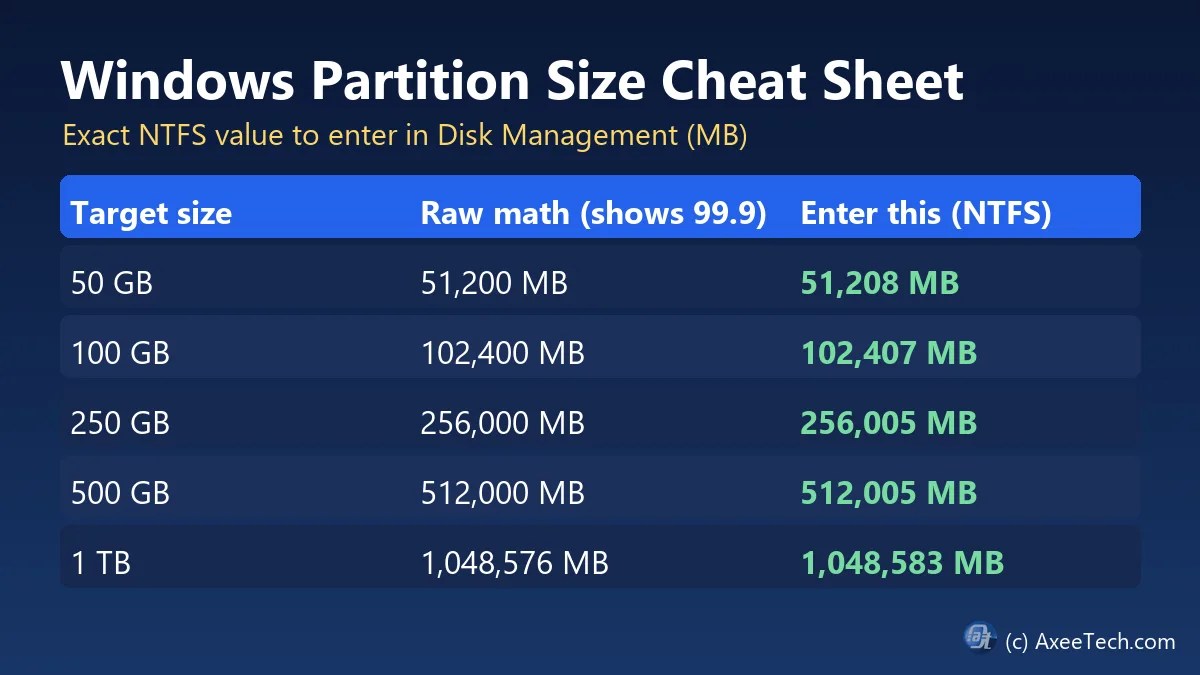
| Target Size in File Explorer | Standard Math (GB × 1024) (Shows .9 GB) | Exact NTFS Value to Enter (MB) | Exact FAT32 / exFAT Value (MB) | NTFS Alignment Buffer Added |
|---|---|---|---|---|
| 30.0 GB | 30,720 MB (29.9 GB) | 30,726 MB | 30,836 MB | +6 MB |
| 50.0 GB | 51,200 MB (49.9 GB) | 51,208 MB | 51,396 MB | +8 MB |
| 60.0 GB | 61,440 MB (59.9 GB) | 61,444 MB | 61,676 MB | +4 MB |
| 80.0 GB | 81,920 MB (79.9 GB) | 81,926 MB | 82,236 MB | +6 MB |
| 100.0 GB | 102,400 MB (99.9 GB) | 102,407 MB | 102,796 MB | +7 MB |
| 120.0 GB | 122,880 MB (119.9 GB) | 122,888 MB | 123,356 MB | +8 MB |
| 150.0 GB | 153,600 MB (149.9 GB) | 153,606 MB | 154,196 MB | +6 MB |
| 200.0 GB | 204,800 MB (199.9 GB) | 204,806 MB | 205,596 MB | +6 MB |
| 250.0 GB | 256,000 MB (249.9 GB) | 256,005 MB | 256,996 MB | +5 MB |
| 300.0 GB | 307,200 MB (299.9 GB) | 307,204 MB | 308,396 MB | +4 MB |
| 500.0 GB | 512,000 MB (499.9 GB) | 512,005 MB | 513,996 MB | +5 MB |
| 1.00 TB (1,024 GB) | 1,048,576 MB (0.99 TB) | 1,048,583 MB | 1,052,668 MB | +7 MB |
| 2.00 TB (2,048 GB) | 2,097,152 MB (1.99 TB) | 2,097,158 MB | 2,105,340 MB | +6 MB |
The Exact Math Formula Behind NTFS & FAT32 Partition Sizing
If you ever need to calculate an exact partition size manually without an online calculator, here are the two formulas used by storage engineers:
1. The Exact NTFS Cylinder Alignment Formula
Because Windows aligns NTFS volumes by whole cylinders, the exact megabyte formula is:
Cylinder Size (Bytes)=512×63×255=8,225,280 Bytes
Total Cylinders=⌈8,225,280Target GB×10243⌉
Exact NTFS Size (MB)=⌈10242Total Cylinders×8,225,280⌉
(Note: If the cylinder rounding happens to land within < 4 MB of GB × 1024, add a minimum +5 MB buffer to cover the NTFS boot sector and MFT metadata).
Example for 100 GB NTFS:
100 GB in Bytes= 100×1,073,741,824=107,374,182,400 BytesTotal Cylinders= ⌈107,374,182,400÷8,225,280⌉=⌈13,054.167⌉=13,055 CylindersAligned Bytes= 13,055×8,225,280=107,380,930,400 BytesExact MB= ⌈107,380,930,400÷1,048,576⌉=102,407 MB
2. The Exact FAT32 / exFAT Formula
FAT32 and exFAT volumes allocate approximately 4 MB of File Allocation Table metadata per gigabyte above the first GB:
Exact FAT32 Size (MB)=(Target GB×1024)+((Target GB−1)×4)
3 Ways to Apply Your Exact MB Value in Windows 11 & Windows 10
Once you copy your exact MB number from the Windows Partition Size Calculator above, you can apply it using any of the three built-in Windows partitioning utilities:
Method 1: Windows Disk Management GUI (diskmgmt.msc)
- Press
Win + Xon your keyboard and click Disk Management (or pressWin + R, typediskmgmt.msc, and hit Enter). - To Create a New Partition: Right-click on Unallocated Space and select New Simple Volume…. Click Next, paste your copied MB value (e.g.,
102407) into the Simple volume size in MB box, assign a drive letter, and format as NTFS. - To Shrink an Existing Drive: Right-click an existing volume (such as
C:) and click Shrink Volume…. Enter the exact MB value in the Enter the amount of space to shrink in MB field and click Shrink.
Method 2: Command Prompt (Diskpart)
When partitioning a drive from the Windows 11/10 Installation USB screen (press Shift + F10 to open Command Prompt) or from an elevated terminal:
batdiskpartlist diskselect disk 0create partition primary size=102407format quick fs=ntfs label="Local Disk"assign letter=D
Microsoft’s create partition primary reference confirms that the size value is entered in megabytes, so the MB number from the Windows Partition Size Calculator goes in exactly as shown.
Method 3: Windows PowerShell (Admin)
For automated scripts or rapid partitioning in Windows Terminal (Admin), copy the generated PowerShell command directly from our Windows Partition Size Calculator’s command box:
powershellNew-Partition -DiskNumber 0 -Size 102407MB -AssignDriveLetter | Format-Volume -FileSystem NTFS -NewFileSystemLabel "Data"
Pro Tip: Partitioning During a Clean Windows 11 / 10 Install (EFI, MSR, & Recovery Overhead)
If you are typing a partition size into the “Where do you want to install Windows?” screen during a brand-new OS installation on an empty unallocated drive, keep in mind that Windows Setup automatically carves out hidden system partitions from the number you type:
- EFI System Partition:
100 MB - Microsoft Reserved Partition (MSR):
16 MB - Windows Recovery Environment (WinRE): typically
500 MBto750 MB
If you want your primary C: boot drive to display an exact whole GB number right after a clean OS installation on a blank disk, either create the EFI and MSR partitions first via Shift + F10 (Diskpart), or add the extra +116 MB (or +616 MB if WinRE is placed at the front) on top of our Windows Partition Size Calculator’s NTFS value. For secondary partitions (D:, E:), Windows does not create system partitions, so you can enter the Windows Partition Size Calculator’s exact MB value (102407) as-is! If you are still preparing the install media, follow our guide to make a bootable USB for Windows 11, or see Windows 11 BypassNRO for an install without a Microsoft account.
Why Use a Windows Partition Size Calculator?
Typing a round number into Disk Management is the most common way to end up with 99.9 GB. A Windows Partition Size Calculator removes the guesswork by giving you the exact MB value for the size you want. Instead of testing, deleting and recreating a partition, the Windows Partition Size Calculator gets it right the first time, which saves time on a new SSD or a fresh install.
Tips for Getting an Exact Size with the Windows Partition Size Calculator
- Pick the right file system. NTFS and FAT32/exFAT need different MB values, so choose the correct one in the Windows Partition Size Calculator before you copy the number.
- Enter megabytes, not gigabytes. Disk Management and Diskpart both expect the size in MB.
- Use the same value in every method. The number works in Disk Management, Diskpart and PowerShell.
- Remember system partitions on clean installs. Add the extra EFI, MSR and recovery overhead described above when you partition during setup.
- Check the cheat sheet first. For common sizes such as 100 GB, 250 GB or 500 GB, the table already lists the answer from the Windows Partition Size Calculator.
Bookmark this Windows Partition Size Calculator page for the next time you build a PC, add a drive or set up a USB stick. Run the Windows Partition Size Calculator for every new partition, and your drives will show the clean sizes you planned. For more hands-on system tweaking, check out our Windows 11 Registry Customizer tool. https://axeetech.com/windows-11-registry-customizer/
Related Windows Guides and Tools
Resizing a drive often goes hand in hand with other maintenance. If a partition is nearly full, delete the Windows.old folder to free up disk space before you shrink a volume. If a recovery partition is missing or damaged, read how to fix the Windows RE image was not found error.
For command-line work, our Windows 11 repair commands generator builds ready-to-paste fixes, and the Diskpart bootable USB guide shows another practical use of the same commands. You can also set up a portable system with Windows To Go or fix boot problems with repair Windows 10 from USB.
Frequently Asked Questions (FAQs)
1. How many MB do I enter in Windows Disk Management to get an exact 100 GB NTFS partition?
Enter 102407 MB in Windows Disk Management to get a clean 100.0 GB NTFS partition. If you only enter 102400 MB (100 × 1024), Windows reserves cylinder alignment and Master File Table (MFT) overhead, causing File Explorer to display 99.9 GB.
2. How many MB is an exact 500 GB or 1 TB partition in Windows 11?
For an exact 500.0 GB NTFS partition, enter 512005 MB in Disk Management. For an exact 1.0 TB (1,024 GB) NTFS partition, enter 1048583 MB. For a 2.0 TB (2,048 GB) NTFS partition, enter 2097158 MB.
3. Why does Windows show 99.9 GB when I type 102,400 MB?
Windows Disk Management aligns partition boundaries to storage cylinders (512 bytes × 63 sectors × 255 heads = 8,225,280 bytes per cylinder) and deducts filesystem boot sector metadata. Adding 5 to 8 MB of alignment buffer ensures the usable volume rounds up to the full integer GB in File Explorer.
4. Why does a 1 TB SSD only show 931 GB of total space in Windows?
Storage manufacturers advertise drive capacity using decimal Gigabytes (Base-10), where 1 TB = 1,000,000,000,000 bytes. Windows measures drive capacity in binary Gibibytes (Base-2), where 1 TiB = 1,099,511,627,776 bytes (even though Windows labels it “GB” / “TB”). When you divide 1,000,000,000,000÷10243, a 1 TB drive equals 931.32 GiB of actual usable space in Windows.
5. Does this exact MB calculation work on GPT NVMe SSDs as well as MBR drives?
Yes! Even when partitioning a modern GPT (GUID Partition Table) PCIe Gen 4/Gen 5 NVMe SSD in Windows 10 or Windows 11, the Windows Disk Management snap-in and diskpart utility still apply the same cylinder/megabyte rounding rules and NTFS boot-sector deductions. Entering the exact NTFS MB value from our Windows Partition Size Calculator guarantees a clean .0 GB display on both SSDs and HDDs.
Related Calculators

Axee Davies is the founder of AxeeTech, publishing gaming guides, codes, and Windows how-tos since March 2013. A tech enthusiast for 13+ years — starting with smartphones and Android rooting — he now runs a site that puts out a new guide every day for Roblox players, traders, and Windows users. More about AxeeTech
More Tools You May Like
 WARDOGS Gold Bar Calculator: Cash to Bars Before the Season 3 Wipe
 How to Fix samsung notes pc error sa_1036 on Windows
 ESD-USB: How to Create a Bootable USB from a Windows ESD File
 How to Use a Windows Spotlight Background Without the “Learn About This Picture” Icon
 DOORS Candy Vault Buff Calculator: Best RIP Terminal Picks
 The Hollow Roblox UGC Tracker & Quest Checklist
 [Roblox] The Hollow Monster Schedule & Floor Countdown
 EA FC 27 Item Score Calculator for Streamlined SBCs