Canon Error Code 306: Fixing all the Communication Errors (2026)
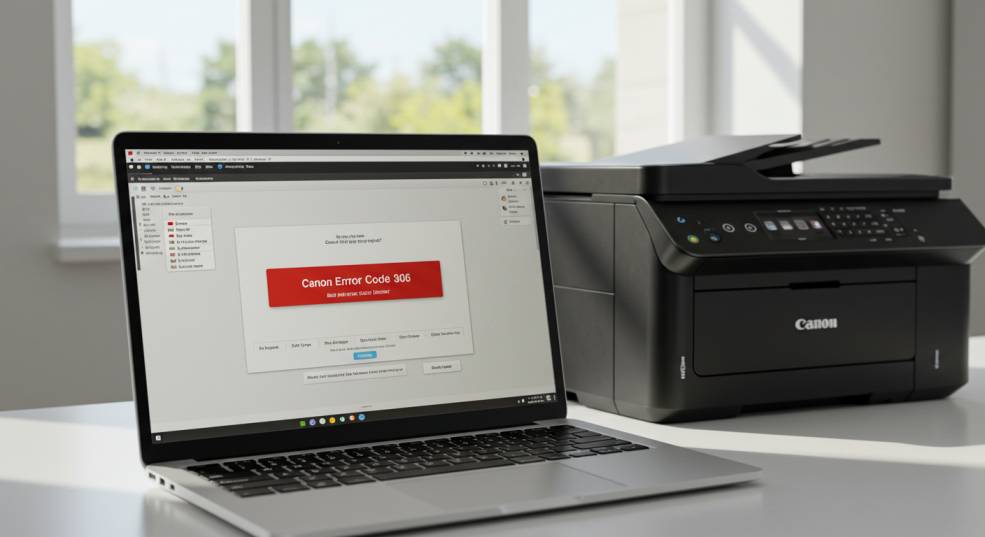
Dealing with printer errors can be incredibly frustrating, especially when you’re on a deadline or need to print important documents. One common issue faced by Canon printer users is Canon Error Code 306, which indicates a communication error between your printer and your computer in 2026.
This guide will walk you through the most effective solutions to fix Canon Error Code 306, whether you’re using Windows or macOS. We’ll cover everything from simple connection checks to more advanced troubleshooting steps, all explained in an easy-to-understand way.
Also on AxeeTech: Rivian 2025.26 Update Features
Understanding Canon Error Code 306
What Does it Mean?
Canon Error Code 306 signifies that your computer is unable to communicate properly with your Canon printer. This can occur with various Canon models, including Pixma, ImageClass, and Maxify series.
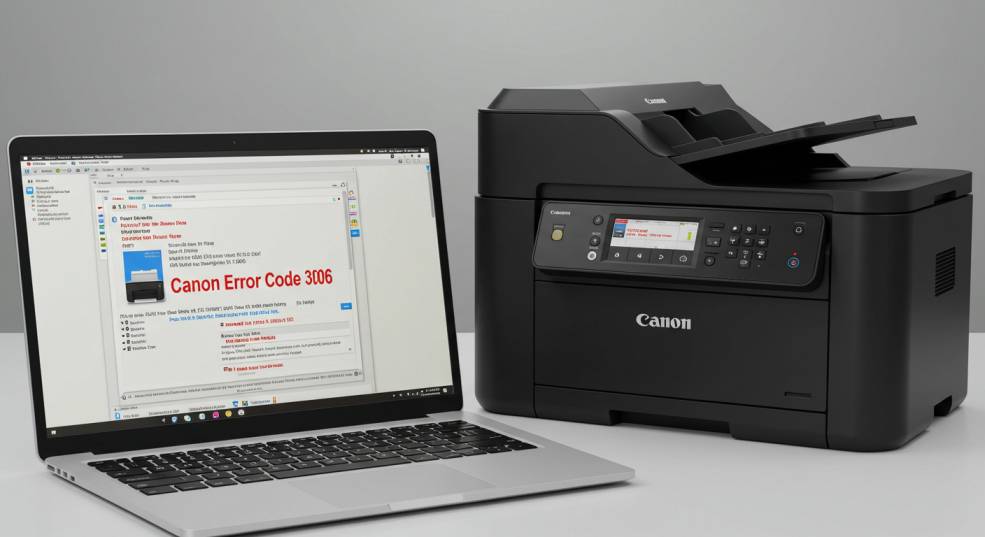
The error often manifests as a “communication error” message on your computer or printer’s display. You may see different error codes, but for this error, you will most likely see E306 Canon Error, or Canon Printer Error E306.
Common Symptoms
- Inability to print documents or photos.
- Error messages on your computer screen or printer display mentioning “Error 306,” “E306,” or “communication error.”
- The printer appears offline in your computer’s printer settings.
- Print jobs getting stuck in the queue.
- The printer not responding to commands.
Canon Printers Affected by Error Code 306
- PIXMA MG6600: Users reported blank pages and communication errors when printing wirelessly from macOS devices. Rebooting the router temporarily resolved the issue for some.
- PIXMA MG7700: Similar to the MG6600, this model faced persistent Error 306 on macOS (El Capitan) after working initially. The error appeared even when printing simple text documents.
- PIXMA IP110: A user experienced recurring Error 306 despite switching from wireless to wired LAN connections. The printer required repeated reinstallation to print a few pages before the error resurfaced.
- PIXMA iX6820: This model consistently threw Error 306 when connected via a Thunderbolt USB hub on a MacBook Pro. Canon support suggested avoiding hubs and using direct USB connections.
- PIXMA MP560: A macOS user resolved Error 306 by reinstalling Canon Networking Software and selecting the network-discovered printer with a numeric suffix during setup.
Common Causes of Canon Error Code 306
Several factors can contribute to Canon Error Code 306. Let’s break them down:
- Connection Problems:
- Faulty USB Connection: A loose, damaged, or incompatible USB cable can disrupt communication. Using USB hubs or adapters can also cause issues.
- Wireless Instability: Weak Wi-Fi signals, router problems, or interference can interrupt the connection between your printer and computer.
- Outdated or Corrupted Drivers: Printer drivers are essential software that allow your computer to communicate with the printer. Outdated or corrupted drivers can lead to errors.
- Software Conflicts: Other software on your computer, such as security programs or other printer drivers, might conflict with your Canon printer’s software.
- Network Configuration Issues: Incorrect IP address settings, DNS errors, or firewall restrictions can prevent your computer from communicating with the printer over a network.
- Printer Memory Overload: Sending large or complex print jobs can overwhelm the printer’s memory, leading to errors. This issue is more common on older models.
- Firmware Issues: Outdated or corrupted firmware (the printer’s internal software) can cause various problems, including communication errors.
- Ink System Issues: Sometimes the error code might relate to issues within the printer’s ink system. Such as the ink absorber being full, or the waste ink counter needing to be reset.
- Printer Hardware Issues: While less common, physical problems with the printer’s internal components can also cause communication errors.
Step-by-Step Troubleshooting Guide for Canon Error Code 306
Solution 1: Check and Optimize Your Printer Connection
This is often the simplest and quickest fix.
USB Connections:
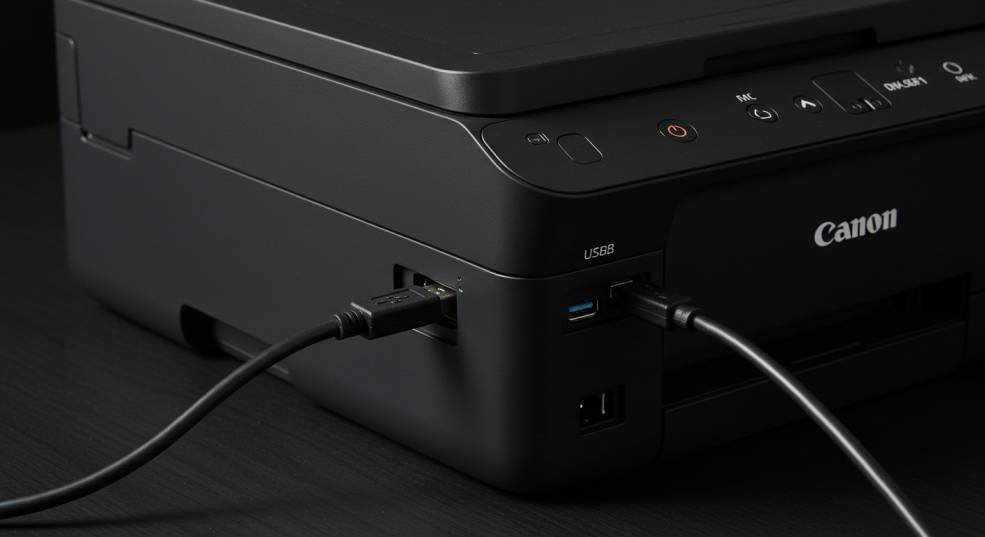
- Direct Connection: Disconnect any USB hubs or adapters. Connect your Canon printer directly to a USB port on your computer.
- Try a Different Port: Try a different USB port on your computer. Some ports might have better power or data transfer capabilities.
- Inspect the Cable: Check the USB cable for any visible damage (fraying, kinks, loose connectors). Try a different, known-working USB cable if possible.
- Secure Connections: Ensure both ends of the USB cable are firmly plugged into the printer and the computer.
Also Read: Set Your Preferred Default Printer in Windows 11
Wireless Connections:
- Restart Your Router and Printer: Turn off both your router and your Canon printer. Wait for about 30 seconds. Turn your router back on first, wait for it to fully boot up, and then turn your printer back on.
- Check Signal Strength: Make sure your printer is within range of your Wi-Fi router and has a strong signal.
- Reconnect to Wi-Fi: If the connection is weak or unstable, try reconnecting your printer to your Wi-Fi network. Refer to your printer’s manual for instructions on how to do this.
- Wired Connection (If Possible): If your printer and router support it, consider using a wired Ethernet connection for the most stable connection.
Solution 2: Update or Reinstall Printer Drivers
Outdated or corrupted drivers are a common cause of printer errors.
Windows 10/11:
- Open Device Manager: Right-click the Start button and select “Device Manager.”
- Find Your Printer: Expand the “Print queues” or “Printers” section.
- Update Driver: Right-click on your Canon printer and select “Update driver.”
- Search Automatically: Choose the option to “Search automatically for updated driver software.” Windows will attempt to find and install the latest driver.
- Manual Installation (If Necessary): If Windows can’t find a driver, go to the Canon support website, locate the drivers for your specific printer model and operating system, download the driver package, and install it manually.
- Uninstall and Reinstall the Printer: If updating the driver does not work, try uninstalling the printer from Device Manager, then go to the Canon support website to download and install the correct drivers.
macOS:
- Delete Existing Printer: Go to System Preferences > Printers & Scanners. Select your Canon printer and click the “-” button to remove it.
- Download Latest Drivers: Go to the official Canon support website. Enter your printer model and download the latest drivers and software package for your macOS version.
- Install Drivers: Run the downloaded installer and follow the on-screen instructions.
- Add Printer: Go back to System Preferences > Printers & Scanners. Click the “+” button to add a new printer.
- Select Your Printer: Choose your Canon printer from the list. Important: If your printer appears multiple times, select the one that is discovered via the network and has a numeric suffix (e.g., Canon_MX920_series_2). This indicates it’s using the latest networking software.
Solution 3: Simplify Your Print Jobs
Large or complex documents can sometimes overwhelm your printer’s memory.
- Print in Smaller Batches: If you’re printing a multi-page document, try printing it in smaller sections (e.g., 10 pages at a time).
- Reduce Image Resolution: If your document contains high-resolution images, consider reducing their resolution before printing.
- Avoid Complex Formatting: Simplify the formatting of your document. Remove unnecessary graphics or complex layouts if possible.
Solution 4: Reset Network and Printer Settings
Resetting these settings can resolve configuration issues.
Router:
- Update Router Firmware: Check your router manufacturer’s website for firmware updates. Follow their instructions to update the firmware.
- Disable Power-Saving Modes: Some routers have power-saving modes that can interfere with network connectivity. Disable these modes if they are enabled.
- Restart Your Router: As mentioned earlier, power cycling your router can often fix temporary network glitches.
Printer:
- Power Cycle: Turn off your printer, unplug it from the power outlet, wait for at least 10 seconds, plug it back in, and turn it back on.
- Factory Reset (If Necessary): Consult your printer’s manual for instructions on how to perform a factory reset. This will restore the printer to its default settings. Note: This will erase any custom settings you have configured.
Solution 5: Update Printer Firmware
Firmware is the software embedded in your printer. Keeping it up-to-date can fix bugs and improve performance.
- Check for Updates: You can usually check for firmware updates through your printer’s control panel or by visiting the Canon support website and entering your printer model.
- Download and Install: If an update is available, download it and follow the instructions provided by Canon to install it on your printer.
Solution 6: Clear Printer Memory (If Applicable)
Some Canon printers have internal memory to store print jobs and other data. Clearing this memory can sometimes resolve errors.
- Cancel Print Jobs: Cancel any pending print jobs from your computer’s print queue.
- Delete Stored Files: If your printer has a function to store files directly on the printer, delete any stored files. Refer to your printer’s manual for instructions.
Solution 7: Check Ink System
Sometimes this error code is related to issues with your printer’s ink system.
- Check Ink Levels: Make sure your ink cartridges are not empty or low.
- Clean Print Heads: Use your printer’s built in utility to clean the print heads.
- Reset Waste Ink Counter: If you see a message about a full waste ink absorber, you will need to reset the waste ink counter. This usually requires special software or a service tool. Research online for instructions specific to your printer model.
Also Read:
- SimpCity 403 Error
- Err SSL Protocol Error Fixed
- Error Code Numbers from GHL Devices
- BDO to GCash Transfer Error
- GeoSite.dat file in V2Ray
Solution 8: Advanced Troubleshooting (Windows)
Check TCP/IP Settings:
- Open Network Connections: Press the Windows key + R, type
ncpa.cpl, and press Enter. - Right-Click on Your Network Connection: Select your active network connection (Wi-Fi or Ethernet) and choose “Properties.”
- Select Internet Protocol Version 4 (TCP/IPv4): Double-click on “Internet Protocol Version 4 (TCP/IPv4).”
- Ensure “Obtain an IP address automatically” and “Obtain DNS server address automatically” are selected. If not, select them and click.
Temporarily Disable Security Software:
- Disable Firewall: Temporarily disable your firewall.
- Windows: Go to Control Panel > System and Security > Windows Defender Firewall > Turn Windows Defender Firewall on or off.
- Disable Antivirus: Temporarily disable your antivirus software.
- Test Printing: Try printing again.
- Important: If this resolves the issue, add an exception for your Canon printer to your firewall and antivirus settings. Do not leave your security software disabled permanently.
Solution 9. The “AirPrint vs. CUPS” Driver Fix (macOS Specific)
For Mac users, Error 306 is often caused by macOS automatically selecting the “AirPrint” driver instead of the official Canon CUPS driver. AirPrint is convenient but prone to communication timeouts.
-
Go to System Settings > Printers & Scanners.
-
Remove your current printer using the minus (-) button.
-
Click Add Printer, Scanner, or Fax….
-
Select your printer from the list.
-
Crucial Step: Look at the “Use” or “Driver” dropdown menu at the bottom. Do not leave it on “Auto” or “AirPrint.” Select the specific Canon [Model Series] CUPS driver.
-
Click Add and try printing again.
Why this helps: The CUPS driver is built specifically for Canon hardware protocols, whereas AirPrint is a generic wrapper that frequently “loses” the printer’s location on the network.
Solution 10. Disable SNMP Status (Windows Fix)
If your printer shows as “Offline” or triggers Error 306 on Windows, the Simple Network Management Protocol (SNMP) might be the culprit. Windows uses this to check the printer status, but many routers block these packets for security.
-
Open Control Panel > Devices and Printers.
-
Right-click your Canon printer and select Printer Properties.
-
Go to the Ports tab and click Configure Port.
-
At the bottom, uncheck the box labeled SNMP Status Enabled.
-
Click OK and restart your computer.
Why this helps: By disabling this, Windows stops “polling” the printer for status updates that the network is blocking, allowing the print command to go through without waiting for a status response.
Solution 11. Disable IPv6 on the Printer
Most modern Canon printers (PIXMA and imageCLASS) have IPv6 enabled by default. On many home networks, IPv6 conflicts with the standard IPv4 communication, leading to the 306 “handshake” failure.
-
On the printer’s physical screen, go to Setup or Device Settings.
-
Navigate to LAN Settings > Other Settings > TCP/IP Settings.
-
Select IPv6 and choose Disable or Inactive.
-
Restart the printer.
Why this helps: Forcing the printer to operate strictly on IPv4 simplifies the network path and prevents the “dual-IP” confusion that causes many communication errors.
Solution 12. Assign a Static IP (The “Pro” Fix)
If Error 306 happens every few days, it’s likely because your router is assigning a new IP address to the printer, but your computer is still looking for the old one.
| Step | Action |
| 1 | Print a “Network Configuration Page” from your printer’s menu to find its current IP (e.g., 192.168.1.50). |
| 2 | Enter that IP into your web browser to open the Canon Remote UI. |
| 3 | Go to Network Settings > IP Address Settings. |
| 4 | Change the setting from “Auto/DHCP” to Manual/Static. |
| 5 | Save the settings. On your PC, update the printer port to match this permanent IP. |
Why this helps: A static IP ensures the “bridge” between your device and the printer never moves, eliminating 306 errors caused by IP lease expirations.

Prevention Tips
- Regularly Update: Keep your printer drivers, firmware, and operating system updated.
- Use Genuine Canon Ink Cartridges: Using genuine Canon ink cartridges helps ensure proper printer function and can avoid issues caused by incompatible or low-quality ink.
- Proper Maintenance: Regularly clean your printer’s print heads and perform other maintenance tasks as recommended in the printer’s manual.
- Stable Network: Ensure a strong and stable internet connection, especially if using a wireless printer.
- Direct USB Connection: If you frequently experience communication errors over Wi-Fi, consider switching to a direct USB connection.

2026 Official Canon Driver & Support Quick Links
| Canon Model | Series | Recommended Driver for 2026 | Official Support Page |
| PIXMA MG6620 / MG6600 | Photo All-in-One | MG6600 series Full Driver & Software Package | View Support Page |
| PIXMA iX6820 | Wireless Business | iX6800 series Printer Driver / CUPS (macOS) | View Support Page |
| PIXMA MG7720 / MG7700 | Photo All-in-One | MG7700 series MP Drivers / AirPrint Setup | View Support Page |
| PIXMA iP110 | Mobile Inkjet | iP110 series Full Driver & Software Package | View Support Page |
| MAXIFY MB Series | Small Office | MAXIFY MB Series MP Drivers | View Support Page |
Important Installation Notes for 2026:
-
For Windows 11 Users: Always download the “Full Driver & Software Package.” If the installer fails, try running it in Compatibility Mode for Windows 10, as some legacy MG-series installers haven’t been natively updated for the latest Windows 11 builds.
-
For macOS 15+ Users: Canon has moved many older models to “Driverless” status. If a dedicated driver isn’t available, use the Apple AirPrint protocol, but ensure your printer firmware is updated to the latest version to prevent the 306 handshake error.
-
Firmware is Key: Even if you have the right driver, a communication error often stems from the printer’s internal software. Check the Firmware tab on the support pages above before reinstalling drivers.
Pro-Tip :
If you are using a USB Hub (like on a MacBook or Surface), these drivers often fail to initialize properly. We would remind you to plug the printer directly into the device’s primary port at least once during the driver installation process to “marry” the hardware to the software.
FAQ
1. My printer is showing “Error Code 306” but also “Ink Absorber Full.” What does this mean?
This indicates that the ink absorber pad in your printer is full or nearing its capacity. This pad collects excess ink during printing and cleaning. You may need to replace the ink absorber or reset the waste ink counter using special service tools.
2. I’m using a Mac, and the steps for Windows don’t apply. What should I do?
The general troubleshooting principles are the same for macOS. Focus on updating drivers, checking network settings, and simplifying print jobs. Refer to the macOS-specific instructions provided earlier in the guide.
Also Read:
3. How do I contact Canon support?
You can find Canon’s contact information on their official website. They typically offer support via phone, email, and live chat.
4. Can a power outage cause Canon Error Code 306?
Yes, a sudden power outage or surge can sometimes corrupt printer settings or drivers, leading to communication errors. Try power cycling your printer and computer, and reinstalling drivers if necessary.
5. Is it safe to download printer drivers from third-party websites?
It’s generally not recommended. Always download drivers from the official Canon website to avoid potential malware or compatibility issues.
Conclusion
Canon Error Code 306 can be a frustrating issue, but in most cases, it can be resolved by following the troubleshooting steps outlined in this guide. Remember to start with the simplest solutions, such as checking connections and restarting devices, before moving on to more advanced steps.
By understanding the common causes and implementing preventative measures, you can minimize the chances of encountering this error in the future and enjoy a smooth printing experience. If you’ve tried all these steps and are still experiencing problems, don’t hesitate to contact Canon support for further assistance. They might have specific solutions for your printer model or be able to diagnose a potential hardware issue.

Axee Davies is the founder of AxeeTech, publishing gaming guides, codes, and Windows how-tos since March 2013. A tech enthusiast for 13+ years — starting with smartphones and Android rooting — he now runs a site that puts out a new guide every day for Roblox players, traders, and Windows users. More about AxeeTech
More How to You May Like
 Top 3 Free online MBOX to PST Converters
 Windows Resource Protection Could Not Start the Repair Service
 Night Light Not Working in Windows 11: 7 Easy Fixes
 Windows 11 Update Stuck at 46%: 7 Proven Fixes
 Start Menu Not Working in Windows 11: 7 Fixes That Work
 Repair Windows 10 From USB: 7 Step-by-Step Fixes
 BitLocker Waiting for Activation: 6 Fixes That Work
 Windows RE Image Was Not Found: 6 Fixes That Work [Repair Builder]