Microsoft Account Security Alert Email: How to Identify its Scam or Real
A Microsoft Account Security Alert Email is a legitimate communication from Microsoft that notifies users of unusual activity on their account. However, cybercriminals have developed sophisticated phishing scams that mimic these alerts to steal your personal information, passwords, and financial data.
This guide will help you distinguish between genuine alerts and fraudulent ones, providing step-by-step instructions to secure your account.
Receiving a security alert can be alarming, but staying calm and vigilant is your first line of defense. Microsoft will never ask for sensitive information like passwords or financial details via email. If you receive an email urging immediate action or requesting such information, it is likely a scam. [Don’t Forget to Check: You Have an Account Alert on Steam]
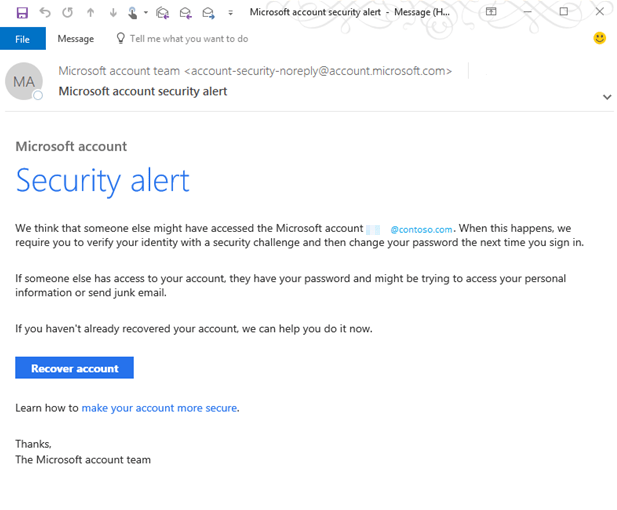
How to Identify a Fake Microsoft Account Security Alert Email:
1. Check the Sender’s Email Address
- Legitimate emails from Microsoft will come from official domains such as:
[email protected]@microsoft.com@outlook.com
- Scam emails often use addresses that mimic these but contain subtle misspellings or unrelated domains (e.g.,
@gmail.comor@m1crosoft.com).

2. Look for Red Flags in the Content
- Urgent or Threatening Language: Phrases like “Immediate action required” or “Your account will be suspended” are designed to panic you into hasty actions.
- Generic Greetings: Legitimate emails typically address you by your full name. Scams often use generic terms like “Dear User” or “Dear Customer”.
- Poor Grammar and Spelling: Official Microsoft emails are professionally written. Errors in grammar or spelling are strong indicators of a scam.
- Suspicious Links or Attachments: Hover over links (without clicking) to reveal the actual URL. Legitimate links will direct you to Microsoft domains (e.g.,
microsoft.com). Avoid clicking links or downloading attachments from suspicious emails.
Do Checkouts: E999 Send to Kindle Internal Error and Email LookWhatMomFound.
3. Verify the Email’s Purpose
- Legitimate emails will inform you of specific activities, such as unusual sign-in attempts or password changes, and guide you to review your account activity officially.
- Scam emails often request personal information, passwords, or payment details, which Microsoft will never do.
Immediate Actions to Take If You Receive a Suspicious Microsoft Account Security Alert Email
1. Do Not Click Any Links or Attachments
- Clicking links could lead to malicious websites designed to steal your information. Instead, open a new browser tab and manually type in Microsoft’s official website (
https://account.microsoft.com).
Checkout: Pokemon Center Error 17 Fixed
2. Check Your Account Activity Directly
- Log into your Microsoft account directly and navigate to the Recent Activity section. This will show you any legitimate security alerts or unusual sign-in attempts.
3. Change Your Password and Enable 2FA
- If you suspect unauthorized access, change your password immediately. Use a strong, unique password combining letters, numbers, and symbols.
- Enable Two-Factor Authentication (2FA) for an added layer of security. This requires a second form of verification (e.g., a text message or authentication app) to access your account.

4. Report the Phishing Attempt
- Forward the suspicious email to
[email protected](as an attachment, if possible)3. - Use the “Report phishing” option in your email client (e.g., Outlook or Outlook.com) to alert Microsoft.
5. Monitor Your Accounts
- Regularly review your financial and Microsoft accounts for unauthorized activity. If you notice anything suspicious, contact your bank or Microsoft Support immediately.
How to Strengthen Your Account Security
1. Enable Two-Factor Authentication (2FA)
- 2FA significantly reduces the risk of unauthorized access, even if your password is compromised.
2. Use Strong, Unique Passwords
- Avoid reusing passwords across multiple sites. Consider using a password manager to generate and store complex passwords.
3. Keep Software Updated
- Regularly update your operating system and security software to protect against vulnerabilities.
4. Educate Yourself and Others
- Learn to recognize phishing tactics and share this knowledge with friends, family, or colleagues.
Table: Key Differences Between Legitimate and Scam Emails
| Feature | Legitimate Microsoft Email | Scam Microsoft Email |
|---|---|---|
| Sender’s Address | accountprotection.microsoft.com or @microsoft.com | Slight misspellings or unrelated domains (e.g., @gmail.com) |
| Greeting | Personalized with your full name | Generic (e.g., “Dear User” or “Dear Customer”) |
| Language | Professional and clear | Urgent or threatening tone |
| Links | Direct to official Microsoft domains | Direct to suspicious or unrelated sites |
| Attachments | Rarely included | Often include malicious attachments |
| Requests for Information | Never asks for passwords or financial details | Asks for sensitive information |
FAQs: Microsoft Account Security Alert Email
Does Microsoft send security alerts via email?
Yes, but they will never ask for passwords or financial details. Always verify by logging into your account directly.
What should I do if I click a link in a suspicious email?
Change your password immediately, run a virus scan, and monitor your accounts for unusual activity.
How can I report a phishing email?
Forward it to [email protected] or use the “Report phishing” option in your email client.
Can I prevent these emails from reaching my inbox?
Use email filters and enable built-in spam detection in your email client to reduce phishing attempts.
How do I know if a Microsoft security alert email is real?
A real alert will never ask for your password and comes from the official sender [email protected].
Is Gmail linked to a Microsoft account?
A Gmail address can be used as the username for a Microsoft account, but they are separate services; one is not inherently linked to the other.
What is the official Microsoft account security email?
The official sender for security alerts is [email protected].
How do I know if a security alert from Google is real?
Never click links in the email. Instead, go directly to your Google account’s security page to check for any real alerts.
Is there a fake Microsoft security alert?
Yes, fake Microsoft security alerts are a very common phishing scam designed to steal your login credentials.
How do I check who is trying to access my Microsoft account?
Go to your Microsoft account’s “Recent activity” page to see all sign-in attempts, locations, and devices.
Why is Microsoft sending me an email about my Gmail account?
Microsoft would not email you about a Gmail account; this is a sure sign of a phishing scam.
What email address does Microsoft use?
For security alerts, Microsoft uses [email protected].
How to access a Microsoft account with Gmail?
If your Gmail is your Microsoft account username, just use it to sign in on Microsoft’s official login page.
Why did I receive a Microsoft verification code, but didn’t request it?
It likely means someone else has your password and is trying to log in, but they can’t without the code. Change your password immediately.
What is the name of the Microsoft’s email security?
Microsoft’s enterprise email security service is called Microsoft Defender for Office 365.
What can someone do with your Microsoft account?
They can access your email, personal files, and payment info, and use your account to scam your contacts.
Regarding your specific phrases:
- “microsoft account team email unusual sign-in activity”: A legitimate subject line, but always verify the sender’s address is official.
- “[email protected]“: This is the official and correct sender for Microsoft security alerts.
- “microsoft account unusual sign-in activity” / “microsoft unusual sign-in activity spam”: These are common themes used in both real alerts and phishing scams. The sender’s address is the key differentiator.
Conclusion: Microsoft Account Security Alert Email: Stay Vigilant and Secure
Microsoft Account Security Alert Emails are a vital tool for protecting your account, but scammers exploit them to deceive users. By following the steps outlined in this guide, you can confidently identify scams, take immediate action to secure your account, and prevent future threats.
Remember:
- Never share passwords or financial details via email.
- Verify alerts by logging into your account directly.
- Enable Two-Factor Authentication for enhanced security.
- Report suspicious emails to help protect others.
Stay informed and proactive to safeguard your digital life. If in doubt, contact Microsoft Support through their official website for assistance.
Do Read: Apple Account Security Alert Text

Axee Davies is the founder of AxeeTech, publishing gaming guides, codes, and Windows how-tos since March 2013. A tech enthusiast for 13+ years — starting with smartphones and Android rooting — he now runs a site that puts out a new guide every day for Roblox players, traders, and Windows users. More about AxeeTech
More Guides You May Like
 Unstable SMP Civil War Finale Simulator: Free Minecraft 1.21.11 Map Download & Guide
 Switch 2 Battery Life: How Long It Lasts and How to Charge It
 Steam Deck Charging: Watts, Charger and Charge Time Explained
 Switch 2 Game-Key Card Explained: How It Works and Whether to Buy One
 How to Check Your BIOS Version in Windows (3 Easy Ways)
 Gigabyte BIOS Update: How to Flash Your Motherboard With Q-Flash
 BIOS ID Check Error: What It Means and How to Fix It Safely
 OnePlus 15 China vs Global: PLK110 vs CPH2747, Differences & Which to Buy