Fix ‘Could Not Create the Java Virtual Machine’ Error (Minecraft)
You press Play in the Minecraft launcher, and instead of the title screen you get a crash: “Could not create the Java Virtual Machine.” The launcher closes and the game never starts. This error looks scary but has a short list of causes. In nearly every case, one of the six fixes below gets you playing.
Minecraft Java Edition runs on the Java Virtual Machine (JVM), the engine that runs Java programs. The launcher hands the JVM startup settings, such as how much RAM to use. If any setting is wrong, or Java itself cannot start, the JVM quits before Minecraft loads.
What “Could Not Create the Java Virtual Machine” Means
The message means Java failed to start at all.
- The -Xmx memory setting asks for more RAM than Java can use.
- You run 32-bit Java, which caps memory at 1.5 GB, while the launcher asks for more.
- A typo or a bad flag sits in your JVM arguments.
- Your Java install is broken or out of date.
- The JAVA_HOME path points at an old or deleted Java folder.
- Files the launcher needs are corrupt.
Work through the fixes in order.

Quick Checks Before You Dig In
Restart your PC to free up RAM and close huge background programs. Then think about what changed: did the error appear after you moved the memory slider, installed a modpack, or copied JVM arguments from a guide? If so, undo that change.
Fix 1: Lower or Correct the -Xmx Value
The -Xmx flag sets the max RAM Minecraft may use. If it asks for more than your PC has free, Java refuses to start.
- Open the Minecraft launcher and go to the Installations tab.
- Hover over your profile, click the three dots, then Edit.
- Click More Options to show the JVM Arguments box.
- The start of the line looks like
-Xmx4G -Xms1G.
-Xmx4G means “use up to 4 GB of RAM.” -Xms1G means “start with 1 GB.” On an 8 GB machine, -Xmx2G or -Xmx4G is a safe pick. Never set -Xmx higher than your free RAM. Also check for typos: a space like -Xmx 4G breaks the argument. Save the profile and try to play.
Fix 2: Switch to 64-bit Java
A 32-bit Java install can use only about 1.5 GB of memory. If your profile asks for 2 GB or more, a 32-bit Java fails at once with this error. Here is the fix.
- Press Win + R, type
cmd, and press Enter. - Type
java -version. If the output says nothing about 64-bit, you likely run 32-bit Java.
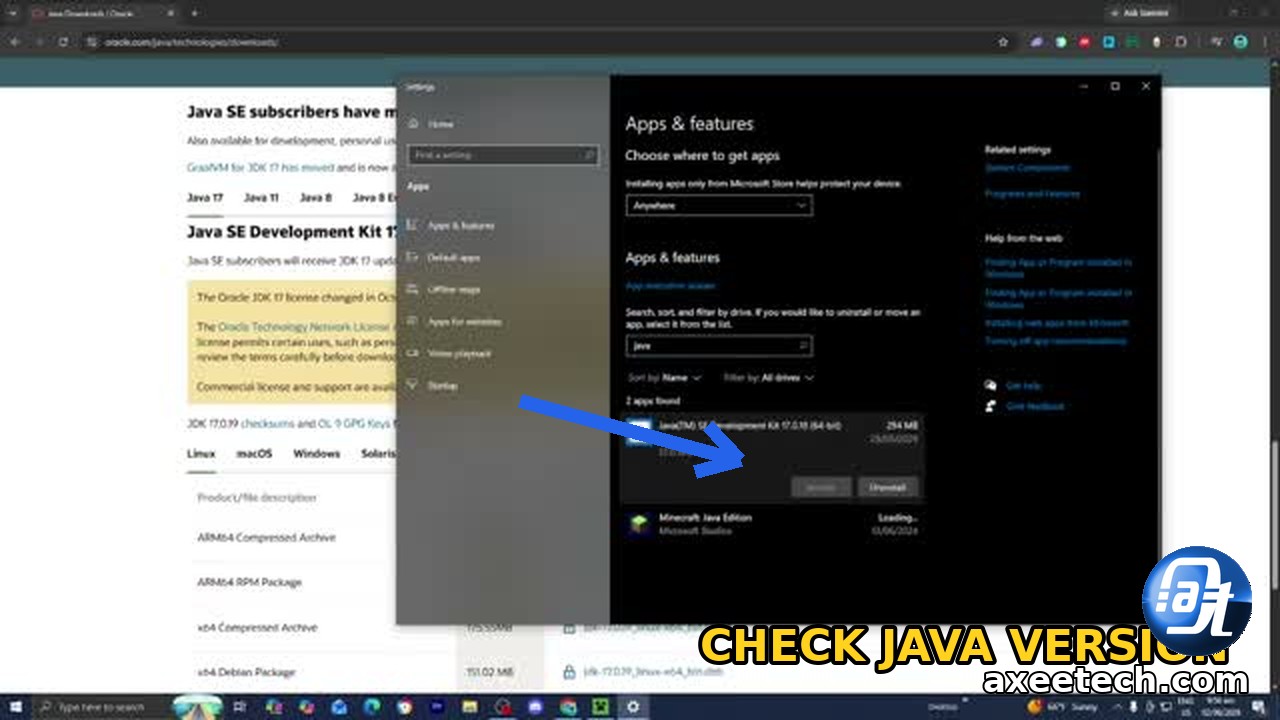
Download 64-bit Java from the official Java site and install it. Then uninstall the 32-bit version from Settings, then Apps. The Minecraft launcher also ships with its own Java runtime, and many players fix this error by removing their old Java install so the launcher uses its bundled runtime. If you play Minecraft, also check our gaming statistics to see how big the Java Edition community still is.
Fix 3: Reinstall or Update Java
A half-broken Java install causes the same error. Old files clash with new ones, and the JVM cannot start.
- Open Settings, then Apps, and remove every Java entry you see.
- Download the latest Java from the official site and install it.
- Restart the Minecraft launcher and test.
Keep Java updated. New Minecraft versions often need a newer Java than the one you installed years ago, so check the confirmed Minecraft update list to stay current. Match the Java version your mod loader asks for: old Forge wants Java 8, while newer modded Minecraft wants Java 17 or 21. A mismatch here is a classic source of this error.
Fix 4: Check Your JAVA_HOME Path
JAVA_HOME tells Windows where Java lives. If it points to a deleted folder or an old version, Java tools fail to start.
- Press Win + S, type environment variables, and open the editor.
- Click Environment Variables and find JAVA_HOME.
- It should point to your current 64-bit Java folder, such as
C:\Program Files\Java\jdk-21. Fix it if wrong, or delete it if you do not need it.
Also check the Path variable for old Java entries and remove them. Restart your PC after any change.
Fix 5: Edit Your Launcher Profile Arguments
Old guides hand out long lists of JVM flags, and some no longer exist in newer Java. When Java sees a flag it does not know, it quits with this error.
- Open the launcher, go to Installations, and edit your profile.
- Open More Options and look at the JVM Arguments line.
- Delete flags you copied from old tutorials, such as
-XX:+UseConcMarkSweepGC, which newer Java removed. - Or delete the profile and make a new one. The launcher writes fresh, correct arguments.
The simplest reset: delete the edited profile and create a new installation. The launcher writes fresh, correct arguments for you.

Fix 6: Check for Corrupt Files
If Java and the arguments are fine, the launcher files themselves may be corrupt.
- Reinstall the launcher. Download a fresh copy from minecraft.net and install it over your current one. Your worlds stay in place.
- Re-download game files. Back up your saves, then delete the version folder inside
.minecraft/versions. The launcher downloads clean files next launch. - Scan Windows system files. Open Command Prompt as admin and run
sfc /scannow. It repairs broken Windows files Java depends on.
After the scan finishes, restart your PC and launch Minecraft again. If the game starts but you hit connection errors instead, our GETSOCKOPT Minecraft error guide covers LAN and server fixes. If the error survives all six fixes, post your full crash log on the Minecraft forums.
How to Avoid the Error Later
Once it works, keep it working. Do not copy JVM arguments from old guides. Update Java when the launcher asks. Match your Java version to your mod loader, and never set -Xmx above half of your total RAM. Still unsure the Java Edition is right for you? Read which Minecraft version is best for your setup. If you also play Roblox, our Roblox promo codes list gets you free items.
Frequently Asked Questions
What does “could not create the java virtual machine” mean?
It means Java failed to start, so Minecraft never ran. Bad memory settings, 32-bit Java, or a broken install cause it most often.
How much RAM should I give Minecraft?
Give vanilla Minecraft 2 to 4 GB with -Xmx2G or -Xmx4G. Heavy modpacks may need 6 to 8 GB. Never set -Xmx above half of your system RAM.
Does Minecraft need Java installed separately?
No. The launcher ships with its own Java runtime. A separate install helps only with mods, servers, or tools that call Java directly.
Why does the error appear right after I change the memory slider?
The slider wrote a value your Java cannot honor, such as 8 GB on 32-bit Java. Lower -Xmx and launch again.
Can 32-bit Java run Minecraft at all?
It runs small vanilla loads but fails above about 1.5 GB. Switch to 64-bit Java to remove the limit.

Axee Davies is the founder of AxeeTech, publishing gaming guides, codes, and Windows how-tos since March 2013. A tech enthusiast for 13+ years — starting with smartphones and Android rooting — he now runs a site that puts out a new guide every day for Roblox players, traders, and Windows users. More about AxeeTech