Valorant Error Code Fixer: Free Lookup and Best Vanguard Fix Commands (27 Codes)
The Valorant error code fixer explains your VAN or VAL error, tells you whether it is your PC, your network or Riot’s servers, and prints the Command Prompt lines that fix Vanguard and connection problems.
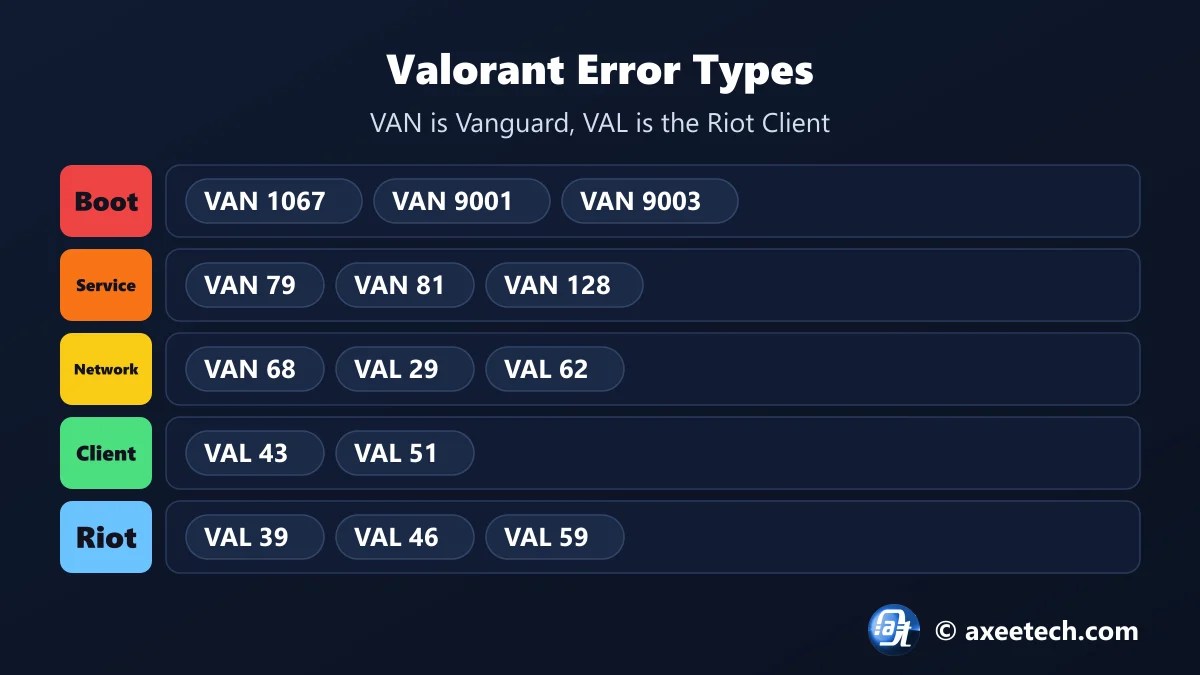
Valorant errors come in two families. VAN codes come from Vanguard, Riot’s anti-cheat, and are almost always about the Vanguard service or about Secure Boot and TPM 2.0 on Windows 11. VAL codes come from the Riot Client and are mostly connection or server problems. Pick your code below.
Table of Contents
How the Valorant Error Code Fixer Works
Every code in the Valorant error code fixer is tagged with a cause: Secure Boot or TPM, the Vanguard service, the network, the Riot Client, Riot’s servers, your account, or a ban. The tool shows the tag, the fix steps for it, and the commands that apply, ready to copy into Command Prompt.
- Pick the code from the error box.
- Pick Windows 10 or Windows 11.
- Check whether it is on your side or Riot’s.
- Follow the steps in order.
- Copy the commands into Command Prompt as administrator, then restart.
All Valorant Error Codes and What They Mean
| Code | Name | Type | Cause |
|---|---|---|---|
| VAN 1067 | Vanguard could not start | Secure Boot or TPM | Windows 11 without Secure Boot or TPM 2.0, or the Vanguard service is not running. |
| VAN 9001 | TPM 2.0 and Secure Boot required | Secure Boot or TPM | Windows 11 needs both TPM 2.0 and Secure Boot switched on for Vanguard. |
| VAN 9003 | Secure Boot is not enabled | Secure Boot or TPM | Secure Boot is off in the BIOS, or the PC still boots in Legacy mode. |
| VAN 9005 | Virtualization-based security needs UEFI and TPM | Secure Boot or TPM | VBS is on but the PC runs in Legacy BIOS mode or without TPM 2.0. |
| VAN 9006 | Windows version is too old | Windows version | Vanguard no longer supports your Windows build. |
| VAN 1 | Vanguard needs reinstalling | Vanguard service | The Vanguard install is damaged. |
| VAN 6 | Connection error | Network | A firewall or antivirus is blocking Vanguard. |
| VAN 68 | Connection error | Network | The client cannot reach Riot’s servers: DNS, firewall or a network block. |
| VAN 79 | Vanguard connection lost | Vanguard service | The Vanguard service stopped answering or is blocked from starting. |
| VAN 81 | Vanguard service failed to start | Vanguard service | The vgc service is disabled, blocked, or damaged. |
| VAN 84 | Connection error | Network | Riot’s servers are unreachable. Often a server problem. |
| VAN 128 | Vanguard service problem | Vanguard service | The vgc service could not be opened or started. |
| VAN 135 | Connection error | Network | The connection to Riot dropped while signing in. |
| VAN 138 | Connection error | Network | The connection to Riot dropped. Check the service status first. |
| VAN 152 | Hardware ban | Ban | Riot has banned this PC, usually for 4 months or longer. |
| VAL 5 | Account logged in elsewhere | Account | Your account signed in on another device. |
| VAL 7 | Could not connect to session service | Account | A login problem, or the account is suspended. Check your email. |
| VAL 29 | Network problem | Network | A firewall is blocking Valorant. |
| VAL 39 | Server unavailable | Riot servers | Planned or emergency maintenance. |
| VAL 43 | A system has timed out | Riot Client | The Riot Client lost its connection while starting. Usually cured by a restart. |
| VAL 44 | Vanguard not initialized | Vanguard service | Vanguard did not load when Windows started. |
| VAL 45 | Vanguard reboot required | Vanguard service | Vanguard was installed or updated and Windows has not restarted yet. |
| VAL 46 | Platform downtime | Riot servers | Scheduled maintenance. You cannot fix this. |
| VAL 51 | Problem creating a party | Riot Client | The party system failed. Restart the client. |
| VAL 59 | Login queue failure | Riot servers | The login queue could not issue a token, mostly during patches. |
| VAL 61 | Banned | Ban | The account is banned from Valorant. |
| VAL 62 | No game servers reachable | Network | The client could not ping any game server. |
For two of these we have full guides: the VAN 216 fix and the VAL 59 login queue fix.
VAN 1067, VAN 9001 and VAN 9003 on Windows 11
These three are the same problem seen from different angles: Vanguard on Windows 11 needs Secure Boot and TPM 2.0. VAN 9001 means both are missing, VAN 9003 means Secure Boot is off, and VAN 1067 means Vanguard gave up starting, often for the same reason. The Valorant error code fixer lists the checks, and our Secure Boot and TPM 2.0 fix generator gives the BIOS menu path for your motherboard brand.
| Check | Command | What you should see |
|---|---|---|
| Boot mode and Secure Boot | msinfo32 | BIOS Mode: UEFI, Secure Boot State: On |
| TPM | tpm.msc | Specification Version: 2.0 |
| Vanguard service | sc query vgc | STATE: RUNNING after a restart |
Vanguard Service Commands for VAN 79, VAN 81 and VAN 128
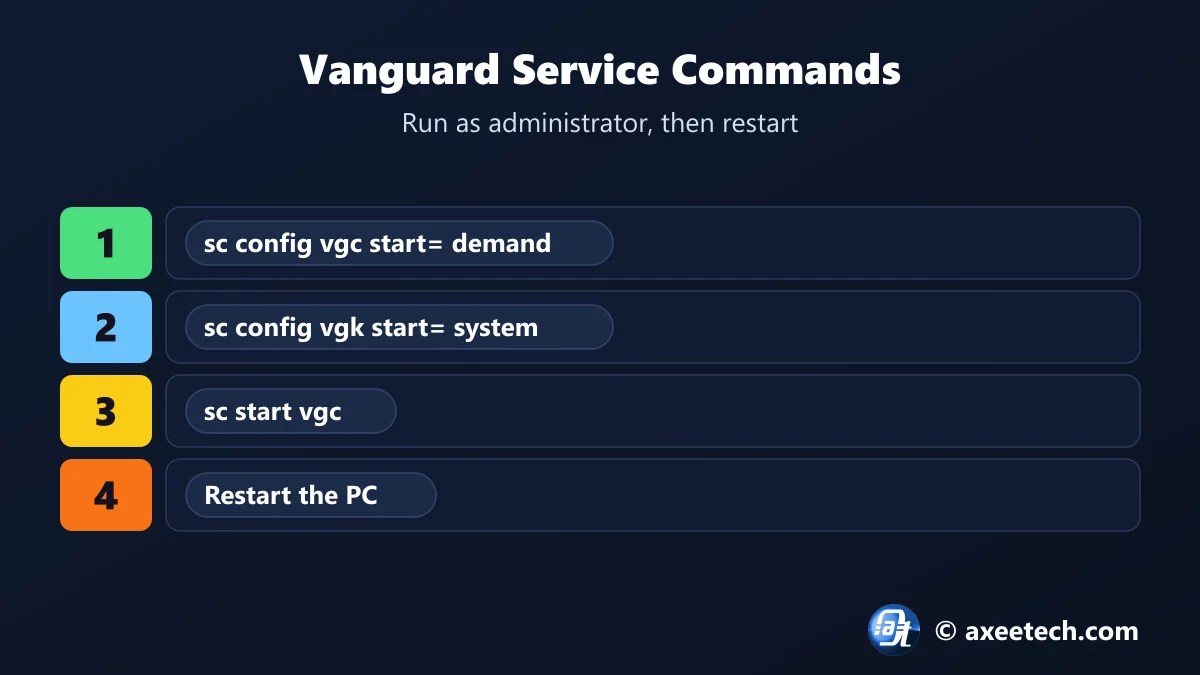
| Command | What it does |
|---|---|
| sc config vgc start= demand | Lets the Vanguard client service start when Valorant asks for it |
| sc config vgk start= system | Loads the Vanguard kernel driver when Windows boots |
| sc start vgc | Starts the Vanguard service now |
| bcdedit /set testsigning off | Turns off test signing, which Vanguard refuses to run under |
| bcdedit /set nointegritychecks off | Turns driver integrity checks back on |
The space after “start=” is required. Restart the PC afterwards, because the Vanguard driver only loads at boot. If the vgc service is missing altogether, uninstall Riot Vanguard and launch Valorant so it reinstalls.
VAL 43 and the Other Connection Codes
VAL 43 means a part of the Riot Client timed out while starting. Closing every Riot process and opening the client again clears it most of the time. VAL 29 and VAL 62 point at your firewall or network, and VAL 39, VAL 46 and VAL 59 are Riot’s servers, where the only fix is waiting.
Valorant Error Code Fixer Worked Example
Valorant shows VAN 1067 on a Windows 11 PC. The Valorant error code fixer labels it Secure Boot or TPM, lists five steps starting with msinfo32, and prints four commands including sc config vgc start= demand. Switch to VAL 46 and it tells you it is scheduled maintenance and nothing on your PC needs changing.
About Valorant
Valorant is a free tactical shooter from Riot Games for Windows, PlayStation 5 and Xbox Series X and S. On PC it runs with Riot Vanguard, a kernel-level anti-cheat made of a driver (vgk) that loads at boot and a service (vgc).
Because Vanguard starts with Windows, many errors only clear after a restart, and on Windows 11 it needs Secure Boot and TPM 2.0.
The Valorant error code fixer on this page is free to use, and we update it when the game changes its numbers.
Official page: Valorant Support.
Related Calculators
If this Valorant error code fixer helped, these free tools work the same way.
- Secure Boot and TPM 2.0 fix generator
- Vanguard 216 error fix
- Valorant error code 59 fix
- Windows 11 repair command generator
- All free gaming and tech calculators
New this month: PS5 error code lookup, Xbox error code fixer, Steam disk write error fix tool, Discord RTC Connecting fix generator, Fortnite error fixer.
Frequently Asked Questions
Quick answers about Valorant and the Valorant error code fixer.
How do I fix Valorant error VAN 1067?
On Windows 11, enable Secure Boot and TPM 2.0 in the BIOS, then run sc config vgc start= demand and restart.
How do I fix VAN 9003?
Turn on Secure Boot in the BIOS. The PC must boot in UEFI mode, not Legacy.
How do I fix Valorant error code 43?
Close every Riot process in Task Manager and restart the Riot Client. Restart the PC if it comes back.
How do I fix VAN 79?
Run sc config vgc start= demand and sc start vgc as administrator, then restart the PC.
What does "vgc service stopped" mean?
The Vanguard service is not running. Set it to start with the sc commands and restart, or reinstall Riot Vanguard.
Is the Valorant error code fixer free?
Yes. It runs in your browser and needs no sign-up.

Axee Davies is the founder of AxeeTech, publishing gaming guides, codes, and Windows how-tos since March 2013. A tech enthusiast for 13+ years — starting with smartphones and Android rooting — he now runs a site that puts out a new guide every day for Roblox players, traders, and Windows users. More about AxeeTech
More Games You May Like
 Free VIN Lookup Tool: Decode Any VIN Instantly (NHTSA Data)
 How Long Does It Take to Get Robux from PLS Donate? (Complete Answer 2026)
 DOOM Slaughter Mode Loadout Builder: Free Weapon and Best Shield Rune Planner (19 Arenas)
 GTA 6 Release Time Calculator: Free Unlock Time and Best New Zealand Trick Tool (Nov 19)
 Multiversal Piece Stat Build Calculator — Fruit & Trait Guide
 Cricket 26 NRR Calculator: Free Net Run Rate and Best Next-Match Planner (T20, ODI)
 PUBG Mobile Flash Compatibility Checker: Free RAM, Storage and Best FPS Check (2GB Phones)
 Once Human Starchrom Calculator: Free Cap and Best Crate Planner (66,000 a Month)
