Blooket Dashboard: How to Use It (Complete 10-Step Guide)
The Blooket dashboard is the home base for everything you do on the site: finding sets, hosting live games, assigning homework and managing the question sets you have built.
If you have just made an account (our Blooket sign up guide covers that part), this walkthrough shows you where each tool lives and how to use it in ten short steps.
What the Blooket Dashboard Gives You
When you log in at Blooket, the purple sidebar on the left is your menu. Each tab opens a different part of the Blooket dashboard:
- Discover – browse sets made by other teachers and players.
- My Sets – the sets you created or copied.
- Favorites – sets you starred so you can find them fast.
- History – a record of games you have run.
- Homework – assignments you have created.
- Play – the page where students join with a game code.
- Settings – your account options, including the teacher switch.
The screenshots below come from a tutorial recorded a while ago, so button colors or spacing may look a little different today. The layout and tab names are the same.
How to Use the Blooket Dashboard, Step by Step
Step 1: Favorite a set you like
Start on Discover and open any set that looks useful. Click the Favorite button under the Host and Solo buttons. The star turns into an Unfavorite button, which tells you the set was saved.

Step 2: Open your Favorites tab
Click Favorites in the sidebar. Every set you starred appears here as a card with its question count and play count. Hover over the tab and scroll down to find the set you want.

Step 3: Pick a game mode
Under a set, click Host (to run it live) or Solo (to play alone). Blooket then shows the Select a Game Mode screen. Scroll through modes such as Gold Quest, Tower Defense, Factory, Crazy Kingdom and Candy Quest and click one. We compare them in Blooket game modes explained.

Step 4: Click Host Game
The mode page lists the player limit and a short description. Click Host Game to move on. If you want a full walkthrough of hosting, read how to host a Blooket game.

Step 5: Choose how the game ends
On the settings page you can end the game by Time or by a target amount. Scroll down and click Host Now when you are ready.

Step 6: Play solo with a time limit
If you picked Solo instead, Blooket asks how long you want to play in minutes. Type a number, click Start, and the game begins on your screen. This is a quick way to test a set before class.

Step 7: Check the Homework tab
Click Homework in the sidebar to see assignments you have created. To make a new one, follow how to assign Blooket homework.

Step 8: Open My Sets
Click My Sets to see every set you own. Each card has an edit pencil, a trash can, a settings cog, and Solo and Host buttons.

Step 9: Use the set options menu
Click the small cog on a set card. A menu opens with Move, Copy, Merge and Link. Use it to copy a set before you change it, or to merge two sets into one. To change the text of a set, see how to edit a Blooket set description.

Step 10: Create a folder to stay organized
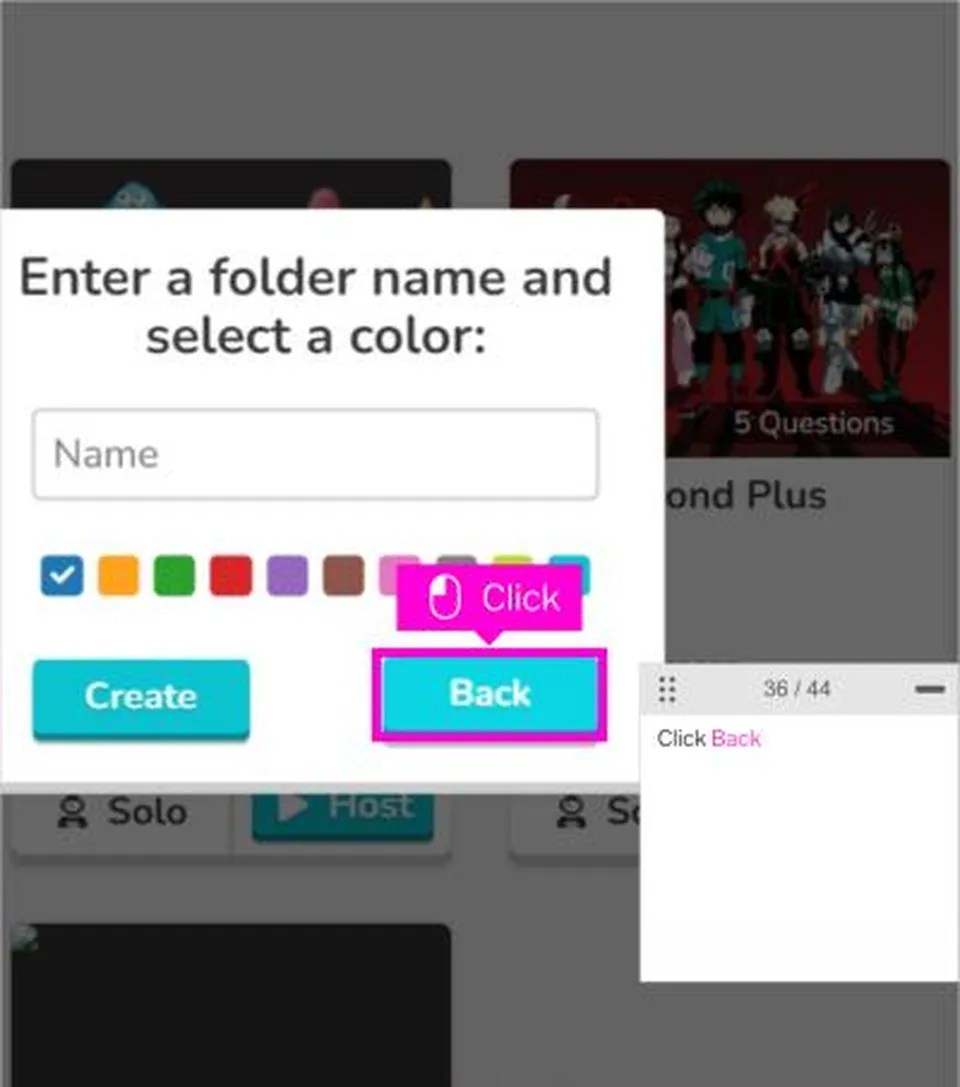
At the top of My Sets, click the folder icon. Type a folder name, pick a color and click Create (or Back to cancel). Folders keep a long list of sets tidy, which helps when you teach several classes.
Tips for Getting More From Your Dashboard
- Favorite sets while you browse, then build your own with the Blooket create tool when nothing fits.
- Copy a set before editing it so the original stays untouched.
- Teachers can unlock the teacher tools with the Blooket teacher account switch.
- Use folders for each class or unit.
Also Read: https://axeetech.com/the-ultimate-blooket-guide/
Blooket Dashboard Not Loading?
Blooket is often blocked on school networks. If the page will not open, try another browser, then read how to host Blooket when the teacher dashboard is blocked. For account problems, the official Blooket help center is the best place to ask.
Blooket Dashboard FAQ
Where is my history of past games? Open the History tab in the sidebar.
Can I use the dashboard on a phone? Yes, it works in a mobile browser, but a laptop makes editing sets much easier.
How do I find my homework link again? Open Homework in the sidebar and select the assignment.

Axee Davies is the founder of AxeeTech, publishing gaming guides, codes, and Windows how-tos since March 2013. A tech enthusiast for 13+ years — starting with smartphones and Android rooting — he now runs a site that puts out a new guide every day for Roblox players, traders, and Windows users. More about AxeeTech