Ekadence Create Class: How to Create a Class and Add Modules
Want to Ekadence create class setups for a new term without rebuilding everything? This guide shows you how to create a class in Ekadence, name it, save it and add your first modules, with a screenshot for each step.
Ekadence is the learning platform used by Anaheim Union High School District (AUHSD) teachers. Creating a practice or “Sandbox” class first is a safe way to build units before students ever see them, and it takes only a few minutes.
What You Need Before You Start
- An Ekadence faculty login with a school Google account.
- Your class details: the school, the period and a class name.
- A plan for your modules, such as weekly units or topics.
How to Ekadence Create Class and Add Modules
Follow the steps in order. The example below builds a practice class called Sandbox, and the same steps work for any real course.
Quick overview:
- Sign in with Google and allow access
- Open the Select Course menu and click the plus sign
- Fill in the period, class name and optional description
- Save the class
- Open Modules and click Course Material
- Choose Module, name it and click Save
Step 1: Open Ekadence and click Sign in with Google
Open Ekadence and click Sign in with Google under the Login button.

Step 2: Pick your school Google account and click Allow
Select your school Google account. If Google asks for permission, scroll down and click Allow.
Step 3: Click the arrow next to Select Course
At the top of the page, click the down arrow next to Select Course to open your class list.
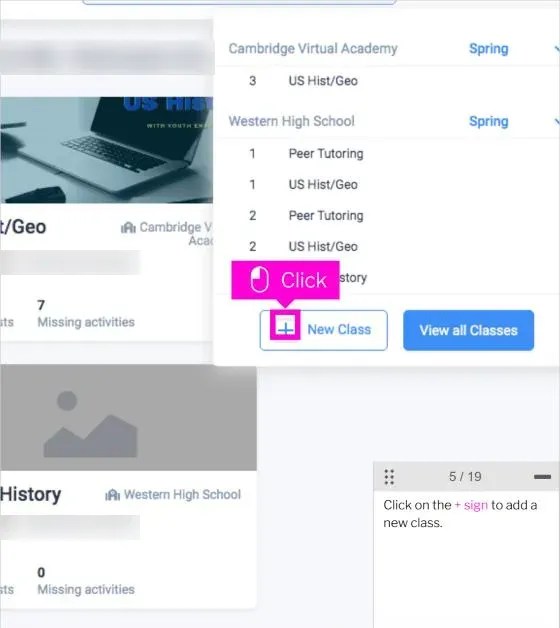
Step 4: Click the plus sign to add a new class
At the bottom of the list, click the + sign next to New Class.
Step 5: Enter the period
On the Setup Class page, type the Period. You can use any period for a practice class, and the tutorial uses 9 so the Sandbox class stands out.

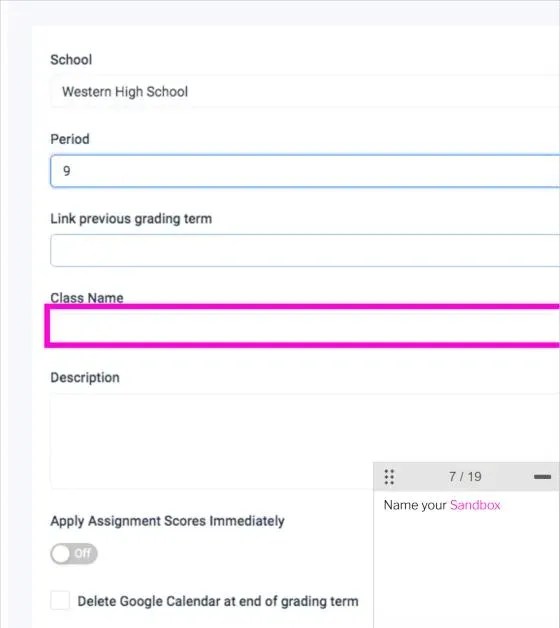
Step 6: Name your class
Click the Class Name box and type a name, for example Sandbox.
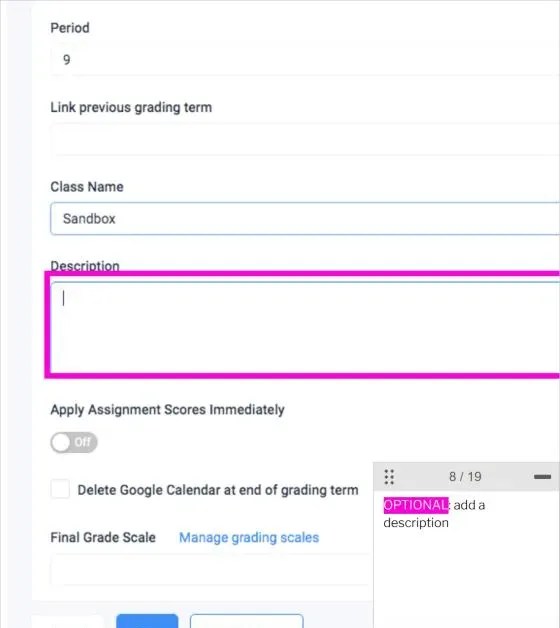
Step 7: Add a description (optional)
If you like, add a short Description. This step is optional.
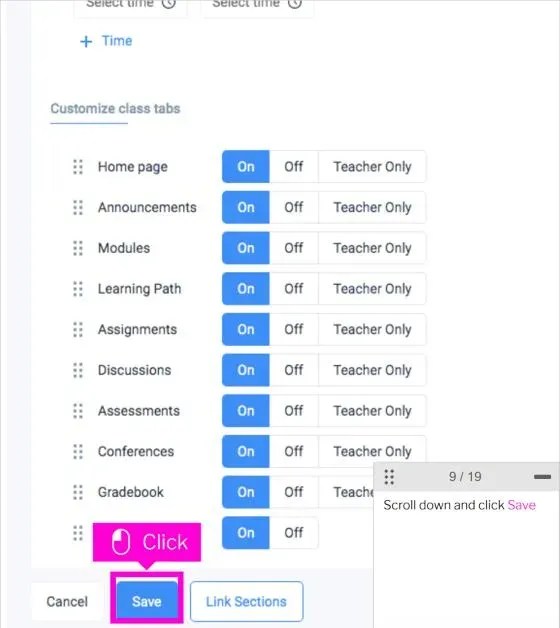
Step 8: Scroll down and click Save
Scroll to the bottom of the page and click Save. Your new class is created.
Step 9: Click Modules in the left menu
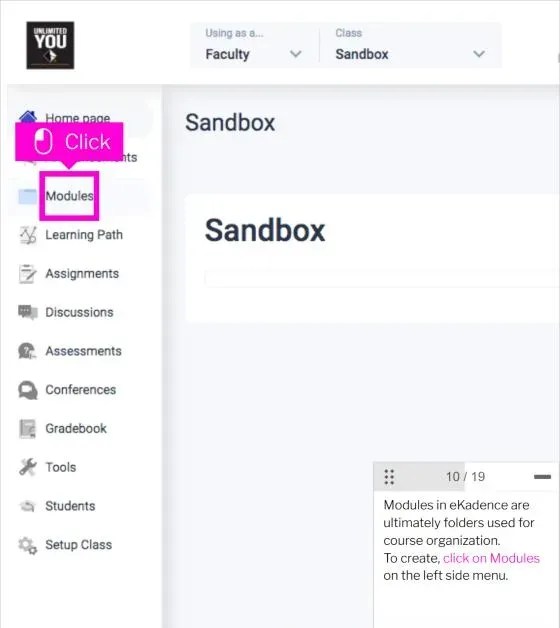
Modules are folders for organizing a course. In the class menu on the left, click Modules.
Step 10: Click the plus sign next to Course Material
On the right side, click the + sign next to Course Material.

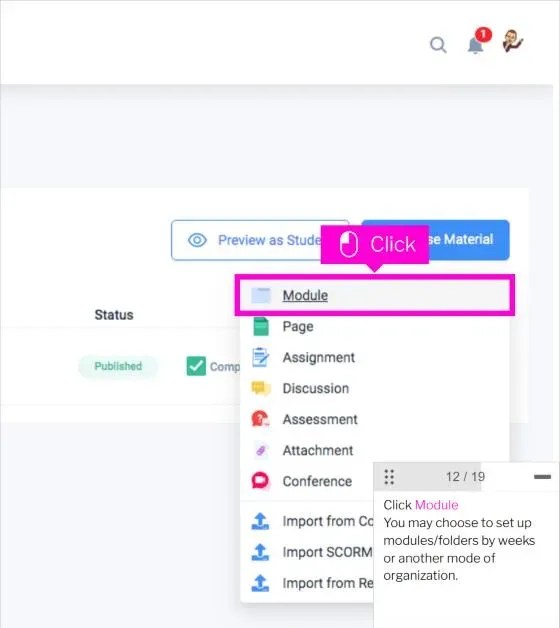
Step 11: Choose Module
From the menu, click Module. You can organize modules by week or by any other system you prefer.
Step 12: Give the module a name
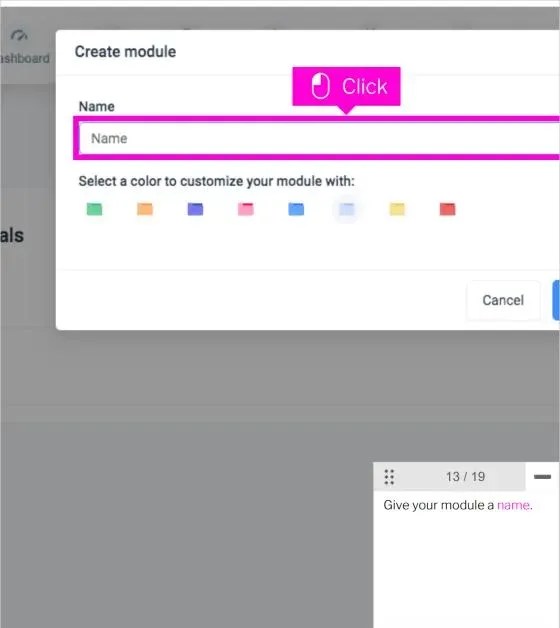
In the Create module window, type a Name. You can also pick a color for the folder.
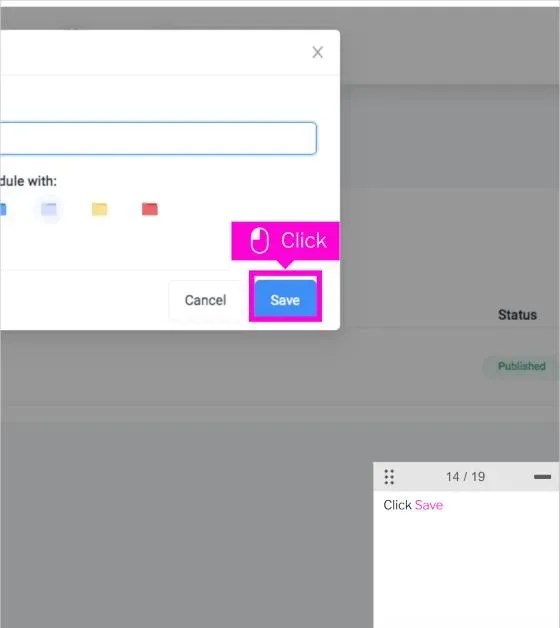
Step 13: Click Save
Click Save to finish the module.
Step 14: Repeat for each unit
Repeat steps 10 to 13 to create more modules for each of your instructional units. Set up your practice course and a few modules before moving on to the next steps.
Tips After You Create a Class in Ekadence
- Create a Sandbox class first, so you can test settings without affecting real students.
- Use clear module names such as Week 1 or Unit 2 so students find material quickly.
- Once the class works, learn to copy modules from a previous class instead of rebuilding.
- Set up linked sections if you teach the same course in several periods.
Ekadence Create Class Not Working?
- You do not see the plus sign: make sure you are signed in with faculty access.
- The school is missing: ask your site technology contact to add you to the school.
- The class does not appear: refresh the page and open Select Course again.
- Still stuck: contact your school’s technology support or the AUHSD help desk.
Ekadence Create Class FAQ
Can I delete a practice class later? Yes, but check with your site administrator first, because class removal can depend on your permissions.
Do I have to add a description? No. The description is optional, so you can skip it.
Does the screen look different now? The tutorial screens come from an older version of Ekadence, so some buttons may be placed slightly differently.
More School Tech Guides
Keep going with how to turn classes off on the Ekadence dashboard, learn how to transfer scores for new students, or read how to submit an office referral in Educator’s Handbook. For district news, visit Anaheim Union High School District.

Axee Davies is the founder of AxeeTech, publishing gaming guides, codes, and Windows how-tos since March 2013. A tech enthusiast for 13+ years — starting with smartphones and Android rooting — he now runs a site that puts out a new guide every day for Roblox players, traders, and Windows users. More about AxeeTech